
Fashion Photography Services


E-commerce Photography
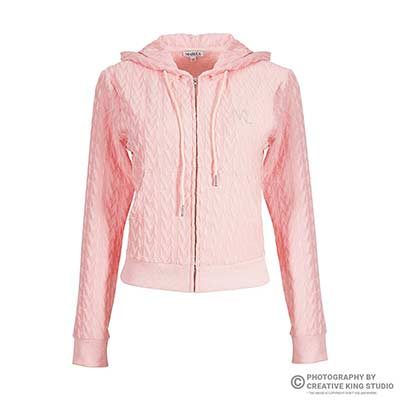
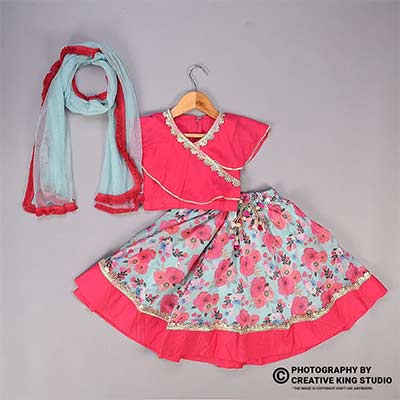
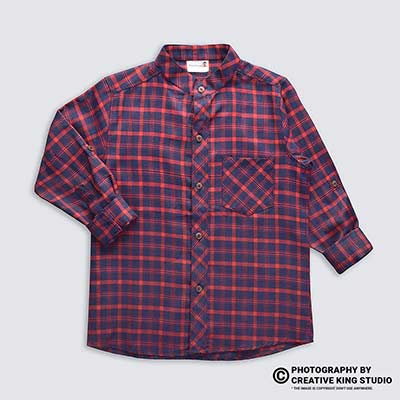
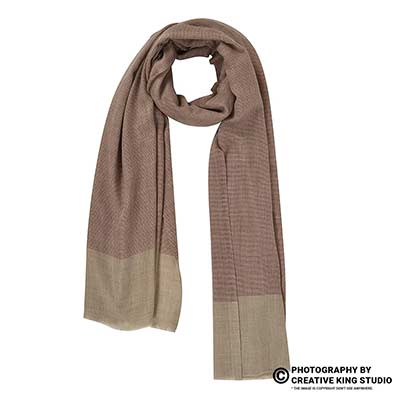
Why the wrong colour shows up when a shopper clicks a swatch, and the shoot, naming and upload checks that keep every child ASIN true to the product.

Amazon variation images decide what a shopper sees the moment they tap a colour on your listing, and when they are wrong, the shopper sees a black hoodie while the title says navy. This guide sits inside our Amazon seller hub and covers one problem only: planning, shooting and mapping images for a parent–child variation family so every child ASIN shows its own product.
At Ckstudio, a product and fashion photography studio running since 2015, we shoot multi-colour catalogues for sellers on Amazon, Flipkart and Myntra almost every week. The same handful of variation mistakes keeps coming back: a missing child main image, a swatch that shows the wrong fabric, or five colours shot on three different days under three different lights. Prince and the team wrote this checklist from those reshoots, so each check below comes with the studio step that prevents it.
In this guide
Amazon variation images are the image sets attached to each child ASIN in a variation family. The parent ASIN only groups the children; it is not buyable, so the images a shopper actually sees always come from the child they have selected.
A variation family has one parent and several children. Amazon’s variation policy in Seller Central describes the children as products that are fundamentally the same and differ only in defined attributes such as size or colour. That shared set of attributes is called the variation theme, and the themes on offer depend on the category you list in.
For images, the important point is simple: the detail page swaps the gallery every time a shopper picks a different child. If the shopper taps “Olive”, the gallery, title and price switch to the olive child ASIN. Whatever images you uploaded against that child are what they see. If you uploaded nothing, or uploaded the grey hoodie by mistake, that is what they see too.
Sellers often spend time styling a “parent image” and then wonder why it never shows. In most categories the parent is a container that holds the family together in search and in the variation picker. Shoppers land on a child, usually the one that sells most or that matched their search. So treat the parent image as a backup at most, and put the effort into every child’s set of amazon variation images.
Colour and pattern themes are visual: each option looks different, so each child needs different photos. Size, pack-quantity or length themes are not visual in the same way; a size S and size XL hoodie in the same colour look identical on a white background. Planning your amazon variation images starts with sorting each attribute into “changes the photo” or “does not change the photo”. Section 6 turns that into a decision table you can use for any catalogue.
This matters for budget as well as accuracy. A 6-colour, 5-size kurta range has 30 child ASINs but only 6 distinct looks to photograph. Sellers who brief a shoot as “30 products” pay for duplicate work; sellers who brief it as “6 colourways, 7 frames each, sizes share” get a tighter, more consistent set.
Because the main image of the selected child is what appears in search, in the cart and at the top of the gallery. A child without its own main image either shows another colour or shows nothing useful, and both lead to “item not as described” returns.
Every child is listed as its own product with its own offer, stock and reviews data feeding into the family. Amazon’s product image requirements apply to each child’s main image on its own, so a family where the grey child is compliant and the black child is a cropped lifestyle shot is not a compliant family. The table below summarises the rules we shoot against for every child.
| Rule | What it means for a variation family | Source |
|---|---|---|
| Pure white background (RGB 255, 255, 255) on the main image | Every child’s main image, including dark colours, needs a true white background; no grey cast around a black garment | Seller Central product image requirements |
| Product fills about 85% of the frame | Keep the same fill for every colourway so thumbnails line up in search and in the picker | Seller Central product image requirements |
| At least 1,000 px on the longest side for zoom | Export every child at the same size; one low-resolution colour loses zoom on that child only | Seller Central product image requirements |
| No text, logos, badges or watermarks on the main image | No “Available in 6 colours” text on a main image; let the variation picker do that job | Seller Central product image requirements |
| Only the product being sold is shown | Never show all colours together on one child’s main image unless the child is the multi-pack | Seller Central product image requirements |
| Children must be fundamentally the same product | A different style or cut is a separate listing, not a colour child with borrowed photos | Seller Central variation policy |
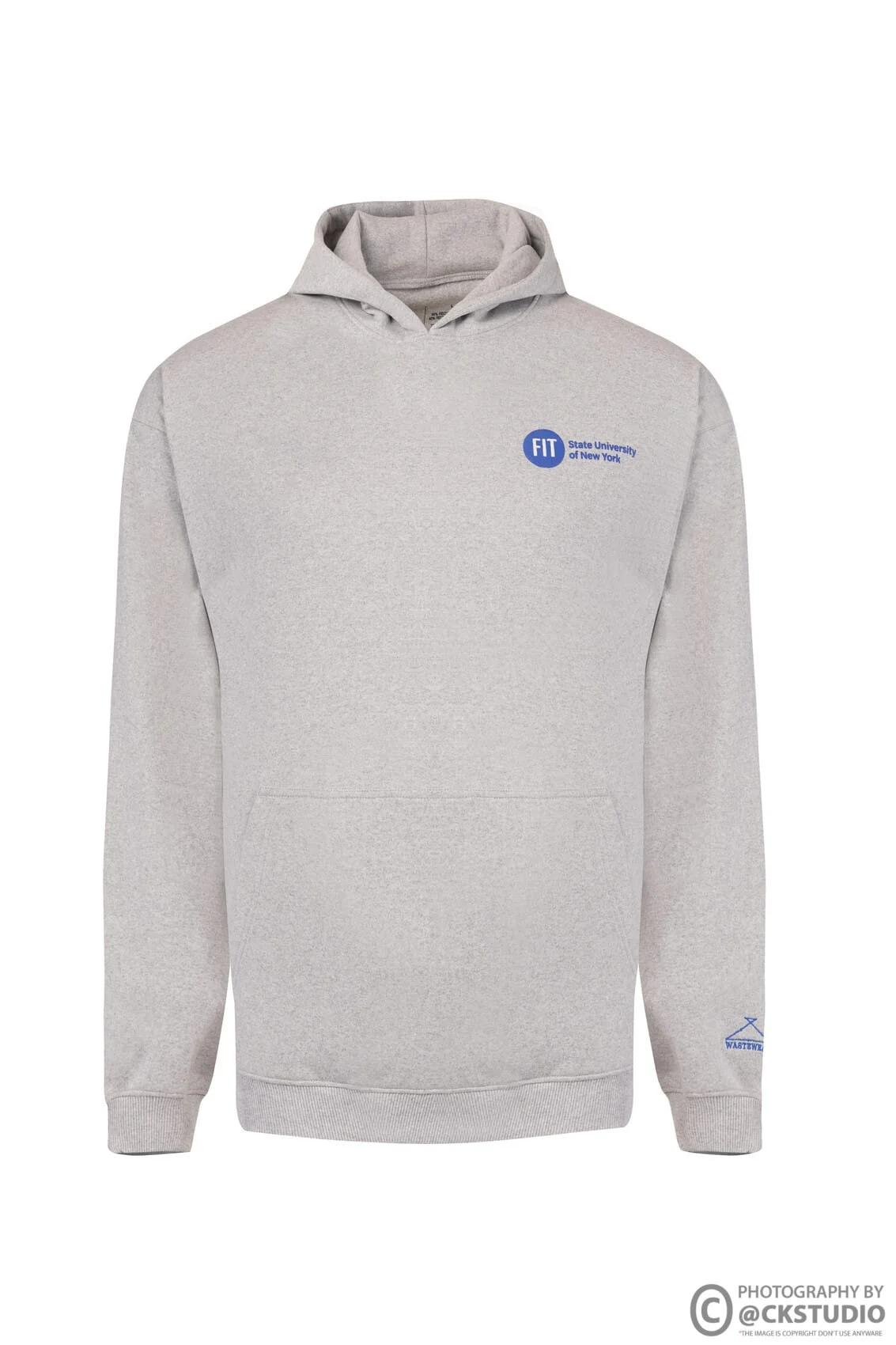
We see the same pattern on rejected or underperforming families: the first colour was shot properly, and later colours were added months after from a supplier photo or a phone shot. If your newer children look different, Amazon product photography shot to these rules in one sitting fixes the problem at the source instead of patching one child at a time. For the full main-image rule set, our main image checklist goes deeper into frame fill and background checks.
The secondary slots matter too. If the grey child has seven images and the black child has two, shoppers who pick black see a thin gallery and assume the product is different or older stock. Aim for the same slot structure on every colour: main, back, side, detail, fabric close-up, on-model and size-reference. The detail and fabric frames are the ones that most often reveal colour differences between children, so they are worth reshooting per colour rather than copying across.
The swatch is the small picture in the colour picker. When you upload a dedicated swatch image for a child, Amazon uses it; when you do not, the picker usually falls back to a shrunken version of that child’s main image.
That fallback is the source of many “my swatches look wrong” complaints on seller forums. A full hoodie shrunk to a few dozen pixels turns into a coloured blob, and two close shades such as navy and black become impossible to tell apart. A dedicated amazon swatch image solves this: it is a tight, flat crop of the fabric or material so the colour reads clearly at a tiny size.
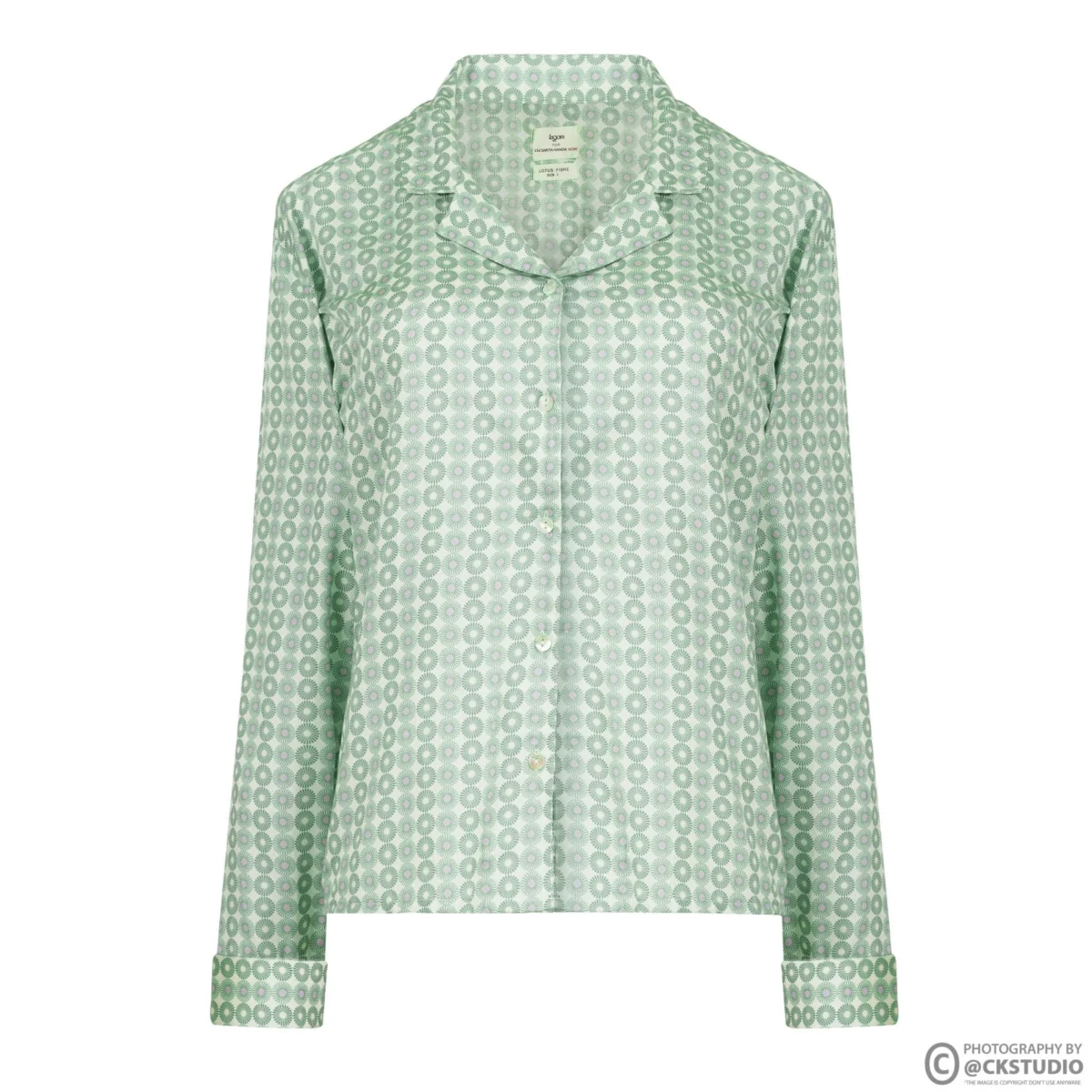
Whether the picker shows image swatches depends on the variation theme and category. Colour-based themes in apparel and home textiles usually show image swatches; size-only themes usually show text buttons or a dropdown, so a swatch image uploaded against a size-only family has nowhere to appear. If your swatches never show, check the theme before you reshoot anything. Amazon does not publish one universal swatch pixel size that applies to every category, so we do not quote one here; check the image guidance inside your own Seller Central category before exporting.
One more practical point: a swatch is part of the family’s visual promise. If a shopper picks a swatch that looks bottle green and the main image loads as olive, they trust neither. That is why we shoot swatches in the same session as the colourway, never from a fabric scan done elsewhere.
Shoot all colourways in one session, in one lighting setup, with white balance, exposure, camera height and product position locked. Change only the garment, then adjust exposure for dark and light colours in a controlled, recorded way.
Colour consistency across amazon variation images is mostly decided before the first frame. Most mismatches Ckstudio fixes come from colours shot on different days, by different people, or with auto white balance quietly adjusting to each fabric. The process below is how a single session keeps a family consistent.
From the studio floor
For an apparel variation family we work on a 50mm lens at f/8, 1/125 s and ISO 100, with two Godox SK400II heads in strip softboxes at roughly 45 degrees and one overhead octabox for top fill. White balance is a custom reading from a grey card at the start of the session and is not touched again until the last colour is done. Camera height and distance stay fixed with tape on the floor, and we shoot tethered so every new colour is compared against the first frame on screen before we move on.
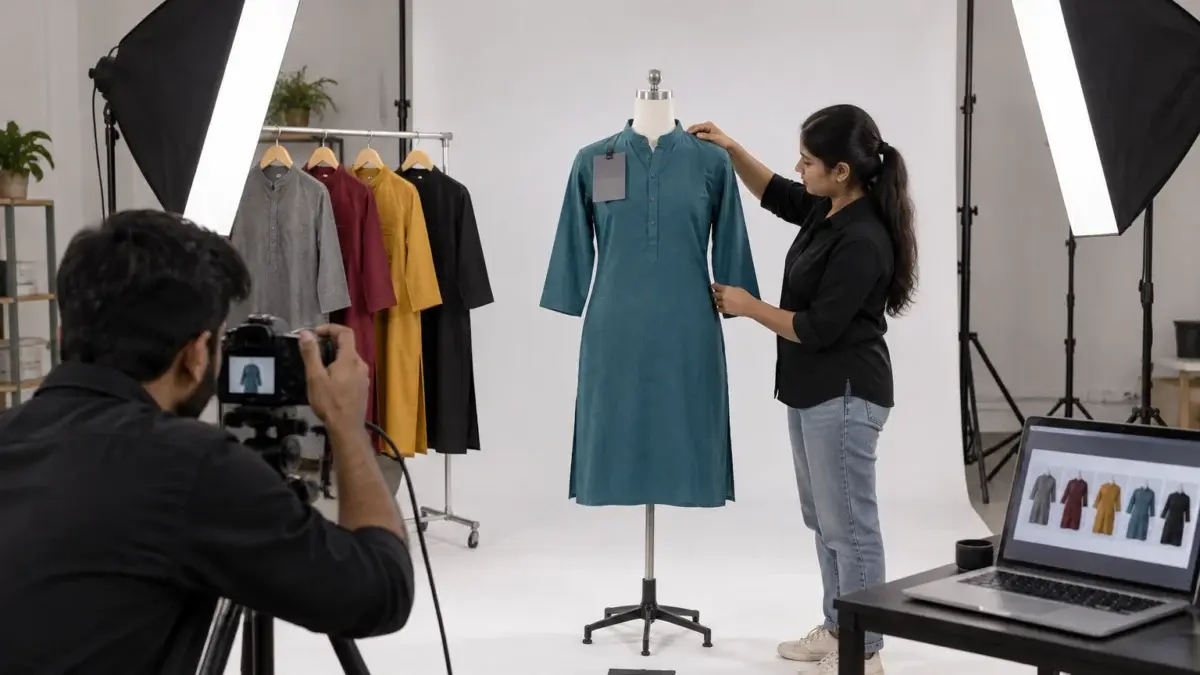
Black, navy and bottle green absorb light and lose fabric texture; white and pastels blow out. We do not change the lights between colours. Instead we adjust exposure in small recorded steps and add a white reflector card for dark colours to bring back texture. Each adjustment is noted against the colour code, so a reshoot months later can match the original family exactly.
This short marketplace clip shows the same principle on a menswear range: one setup, several colours, and the same framing on every shot so the listing reads as one product.
Mismatch happens when the images on a child ASIN do not match that child’s actual colour, pattern or contents. The usual causes are copied image sets, wrong file names, colour shifts in editing and late additions shot under different light.
An amazon variant image mismatch is expensive because it rarely shows up in your own checks. You look at the parent and it seems fine; the shopper picks “Maroon”, receives maroon, but the image showed rust. The return reason says “different from image”, and the child’s return rate climbs while the others look healthy. If mismatches have already pushed a listing into suppression, our guide to fixing a suppressed ASIN covers the account side of the clean-up.
From the studio floor
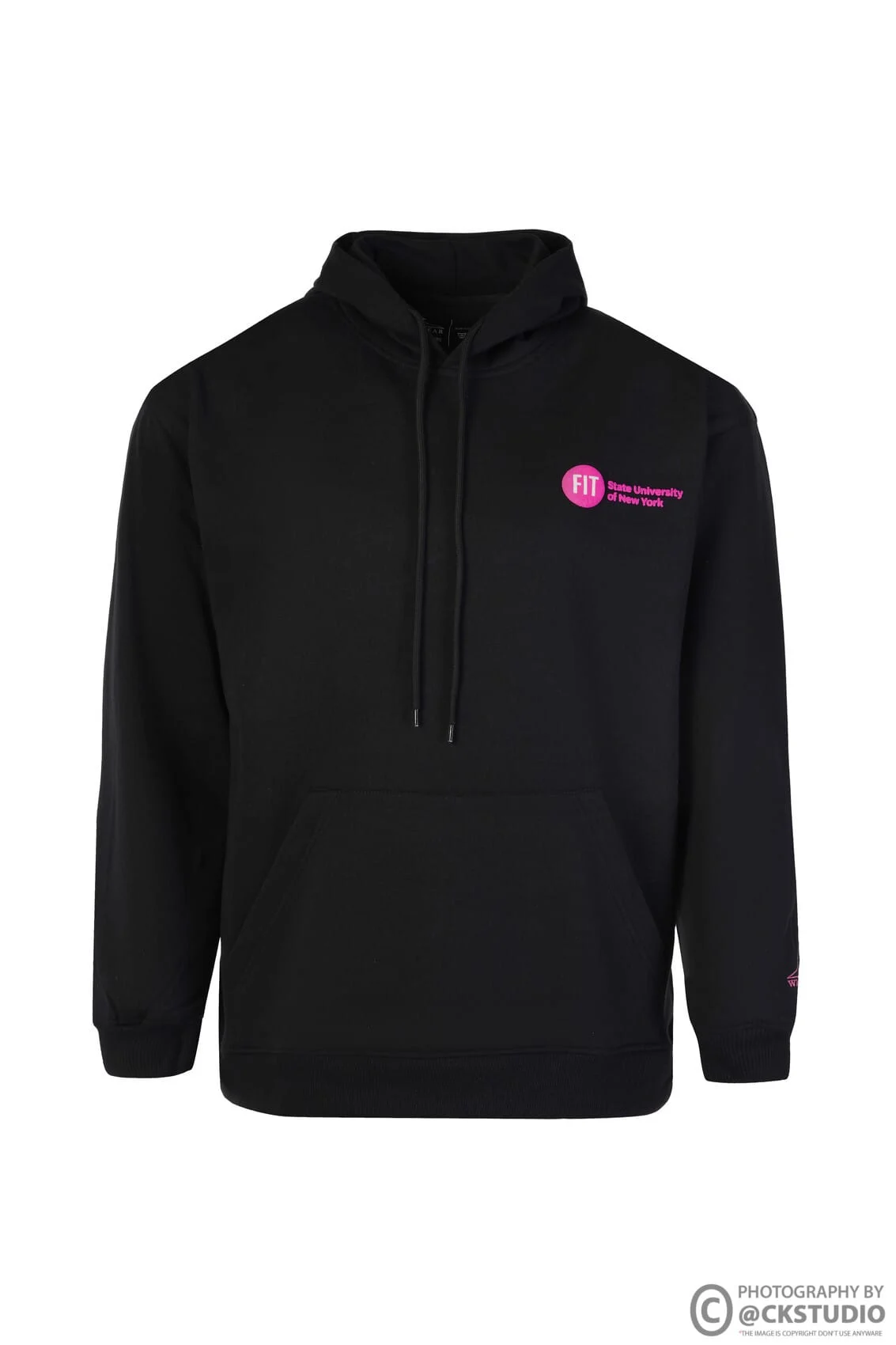
Before a variation family leaves the studio, our QC desk lays out every colour’s main image in a single grid at 100 px wide, the size a shopper sees in search and the cart. Anything with a different fill, a different crop line at the hem, or a colour that does not match the physical swatch held next to a calibrated monitor goes back for a fix. We check all files in sRGB, because a file left in a wider colour space can look duller once it is online.
Mismatch can also come from listing data rather than photos. If the colour name says “Navy” but the colour map attribute says “Black”, the swatch picker groups and labels the child wrongly even when the photo is correct. Check the colour name and colour map fields alongside the images every time.
Attributes that change how the product looks need their own images; attributes that do not change the look can share images. Colour and pattern get unique sets, while sizes of the same colour usually share one set plus a size-reference frame.
At Ckstudio, getting this split right is what keeps a catalogue both accurate and affordable. The table below is the decision rule we use when planning amazon color variation photos for a new family.
| Variation attribute | Own image set? | What to shoot |
|---|---|---|
| Colour | Yes | Full slot list per colour plus a fabric swatch crop |
| Pattern or print | Yes | Full slot list plus a swatch showing one full repeat |
| Size (same colour) | Usually no | Shared set plus one size-reference or measurement frame |
| Pack quantity | Yes, main image | Main image showing exactly the number of units in that pack |
| Material or finish | Yes | Main, detail and texture close-up per finish |
| Length or fit (same colour) | Depends | Own on-model frame if the silhouette visibly changes |
Example scenario
Example: a seller lists a cotton kurta in 6 colours and 5 sizes, which is 30 child ASINs. Colour changes the look, size does not. The shoot plan is 6 colourways × 7 frames = 42 images, plus 6 swatch crops. Each colour’s 7 images are mapped to all 5 size children of that colour, so 30 children are covered by 48 files. The numbers here are illustrative, but the logic holds for any size–colour family.

A pack-of-3 child is the one place where showing several colours together on the main image is right, because that is what the shopper receives. The main image must show exactly the units in the pack; showing five when the pack contains three is a mismatch. Shoot packs as their own product after the single colourways, in the same setup, so the colours in the pack match the single-colour children.
If your catalogue mixes all of these attributes, plan it as one brief rather than piecemeal shoots. A single ecommerce photoshoot planned around the decision table above keeps every colour, pack and swatch in one lighting setup, which is the simplest way to stop mismatch from creeping in later.
Name every file with the child’s identifier and its slot before upload, then upload against each child and check the result on the live detail page. Mapping by memory or by file order is the most common cause of wrong-colour galleries.
Amazon’s image guidance describes naming files with the product identifier followed by a variant code: MAIN for the main image, PT01 to PT08 for additional images and SWCH for the swatch. A file named with the child ASIN and “.MAIN” leaves no room for guessing which colour it belongs to. Even if you upload through the Seller Central image manager rather than in bulk, the same discipline keeps your studio files, your editor’s exports and your uploads in step.

Keep one sheet per family with a row for every child: child SKU, child ASIN, colour name, colour map value, size, and the file names for MAIN, PT01 to PT08 and SWCH. Sizes of the same colour point to the same files; each colour points to its own. The sheet becomes your audit trail when a shopper complaint arrives, and it is the brief for any future reshoot.
From the studio floor
Files leave Ckstudio already named by SKU, colour code and slot, for example SKU-OLV-MAIN, SKU-OLV-PT01 and SKU-OLV-SWCH, exported as sRGB JPEGs at 2,000 px on the long side. The seller or their catalogue team only swaps the SKU for the ASIN at upload. With seven slots across six colours plus swatches, this removes the step where most wrong-colour uploads happen.
After uploading, open each child on the live site from a logged-out browser and click through every swatch. Changes can take time to propagate, so re-check the next day as well. If one child still shows another colour’s images, re-upload against that child specifically rather than re-uploading the whole family.
A pre-upload checklist confirms that every child has its own compliant main image, a full gallery, a matching swatch, correct names and a colour that matches the real product. Run it on the whole family in one sitting, not child by child.
This BTS clip from a marketplace accessories shoot shows the kind of controlled tabletop setup that keeps small products consistent across colours and finishes, the same discipline the checklist enforces for apparel.
In small teams, the person who uploads should not be the only person who checks. A second pair of eyes on the grid catches most mismatches in minutes. If you would rather hand the shoot, swatches and naming to one team, call Ckstudio on +91-8700258773 or message us on +91-8700258773 with your colour and size count, and we will send back a frame plan for the family.
Sellers who already have images can also email a sample of their current amazon variation images to [email protected]. We will point out which children are likely to cause mismatch returns and whether they need a reshoot or only a re-map.
Children that look different, such as colours, patterns, finishes and packs, need their own amazon variation images. Children that only differ in size usually share the same colour’s set, with one size-reference frame added.
Usually the variation theme does not support image swatches (size-only themes show text buttons), the swatch was uploaded against the wrong child, or the change has not propagated yet. Check the theme first, then the file mapping.
It is risky. Digital recolouring rarely matches real dye on cotton, denim or silk, and a mismatch between the photo and the delivered colour drives returns. Shoot each colourway for real in the same setup.
Most mismatches come from file names that do not identify the child, image sets copied across colours, editing on an uncalibrated screen, or a colour map value that does not match the photo. A naming sheet and a grid check fix most of them.
The parent is a non-buyable container, and shoppers almost always see a child’s images. Upload a clean main image if your category asks for one, but spend your effort on each child’s full gallery.
Aim for the same structure on every colour: a main image plus the additional slots your category allows, such as back, side, detail, fabric close-up, on-model and size reference, along with a swatch crop. Equal galleries make the family look like one product.
Clean amazon variation images come down to three habits: one setup for every colour, one naming sheet for every child, and one live check for every swatch. Get those right and the picker becomes a selling tool instead of a source of returns. Ckstudio plans variation shoots this way for every multi-colour catalogue, and Prince reviews the family grid before files are delivered.
Next step: once each colour has its own set, decide what goes in each gallery slot with our guide to the 7-photo Amazon image sequence.
Send your colour and size list and Ckstudio will return a frame plan covering main images, swatches and naming for every child ASIN. Email [email protected] or WhatsApp +91-8700258773, working hours 10 am–7 pm.
Call Prince: +91-8700258773