Fashion Photography Services

E-commerce Photography
The numbers integration partners publish, the 3:4 maths behind them, and the studio workflow that keeps every view sharp, consistent and ready to upload.
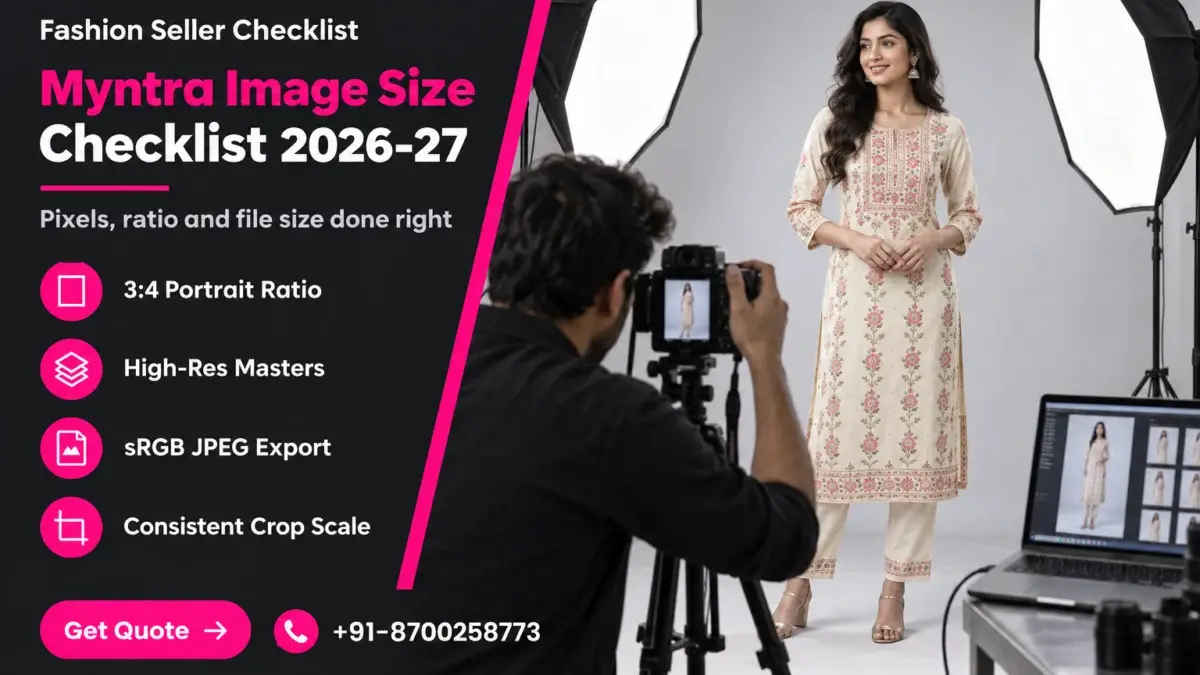
The Myntra image size question looks simple until a batch of 200 SKUs comes back on hold because half the backs were exported at a different crop from the fronts. This checklist covers the pixel dimensions integration partners publish, the 3:4 portrait ratio, file format, file size and colour profile, and the studio habits that make a correct export almost automatic. It is written for Myntra sellers, fashion brands and catalogue executives who upload their own image sets.
Everything here comes from how Ckstudio, a product and fashion photography studio operating since 2015, plans and exports apparel catalogues for Myntra, Ajio and Flipkart sellers. If you are still mapping the wider journey from registration to growth, start at our Myntra seller hub, then come back here when your image files are the bottleneck. Where a number is quoted below, we name its source; where no public source exists, we describe the practice and leave the number to your Partner Portal template.
In this guide
The most widely published Myntra image size is 1080 x 1440 pixels or larger, in a 3:4 portrait ratio, saved as JPEG. Myntra does not publish one public spec sheet, so treat that figure as the floor and confirm the exact rule for your article type inside your Partner Portal template.
Myntra keeps its detailed catalogue rules behind the seller login, which is why sellers see different numbers on different blogs. The clearest public reference we have found is the Myntra integration FAQ published by Fynd, a listing platform that pushes catalogues into Myntra. It lists image dimensions of 1080 x 1440 or more, a resolution of 72 dpi or more, JPEG as the format and a 3:4 aspect ratio that must be maintained. A mirrored copy of the same FAQ on Jio Commerce’s documentation adds a file-size band of roughly 500 KB to 1 MB.
Other seller guides quote 1500 x 2000 pixels as the minimum. That is not a contradiction once you notice the ratio: 1080 x 1440 and 1500 x 2000 are both exactly 3:4, so a file that meets the larger figure automatically meets the smaller one. That is why we treat 1080 x 1440 as the published floor and 1500 x 2000 as the safer working export for most apparel.
| Spec | Published figure | Source | What we do in the studio |
|---|---|---|---|
| Pixel dimensions | 1080 x 1440 px or more | Fynd Myntra integration FAQ | Export 1500 x 2000 px unless the template asks otherwise |
| Aspect ratio | 3:4, portrait | Fynd Myntra integration FAQ | Crop every view of a style to the same 3:4 frame and scale |
| Resolution tag | 72 dpi or more | Fynd Myntra integration FAQ | Tag 72 dpi; pixel count is what decides sharpness |
| File format | JPEG | Fynd Myntra integration FAQ | Baseline JPEG, no embedded thumbnails or layers |
| File size | About 500 KB to 1 MB | Jio Commerce mirror of the same FAQ | Tune JPEG quality per fabric to land inside the band |
| Image count, order, background | Varies by article type | Myntra Partner Portal template | Read the live template before the shot list is final |
The last row matters as much as the first. Myntra applies different templates to kurtas, sarees, footwear, jewellery and beauty, and the Myntra Partner Portal is the only place that shows the current rule for your category. Before a shoot day, download the template, note the image count and any background instruction, and keep that note with the shot list.
No. Dots per inch is a print instruction stored in the file’s metadata; a phone or browser ignores it and displays pixels. A 1500 x 2000 JPEG tagged 72 dpi and the same file tagged 300 dpi look identical on the Myntra app. Sellers who “fix” a rejected image by changing 72 to 300 in Photoshop without adding pixels have changed nothing that a reviewer or shopper can see. Fix the pixel dimensions and the crop instead.
Because Myntra displays every image in the same portrait slot, a file at the wrong ratio is padded, squeezed or cropped by the platform. Getting the ratio right protects framing; getting pixels right only protects sharpness.
On the Myntra app the listing grid, the product page carousel and the zoom view all assume a tall 3:4 frame. A 1:1 square image uploaded into that slot either gains bands of empty space or loses the top and bottom of the garment, depending on how the template handles it. A 2:3 image straight from a camera sensor is close to portrait but still taller than 3:4, so a kurta shot edge to edge on a 2:3 frame often loses the hem or the model’s feet once it is trimmed to fit.
The simple maths helps: in a 3:4 image the height is the width multiplied by 1.333. Any pair that follows that rule keeps the same shape, so 1080 x 1440, 1200 x 1600, 1500 x 2000 and 2250 x 3000 all sit in the slot identically. What changes between them is how much detail a shopper sees when they pinch to zoom on a print or a zari border.
| Export size | Ratio | Fits a 3:4 slot? | Best use |
|---|---|---|---|
| 1080 x 1440 px | 3:4 | Yes | Published minimum; fine for plain basics |
| 1500 x 2000 px | 3:4 | Yes | Default for printed, embroidered and textured apparel |
| 2250 x 3000 px | 3:4 | Yes, check file size | Fine prints when the template allows a larger file |
| 1080 x 1350 px | 4:5 | No | Social feeds, not Myntra listings |
| 2000 x 2000 px | 1:1 | No | Square marketplaces; recrop from the master |
| 4000 x 6000 px | 2:3 | No | Camera master; crop to 3:4 before export |
Ratio also decides consistency across a style, and it is the first thing the Ckstudio QC desk checks on any e-commerce batch. Our guide to the seven apparel angles Myntra shoppers expect explains why every view should share one frame and one scale; this checklist is the technical half of that rule. When a front is cropped tight and a back is cropped loose, the model appears to shrink as the shopper swipes, and reviewers read that as a careless set.
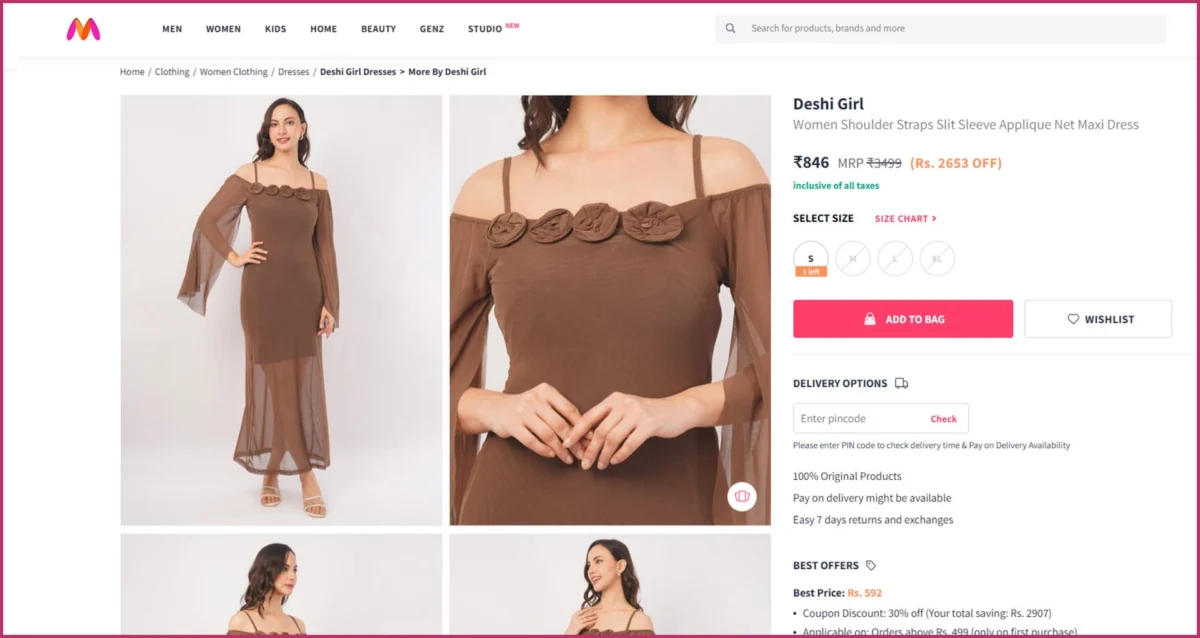
When sellers cannot hold that consistency in-house, the fix is upstream: Myntra product photography planned around a 3:4 crop guide removes the problem before a single file is exported, because every angle is framed for the same final slot on set.
Shoot a high-resolution master in portrait orientation, frame wider than the final 3:4 crop, and lock lens, distance and lights for the whole style. Exporting down from a large master keeps detail; scaling a small file up never does.
Most rejected or soft-looking Myntra images are not export mistakes at all. They start at capture, when a garment fills the whole frame and there is no room left to crop to 3:4, or when a phone shot of 12 megapixels is cropped so hard that the remaining area is smaller than the 1080 x 1440 floor. Once a file has been upscaled to hit a number, fabric texture turns to mush and no retouching brings it back.
A full-frame camera in portrait orientation produces a 2:3 frame. If you place the model so that the head and feet sit inside a 3:4 box drawn on the tethered preview, the trim at export removes only empty backdrop. We draw that box as a crop overlay in the tethering software so the photographer sees the final Myntra frame on every shot, not the sensor frame.
From the studio floor
For apparel we shoot a 24 to 61 megapixel full-frame body with a 50mm or 85mm lens at f/8 to f/11, tethered to a laptop with a 3:4 overlay. Camera height sits at the model’s waist for full-length views and at chest height for half-length detail. Two octaboxes at about 45 degrees and a strip softbox behind the model for edge separation stay fixed for the whole style, and a grey card frame opens every new colour.
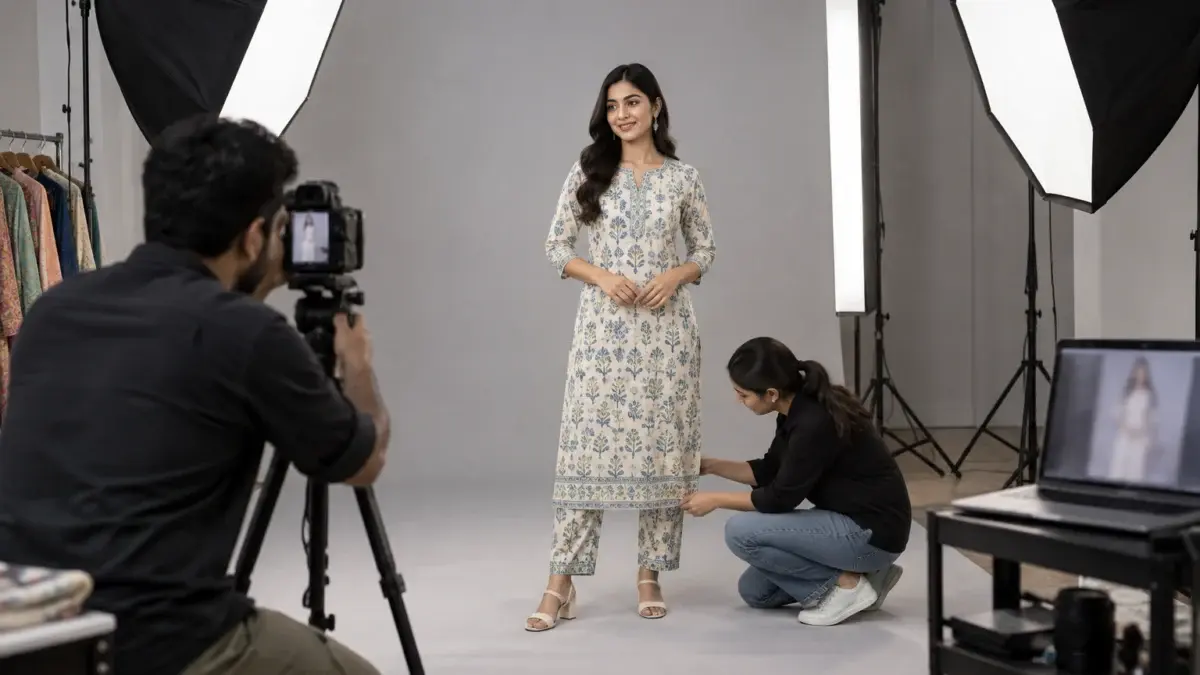
Scale drifts when anything moves between the front and the back: the tripod is nudged, the lens is zoomed a few millimetres, or the model steps forward to hit a mark. A prime lens removes the zoom risk, tape marks on the floor fix the model’s position, and a tripod height written on the shot list fixes the camera. These sound basic, but they are what make one crop preset work for an entire style without manual adjustment.
The short clip below shows how a marketplace shoot runs on set, with the product held in a fixed position and the lighting left alone between frames so that every export lands at the same scale.
Phone shoots can work for a few basics, and Ckstudio often advises small sellers to start that way, but check the arithmetic first. A 12 megapixel phone image is roughly 3000 x 4000 pixels, which is already 3:4; crop it hard to fill the frame with a garment and you can quickly fall below 1500 pixels wide. If your detail views are cropped from the front image, they will almost always fall short of a sharp zoom.
Export a baseline JPEG in sRGB at the 3:4 size you planned, then adjust JPEG quality until the file lands inside the size band your template allows. Never shrink pixels to hit a file-size target; lower the compression setting instead.
The order of operations matters. Crop to 3:4 first, resize to the target pixel dimensions second, sharpen for screen third, and only then choose JPEG quality. Doing it the other way round, for example compressing a 6000-pixel master and then resizing, adds compression artefacts that get magnified by the resize.
File size depends on detail, not just pixels. A plain white t-shirt at 1500 x 2000 pixels compresses to a small file at high quality, while a block-printed kurta with dense motifs needs more data for the same visual quality. That is why one global quality setting rarely works. We start each fabric family at a high quality, check the result at 100 percent zoom on a print area, and step down only until the file sits inside the band.
From the studio floor
Our export preset for Myntra apparel is: crop 3:4, resize to 1500 x 2000 px with bicubic sharper, output sharpening for screen at a low amount, sRGB IEC61966-2.1 embedded, baseline JPEG, metadata limited to copyright. Files are named style-colour-view in upload order, for example a front as view 01 and a back as view 02, and saved one folder per colour so the uploader never mixes shades.
Phone screens and browsers assume sRGB. A file exported in Adobe RGB without conversion looks dull and slightly shifted when Myntra’s front end renders it, and if the front of a style is sRGB while the back is Adobe RGB, the two views look like different shades. Shoppers return garments for colour that “did not match the photo”, and reviewers flag sets where views disagree, so a single colour space across every file is a cheap insurance policy.
Retouching belongs before export, never after. Dust, lint and backdrop marks are cleaned on the master, and colour is matched to the physical sample under daylight-balanced light. If your team lacks the time or calibrated screens for that step, professional catalogue image editing and retouching can take raw or master files and return a consistent, correctly sized Myntra set. For quick checks on a single file, our free bulk image resizer confirms the pixel dimensions of an export before upload.
Run these nine checks on every style folder before upload: template, ratio, pixels, scale, sharpness, format, file size, colour space and naming. Each one takes seconds per style once it is built into the export routine.
Print this list or paste it into your catalogue tracker. It works whether you shoot in-house, use a freelancer or receive files from a studio, because it checks the files rather than trusting the process that made them.
Example scenario
Example: a brand uploads a 24-style co-ord drop in 2 colours, with 5 views per colour, so 240 files. Shot on a 24 megapixel camera in portrait, each master is 4000 x 6000 pixels; a full-width 3:4 crop is 4000 x 5333 pixels, which then resizes cleanly to 1500 x 2000. At that size most solid co-ords export between 400 and 800 KB at high quality, while two printed styles need one quality step lower to stay under 1 MB. These numbers are illustrative only, not a client result.
On Windows, select all files in a folder, switch to Details view and add the Dimensions and Size columns; any file that is not 1500 x 2000 or not under your size limit stands out at once. On a Mac, Finder’s list view with Get Info does the same, and Preview shows dimensions under Tools. A thirty-second scan of 240 files is far cheaper than a QC hold and a re-upload cycle.
Teams that upload weekly can automate checks 2, 3, 7 and 8 with a simple batch script or the export preset itself, leaving people to judge only sharpness and consistent scale, which still need human eyes.
The repeat offenders are wrong ratio, upscaled files, inconsistent crop scale across views, oversized files and mixed colour profiles. Each has a specific fix at capture or export, and none of them needs a full reshoot if a good master exists.
Myntra’s reviewers do not explain every hold in detail, so it helps to know which technical faults show up most often in image-related remarks. Our Myntra QC rejection reshoot checklist covers styling and content faults; the list below focuses only on size, ratio and file problems.
From the studio floor
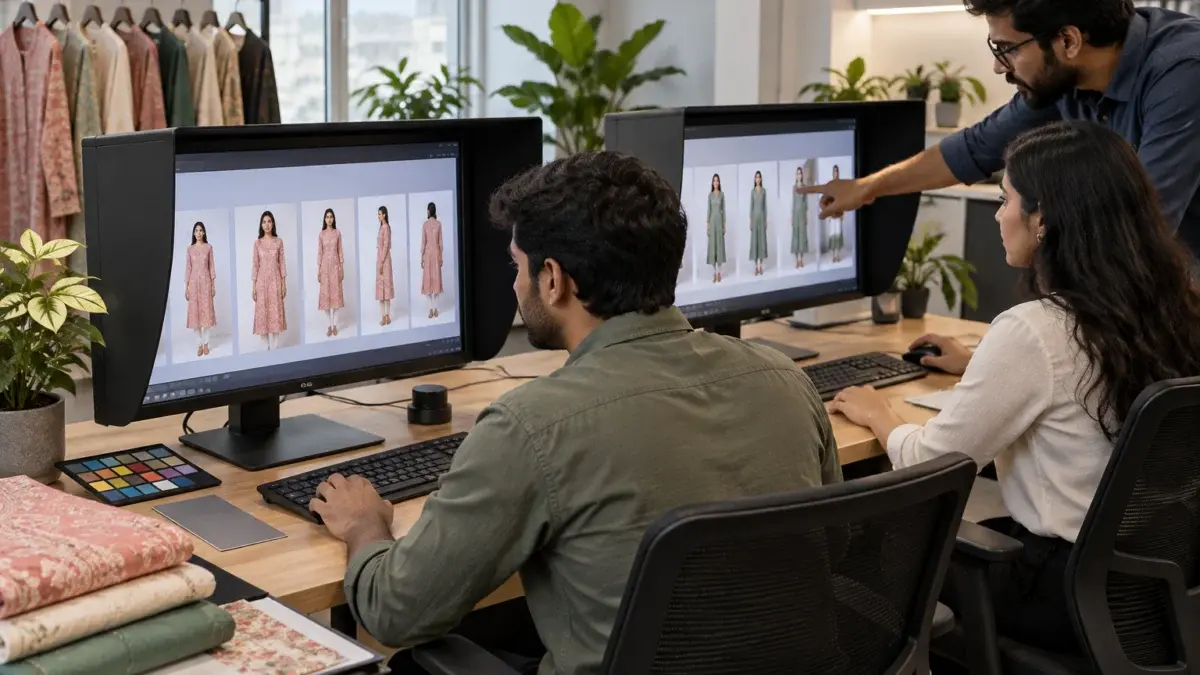
Before a Myntra batch leaves Ckstudio, the QC desk lays out each style as a row of thumbnails, then overlays front and back at 50 percent opacity to confirm the head line and hem line match within a few pixels. A second pass reads file properties for all files at once: 3:4, 1500 x 2000 px, sRGB, JPEG and under the size limit. Any file that fails goes back to export, not to upload.
One more mistake is organisational rather than technical: exporting from different masters for different marketplaces and then mixing the folders. A Flipkart square crop that ends up in a Myntra upload is the most common source of “wrong ratio” holds we see when sellers bring us their rejected batches. Separate export folders per marketplace solve it permanently.
If a batch is already on hold, fix the files and re-upload rather than appealing; a technical image fault is rarely overturned without new files. If you are unsure which files are the problem, call or WhatsApp Prince on +91-8700258773 with a sample folder and the remark text.
Shoot once at a high resolution with generous framing, keep the retouched master untouched, and export a separate crop per marketplace from it. The master is the asset; the Myntra image size is just one export of it.
Fashion sellers rarely stay on one platform. The same kurta often goes to Myntra, Ajio and a D2C store within the same season, and each channel has its own frame and size rules that you should confirm in its own seller documentation. Re-shooting for each channel is expensive and slow; re-exporting is minutes of work, but only if the master was framed with room to spare.
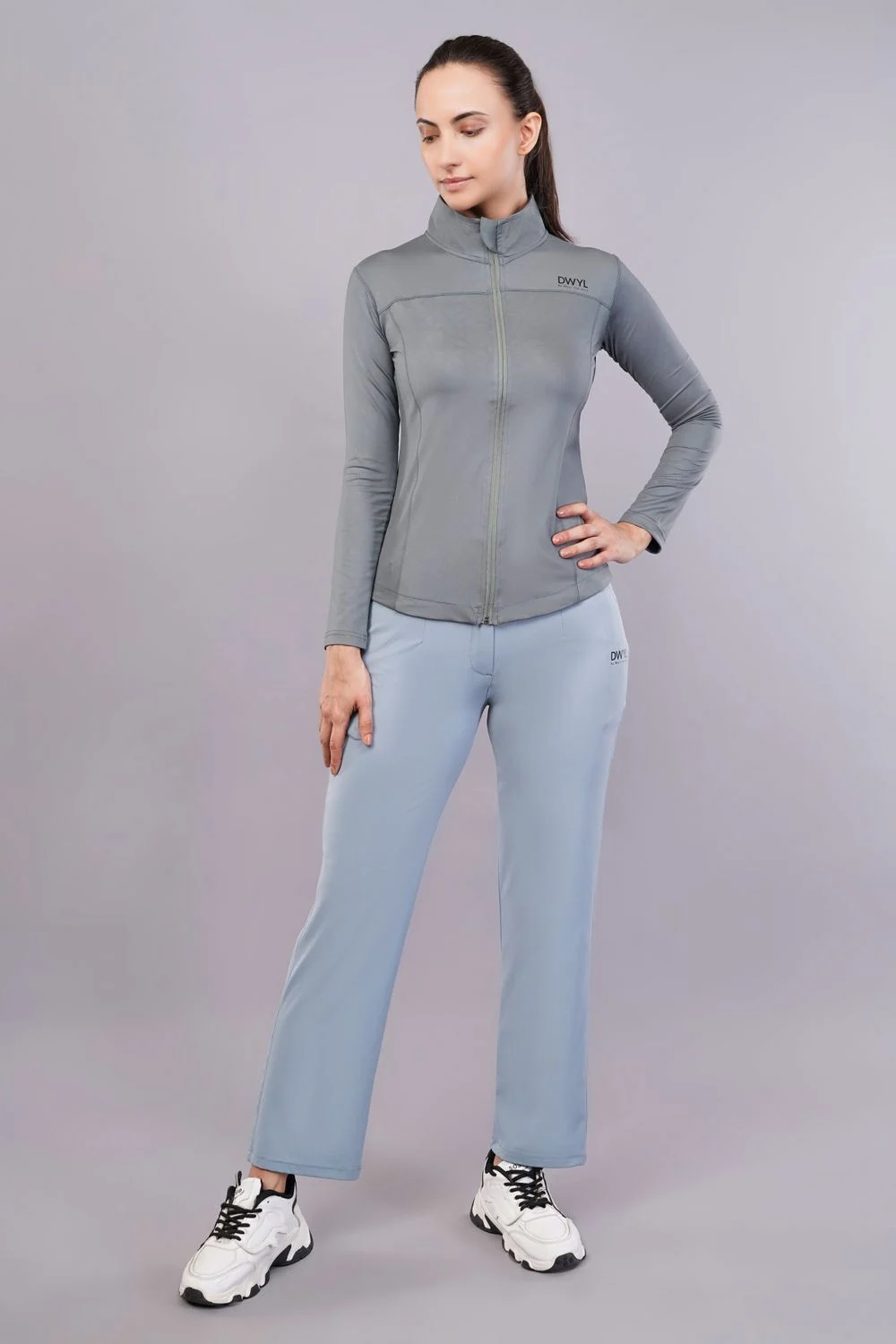
Model shots are not the only route. For basics, innerwear and high SKU counts, ghost mannequin photography produces a centred garment that crops to 3:4 very predictably, because there is no pose or height variation between styles. Many brands use model images for the hero view and invisible mannequin frames for backs and details.
The clip below shows a marketplace apparel shoot where the same garment is captured in a consistent frame, which is exactly what makes clean multi-ratio exports possible later.
From the studio floor
Ckstudio archives the raw files and one retouched 16-bit TIFF master per view, then builds per-marketplace export folders from that master. When a seller later adds a new channel, the job is an export run with a new crop preset, typically 3:4 for Myntra and the channel’s own frame elsewhere, with no model, garment or studio booking needed.
Write the export presets down. A one-page document listing ratio, pixel size, format, file-size band and colour space for each channel lets anyone on your team produce a correct Myntra image size months later, even if the person who set up the first export has moved on.
The most widely published Myntra image size is 1080 x 1440 pixels or larger in a 3:4 portrait ratio, saved as JPEG, according to Fynd’s Myntra integration FAQ. Confirm the exact rule for your article type in the Myntra Partner Portal template before export.
Apparel follows the same 3:4 portrait frame. Exporting at 1500 x 2000 pixels clears the published minimum and keeps prints and embroidery sharp on zoom, as long as the file stays inside the size band your template allows.
Myntra images use a 3:4 portrait ratio, meaning the height is the width multiplied by 1.333. 1080 x 1440, 1500 x 2000 and 2250 x 3000 are all valid 3:4 sizes.
A mirrored version of Fynd’s Myntra FAQ on Jio Commerce’s documentation gives a band of roughly 500 KB to 1 MB. Reach it by adjusting JPEG quality, never by shrinking the image below the required pixel dimensions.
No. Dpi is a print setting stored in the file and does not change what a phone displays. The published requirement is 72 dpi or more; pixel dimensions are what decide sharpness on the Myntra app.
Avoid it. A square file does not match the 3:4 portrait slot, so it is padded or cropped and can be flagged as a wrong ratio. Recrop from your master to 3:4 instead.
Getting the Myntra image size right is less about memorising one number and more about a routine: read the template, shoot a generous portrait master, export 3:4 in sRGB JPEG, and check the folder before upload. Ckstudio builds that routine into every Myntra catalogue it shoots, and you can ask for a sample-folder review at [email protected].
Next step: once your files are technically right, plan the views themselves with our Myntra model photoshoot shot list and pose guide.
Ckstudio shoots and exports Myntra catalogues at the correct ratio, size and colour space, one folder per colour, ready to upload. Share your SKU count and categories, and Prince will suggest the right shoot format.
Call +91-8700258773, WhatsApp +91-8700258773 or email [email protected], 10 am to 7 pm.
Call Prince: +91-8700258773