Fashion Photography Services

E-commerce Photography
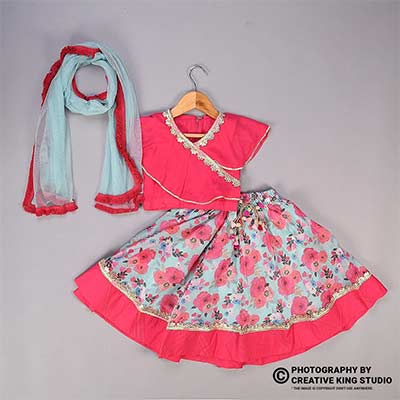
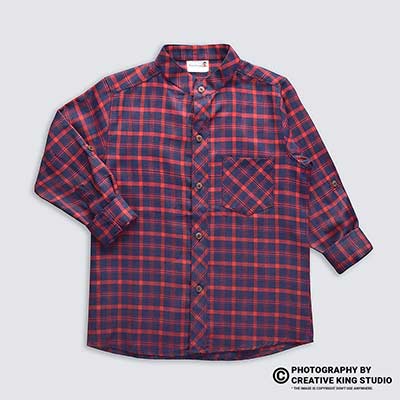
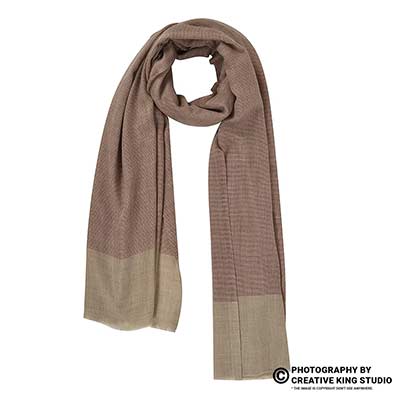
Set up style codes, size runs, colour values and image sets so every AJIO variant shows the right garment, the right size button and the right photo.
AJIO size colour variant mapping decides whether a shopper who taps “Teal, size M” lands on a teal kurta in a real medium, or on a broken page with a mustard photo and a size that cannot be ordered. This guide sits under the AJIO Seller Hub, which covers registration, image rules and QC, and it zooms in on one problem that hub readers keep raising: variants that upload but do not behave.
At Ckstudio we shoot and prepare catalogues for brands selling on AJIO, Myntra and Flipkart, and the same pattern shows up in almost every audit. The photos are fine, the garment is fine, but the sheet that ties style codes, sizes, EANs, colour values and image links together has gaps. Below, Prince and the studio team walk through how the AJIO template holds a style, how to map a size run and a colour range without collisions, and how to build an image set per colourway so the gallery never shows the wrong shade.
In this guide
AJIO size colour variant mapping is the job of linking every sellable unit, one colour in one size, to the right style code, size value, EAN, colour value and image set in the catalog template. Listings break when any one of those links points to the wrong row, because AJIO builds the product page, size buttons and gallery straight from that data.
AJIO does not give sellers a page builder. The product page is assembled from the catalog sheet you upload in Seller Central, so the sheet is the listing. If two sizes share an EAN, one of them fails Auto QC. If a size is typed instead of picked from the dropdown, the size button may not appear. If a teal colourway points to the mustard image folder, the page goes live with the wrong photo, and the first customer who notices sends it back.
That last failure is the expensive one. A size that never goes live costs you a sale; a wrong photo that does go live costs you a return, a negative rating and a QC flag on a style that otherwise passed. Fashion e-commerce catalogues multiply the risk because a single kurta design in four colours and six sizes is already 24 rows, each with its own EAN, and a 40-design drop easily crosses 900 rows.
Think of each row as three layers stacked together. The style layer carries what all sizes of one colourway share: the style code, brand, description, attributes and the image links. The size layer carries what changes per size: the size value, the EAN, the item SKU and the stock. The colour layer decides which style a row belongs to, because a mustard kurta and a teal kurta are different photos, different swatches and, in practice, different style codes.
Most mapping errors happen where these layers meet. A catalogue executive copies the mustard block, changes the colour cell to teal, and forgets the image links. Or the size layer is filled from a brand size chart that uses “38, 40, 42” while the template expects standard sizes. The rest of this guide takes each layer in turn and shows the check that catches the error before AJIO’s QC does.
On AJIO the style code is the product identity, and every size row of one colourway carries the same style code with its own EAN and item SKU. Seller integrator documentation describes the sheet as variant-level, with no separate parent row, so the style code itself is what groups the sizes together.
According to the AJIO attribute guidelines published by JioCommerce, Style Code, Item SKU, Brand, EAN and MRP are mandatory for every product. The AJIO error resolution sheet adds two rules that matter for mapping: style codes should be 18 characters or fewer, and the EAN column must be filled for every size, with each EAN unique. Attributes such as the standard size are picked from dropdowns rather than pasted.
| Template field | What it controls | Mapping rule |
|---|---|---|
| Style Code | Groups the sizes of one colourway into one product page | Same value on every size row of that colourway; 18 characters or fewer |
| Item SKU | Your internal unit for one colour in one size | Unique per row; encode style, colour and size so it reads back clearly |
| EAN | Barcode identity of the sellable unit | Filled on every row, never repeated across sizes |
| Size / standard size | The size buttons and size filter | Picked from the dropdown, not typed |
| Colour | The colour filter and the colour shown on the page | Picked from the dropdown; brand shade name kept in your own sheet |
| MODEL, MODEL2… and SWATCH | The gallery and the colour selector chip | Same links on every size row of one colourway; never shared between colours |
Sources: AJIO attribute guidelines on JioCommerce and the AJIO error resolution sheet, as summarised on our hub. Template columns differ by category, so always work from the template you download for your own category.
An 18-character ceiling sounds generous until a brand tries to pack season, fabric, design and colour into it. A pattern that works well is brand prefix + season + design number + colour code, for example a two-letter brand code, “AW26”, a four-digit design number and a three-letter colour code. That stays around 13 characters, reads cleanly in an error sheet and sorts the whole range by design.
Keep the size out of the style code. Size belongs in the item SKU, which then becomes the style code plus a size suffix such as “-M” or “-XL”. When the error sheet comes back, anyone on the team can tell at a glance whether a rejected row is a style-level problem or a single-size problem, and that saves a full round of guessing.
From the studio floor
Before a single garment goes on the rail, Ckstudio asks for the style code list and builds the shoot order from it. Each style gets a printed card with the code, colour code and size used for the shoot (usually M for womenswear and L for menswear), and that card sits in the first frame of every sequence. File names are then written as style code plus slot, for example “-MODEL”, “-MODEL2” and “-SWATCH”, so a 40-style batch exports straight into folders that match the template.
Map each brand size to the standard size value in the template dropdown, give every size its own row, EAN and item SKU, and enter measured garment sizes in the size chart columns. A size run is clean when every size button on the page leads to a real, stocked unit with its own barcode.
The most common size failure is not a missing size, it is a mismatched one. Brands often label kurtas by bust measurement, shirts by collar size and jeans by waist, while the AJIO size dropdown for that category may expect XS to XXL or a numeric run. Typing “38” where the template wants “M” either throws a dropdown error or, worse, creates a size that does not line up with AJIO’s size filter, so the style disappears when a shopper filters by M.
Build a small conversion table before you touch the template. For each category, list your brand size labels in one column and the matching standard size from the template dropdown in the next. Freeze that table and use it as the only source for the size column. When a style runs small, the fix belongs in the size chart measurements, not in a relabelled size value.
| Brand label (example) | Value picked from the dropdown | Measured for the size chart |
|---|---|---|
| Kurta 36 | S | Bust, waist, hip and length, flat-measured on the sample |
| Kurta 38 | M | Same points, same tape, same person measuring |
| Kurta 40 | L | Recorded in inches or cm exactly as the template asks |
| Kurta 42 | XL | Checked against the graded spec sheet from the factory |
The table above is an illustrative example of the method, not an AJIO size standard. Your own mapping depends on the category template and your grading.
Every size row needs its own EAN, and the error sheet will reject a style where two sizes repeat one. Allocate barcodes in a block per style, so design 1042 in teal takes a run of consecutive EANs for S to XXL, and record them in the same master sheet as the item SKUs. When the warehouse scans a unit, the size on the label and the size on the page then always agree.
The AJIO size chart upload works the same way: measured values go into the template, and AJIO builds the chart a shopper sees. Measure the actual garment, not the pattern, and measure every size you sell. A size chart copied from another style with a different cut is one of the quietest causes of fit returns on AJIO size colour variant mapping projects the Ckstudio team audits.
From the studio floor
When a brand sends a full size set, we lay the garments flat on a measuring table under the same 5600K light used for the shoot and record six points per size with a cloth tape: chest at 1 inch below the armhole, waist, hip, shoulder, sleeve and full length. The sheet goes back to the brand alongside the images, so the size chart and the photos come from the same physical samples.
Give each colourway its own style code, pick its colour from the template dropdown, and keep your brand’s shade name in a separate column of your master sheet. Then shoot every colourway in identical light so the photos, the swatch and the colour value all describe the same shade.
AJIO colour family mapping is simply the translation from your shade names to the colour values the template accepts. A brand might call a shade “Peacock”, “Bottle Green” or “Sea Moss”, but the dropdown only offers standard colour names. Pick the closest standard value honestly: a teal that photographs blue-green should not be filed as “Green” because green sells better, since the colour filter is exactly where a mismatched shopper comes from.
Because the image fields sit on the style row, a colourway with its own photos needs its own style code. Treat the four colours of design 1042 as four style codes that share a design number, and let each carry its own MODEL images and its own SWATCH. Ask your AJIO account manager how your category groups colour options on the page, and confirm it before the shoot, not after the upload.
This is also where photography and data meet. If the teal and mustard versions are shot on different days under different light, the colour selector shows two shades that do not look like siblings, and the swatch chip will not match either photo. Planning a single apparel photography session per design, with every colourway shot back to back on one setup, solves that problem at the source.
From the studio floor
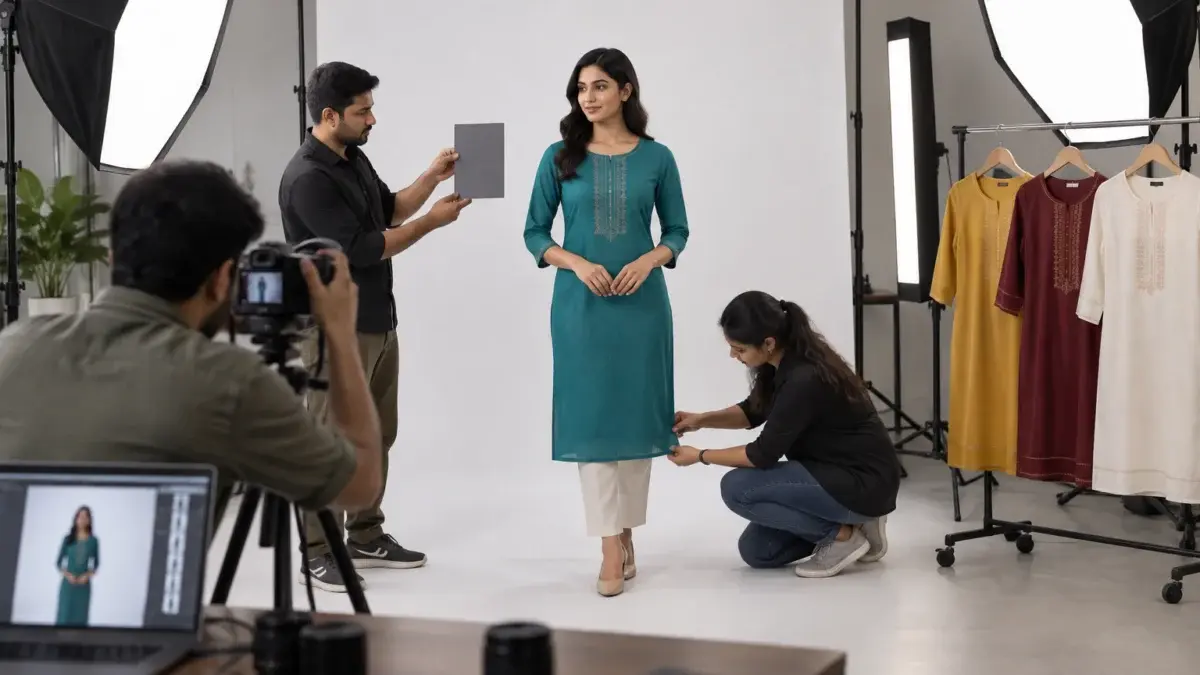
Our colour routine for variant ranges is fixed: lights locked at one power setting for the whole design, a grey card shot as the first frame of each colourway, custom white balance from that card, and files exported as sRGB JPEG at 1600 × 2000 px. The swatch is cropped from a flat, evenly lit area of the same garment, never from a different sample, so the colour chip and the photo cannot drift apart.
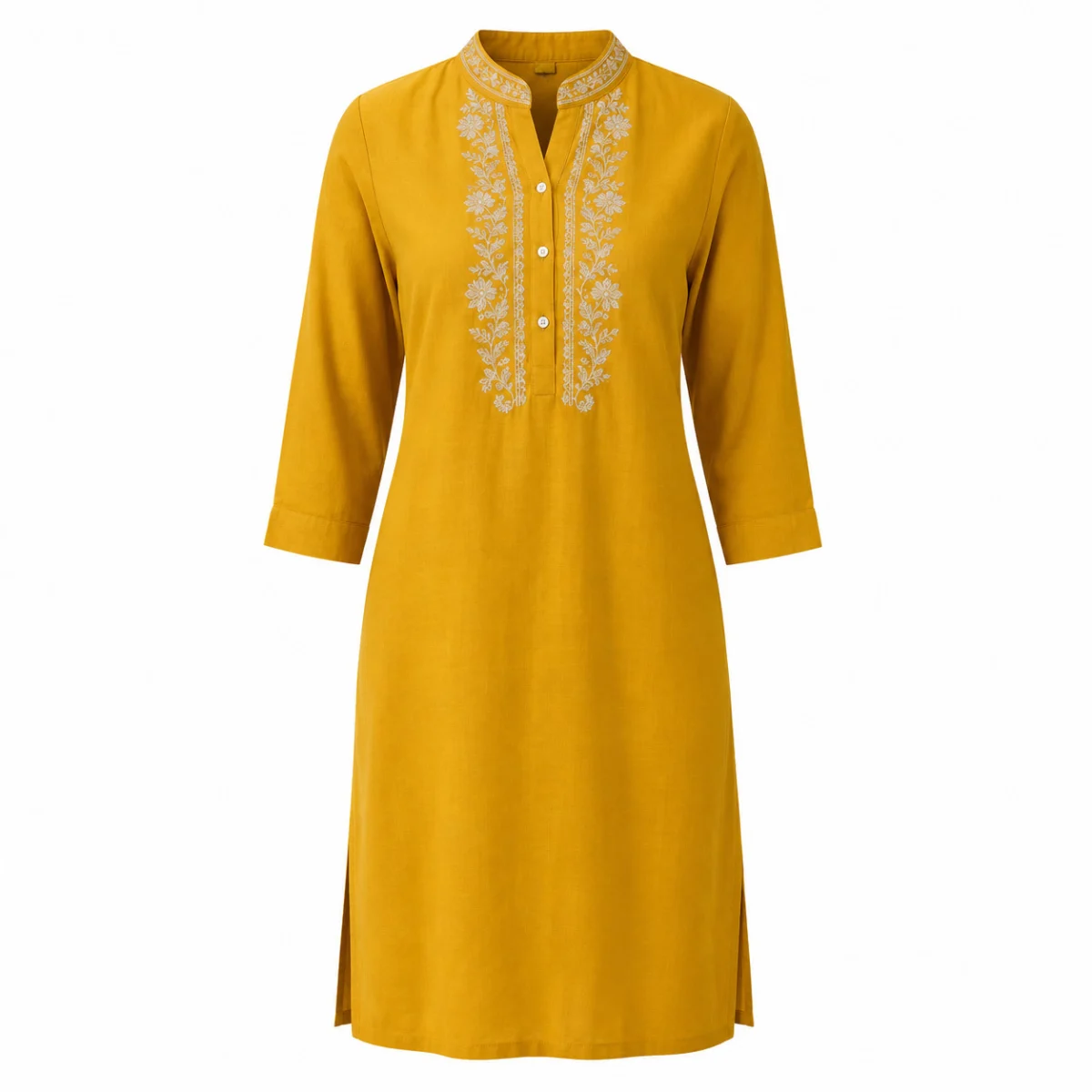
Shoot each colourway as a complete set (front, side, back and a detail) at AJIO’s 1:1.25 ratio, crop a true-colour swatch from the same garment, and name every file by style code and slot. Then point the MODEL, MODEL2 and SWATCH fields of every size row in that colourway at the same links.
AJIO’s image rules are covered in depth on the hub and in our AJIO image guidelines article, so here the focus is on what mapping adds. Front, side, back and detail are mandatory for apparel. The first image goes in the MODEL field, further angles in MODEL2, MODEL3 and onwards, and the colour chip in SWATCH. Files sit at 1:1.25 with more than 1000 px on each side, between 200 KB and 1 MB.
The mapping rule is short: one image set per colourway, repeated on every size row of that colourway. Sizes never get their own photos, and colours never share them. If the medium row of teal points to one link and the large row to another, AJIO may show a different first image depending on which size the shopper taps, which looks like a broken listing even when the photos are correct.
File names do most of the mapping work if you let them. Name each file as style code plus slot, then share the folder as a link from Amazon S3, Google Drive or Dropbox that is not password-protected, as the error sheet requires. The template cell for MODEL2 of design 1042 in teal then always ends in the same predictable file name, and a formula can fill the whole column instead of a person pasting 900 links by hand.
Colour accuracy across the set matters as much as naming. A small cast introduced in retouching can make the swatch, the front and the detail look like three different shades. Sending the set through colour-matched ecommerce image retouching that checks every file against the grey-card reference keeps each colourway consistent from first frame to swatch.
For a sense of how a marketplace apparel set is lit and paced, the short commercial below shows a menswear t-shirt shot for marketplace listings, with the same light carried across every frame. It is a good reference for how much movement a listing video can show without changing colour from the stills.
Build a master sheet first, then fill the AJIO template from it in a fixed order: style codes, item SKUs, EANs, sizes, colours, attributes, size chart, image links and a final cross-check. Working in that order means each column is filled from a column you have already verified.
The order matters because each step leans on the one before it. Image links are generated from style codes, so a style code changed late breaks every link in that colourway. Item SKUs are derived from style codes, so a late change there splits stock between two SKUs. Locking the identity columns first and filling the presentation columns last is the cheapest way to avoid a second QC round.
Example scenario
Example: a brand launching 40 kurta designs, each in 4 colours and 6 sizes, needs 160 style codes, 960 item SKUs and 960 EANs. If each colourway has 5 gallery images plus a swatch, that is 960 image files and 5,760 image-link cells across the sheet. Filling those cells from file-name formulas takes one pass; pasting them by hand invites the single wrong link that ships a teal page with a maroon photo. These numbers are illustrative, not from a real catalogue.

When a brand would rather hand the whole chain to one team, a planned ecommerce photoshoot organised by style code means the files arrive already named and foldered for the template. That leaves your catalogue team with the data columns, which is where their knowledge of the range is most useful.
Most broken AJIO fashion listings come from six repeatable mistakes: shared EANs, typed sizes, colour values chosen for search rather than accuracy, images linked per size, copied size charts and style codes changed after the shoot. Each has a fix that belongs in the master sheet, not in a re-upload.
| Mistake | What the shopper or QC sees | Fix |
|---|---|---|
| One EAN copied across sizes | Rows rejected for duplicate EAN | Allocate a consecutive EAN block per style, one per size |
| Brand size typed into the size column | Dropdown error, or a style missing from the size filter | Pick from the dropdown using a frozen conversion table |
| Colour value picked for popularity | Wrong colour filter, colour-mismatch returns | Choose the closest honest standard value; keep the shade name in your sheet |
| Different image links on size rows of one colour | Gallery changes when the shopper taps a size | Generate links from the style code so every size row matches |
| Size chart copied from another cut | Fit complaints, size-related returns | Flat-measure each size of the actual sample |
| Style code edited after the shoot | Broken image links, orphan files | Lock style codes before the first frame is shot |
The swatch chip is small, so it rarely gets a second look, yet it is the one image a shopper uses to pick a colour. Swatches cut from a different batch, a stock fabric photo or an uncorrected frame show a shade that the gallery does not match. Cut the swatch from the same file set as the colourway and check it side by side with the MODEL image before export.
Scale makes every one of these mistakes worse, which is why we keep a separate guide on keeping catalogue photography consistent at scale. The same principle runs through both: decide the rule once, write it into the sheet, and let the sheet enforce it on every row.
For a look at how a marketplace product is handled on set, from placement to final frame, this behind-the-scenes clip follows a sunglasses shoot built for listing images on several marketplaces. The lighting discipline it shows is the same discipline that keeps colourways consistent.
Read the error sheet from Upload History, sort the rejected rows by style code, decide whether each error is style-level or size-level, and fix only those rows in the master sheet before re-uploading them. Plan for about five days of Auto QC and a further five business days of Manual QC on each round.
Because QC rounds take that long, the real cost of a mapping mistake is time on the calendar. One wrong EAN does not just delay a size; it can hold a colourway back until the next round clears. That is why the pre-upload cross-check is worth more than any amount of fixing afterwards.
When rejections do come back, separate them by layer. A style-level error, such as a wrong colour value or a broken image link, affects every size row of that colourway, so fix it once in the master sheet and regenerate those rows. A size-level error, such as a duplicate EAN, affects one row. Re-upload only the corrected rows rather than the whole file, which keeps the clean styles moving through QC.
From the studio floor
Our delivery check before files leave the studio covers three counts: the number of colourway folders must equal the number of style codes on the brand’s list, each folder must hold the planned slots (for example 5 gallery images plus 1 swatch), and every file must sit between 200 KB and 1 MB at 1600 × 2000 px. Any folder that fails a count is fixed before the link is shared, so the catalogue team never maps against a gap.
If you want a second pair of eyes on a range before it goes up, send the style list and a sample folder to [email protected] or message the team on WhatsApp at +91-8700258773. Ckstudio can plan the shot list against your style codes so the images arrive ready for the template.
In practice, yes. The image fields sit on the style, so a colourway with its own photos and swatch needs its own style code. Confirm with your AJIO account manager how your category groups colour options on the product page before the shoot.
No. The AJIO error resolution sheet requires the EAN column to be filled for every size, and each EAN must be unique. Allocate a consecutive block of barcodes per style so every size row has its own.
Keep style codes to 18 characters or fewer. A pattern of brand prefix, season, design number and colour code usually lands around 13 characters and leaves room for growth.
Yes. In AJIO size colour variant mapping every size row of one colourway should carry identical MODEL, MODEL2 and SWATCH links. Different links per size can change the gallery when a shopper taps a size.
Create a conversion table from your brand labels to the standard values in the dropdown, and put the real measurements in the size chart. Never type a brand size into a dropdown column.
Plan for about five days of Auto QC and a further five business days of Manual QC. Re-upload only the corrected rows so styles that already passed keep moving.
Clean variants are not a template trick. They come from deciding the identity of each colourway before the shoot, mapping sizes and colours through fixed tables, and letting file names carry the image links. Brands that work this way spend their QC rounds on new styles instead of on repairs. To talk through a range, call Prince on +91-8700258773 or send a WhatsApp to +91-8700258773.
Next step: when your variant map is ready, book a catalogue shoot planned by style code through Ckstudio’s ecommerce photography team.
Send your style code list, colour count and size runs. Ckstudio will reply with a shot list, a file-naming sheet that matches the AJIO template and a shoot plan. Call +91-8700258773 or email [email protected].
Call Prince: +91-8700258773