
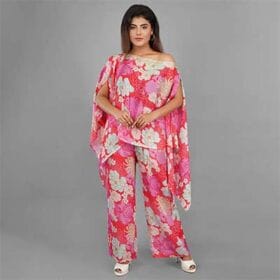
Fashion Photography Services
E-commerce Photography
Your styles cleared catalogue QC, yet shoppers cannot find them. Here is how to read the hold, fix the real cause and get the style live without guessing.

A myntra pmr hold is the frustrating state where a style shows as approved in your catalogue workflow, yet it never reaches the shopper-facing listing grid. Sellers usually discover it days later, when sales for a new drop stay at zero and a logged-out search returns nothing. This guide explains what the hold is, how to confirm it in your listing report, which image and attribute gaps typically cause it, and how to clear it through re-manual QC.
This post belongs to the Myntra seller hub, where every stage of selling on Myntra, from registration to growth, has its own guide. Here we stay on one problem only: approved but not live. At Ckstudio, Prince and the catalogue team see this pattern regularly when brands send us held styles for reshoots, and most cases trace back to a small, fixable gap rather than a policy issue.
In this guide
A myntra pmr hold describes a style that passed the first catalogue check but is parked in a further review before it becomes visible to shoppers. While it sits there, the style can look approved or even active on your side, but it does not appear in search or category pages.
The term itself needs care. Myntra does not publish a public help article that defines “PMR”, so you will not find an official glossary entry to quote. Seller consultancies such as Globalwebsters expand it as Product Management Review and describe it as a secondary quality pass that happens after initial approval. Integration documentation for Myntra, such as the Fynd listings guide, talks about the same situation in different words: a style is “on hold” at the content stage pending more information. Both describe one practical reality, which is that approved is not the same as live.
For a seller, the useful definition is operational. If a style has cleared catalogue QC, your inventory is mapped, and the listing still does not show for shoppers after a reasonable wait, treat it as a hold and investigate. Do not assume it is a temporary glitch that will resolve itself, because a held style generally stays held until someone corrects the flagged field or image and resubmits it.
The first QC gate checks whether files and mandatory fields exist. The later review looks at whether the content is correct and consistent: does the photographed neckline match the neck attribute, does the colour in the image match the colour field, is the manufacturer address real and specific, does the image set cover what the category expects. That is why a style can pass one gate and stall at the next. The fix is rarely to upload the same files again; it is to find the one mismatch the reviewer saw.
Timelines are another source of confusion. Third-party seller guides quote figures such as three to seven days for this review and 48 to 72 hours for re-QC after a fix. We could not verify these numbers against an official Myntra source, so treat them as anecdotal and plan your launch dates with a buffer rather than relying on them.
Because “live” on Myntra depends on several status fields being correct at the same time, not on approval alone. If any one of them is off, such as the listing status, the active flag or the style status, the product stays invisible even though catalogue QC has passed.
Integration partners that pull Myntra’s seller listing report document the combination clearly. According to the Fynd guide to the Myntra listing report, only styles with style status P, an Is Active value of 1 and a Listing Status of A are live. Other partner checklists add that seller approval must also be approved. A style held in review will fail at least one of these conditions, which is exactly why the report is your first stop.
| Field in the listing report | Value needed to be live | What a different value usually tells you | Source |
|---|---|---|---|
| Style status | P | The style is still moving through content or QC stages | Fynd Myntra listing report guide |
| Is Active | 1 | The style exists but is switched off or not yet enabled | Fynd Myntra listing report guide |
| Listing Status | A | The seller-level listing is not approved for this style | Fynd Myntra listing report guide |
| Stage or remarks column | Blank or no hold remark | A hold or rejection note naming the field or image to fix | Read in your own Partner Portal report |
Status labels and column names can change between portal versions, so always read the live report in your own account on the Myntra Partner Portal rather than trusting a screenshot from a blog. If the wording in your report differs from the table above, the principle still holds: find the field that is not in its live state, then read the remark next to it.
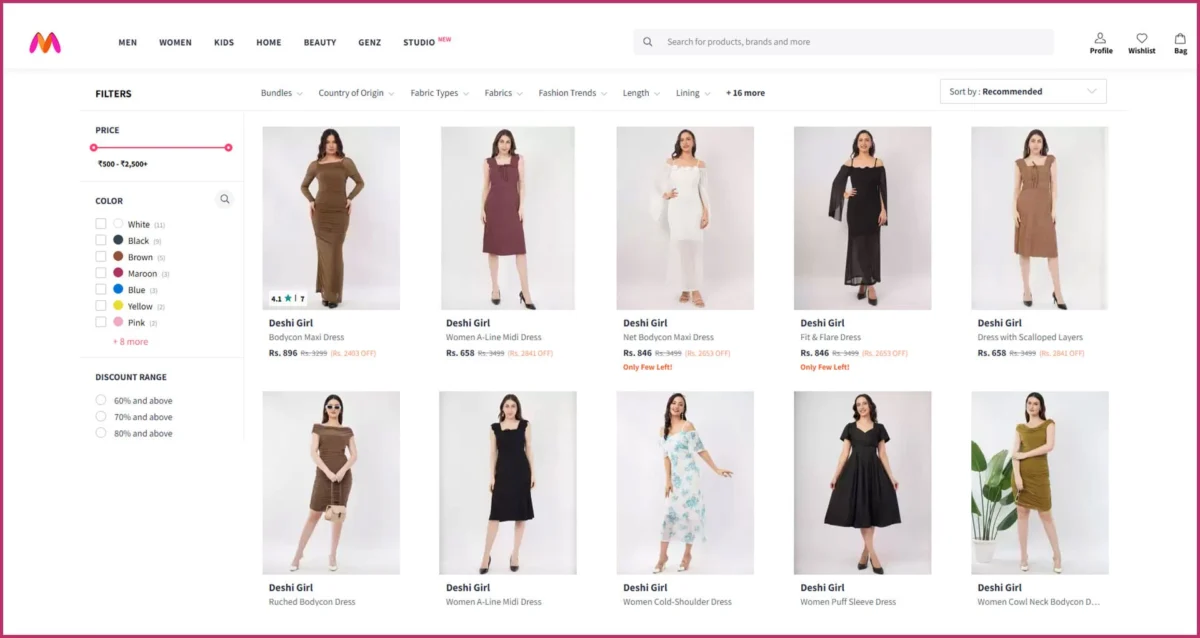
Think of it as three locks. Approval confirms the content passed a review. Active confirms the style is enabled for sale. Visible confirms shoppers can actually find it, which also depends on inventory being mapped to a serviceable warehouse. A quick test many sellers use is to search the exact style name in a logged-out browser or a private window two days after approval. If it does not appear, open the listing report before you change anything else.
Download the seller listings report from the Partner Portal, filter it to the styles you expected to be live, and read the status, active and listing columns together with any remarks. That one sheet tells you whether you face a hold, a rejection or a stock mapping gap.
Integration documentation describes the path as Reports and Insights → Operational Reports, then choosing the store, partner type and the Seller_Listings_Report. Menu names shift over time, so if your portal looks different, look for the operational or listing report that exports every style with its status columns. Here is the routine the Ckstudio catalogue team follows when a brand sends us a held style list:
The last step matters more than it looks. Because public timelines are unverified, your own log becomes the most reliable data you have. After two or three drops you will know how long a re-QC typically takes for your categories, which makes launch planning far less stressful.
Remarks are short and sometimes generic. Treat them as a pointer to the area of the problem, not a full diagnosis. A remark that mentions images might mean a missing back view, a colour mismatch or a model pose hiding the garment. A remark about details might mean a wrong neck type, a missing fabric field or a manufacturer address that does not match your documents. In every case, compare the style against a style in the same category that is already live in your catalogue. The difference between the two usually shows the gap faster than rereading the remark.
If the report shows no remark at all and every field is in its live state, the issue is probably inventory or serviceability rather than content. In that case check stock mapping and warehouse settings before you reshoot anything.
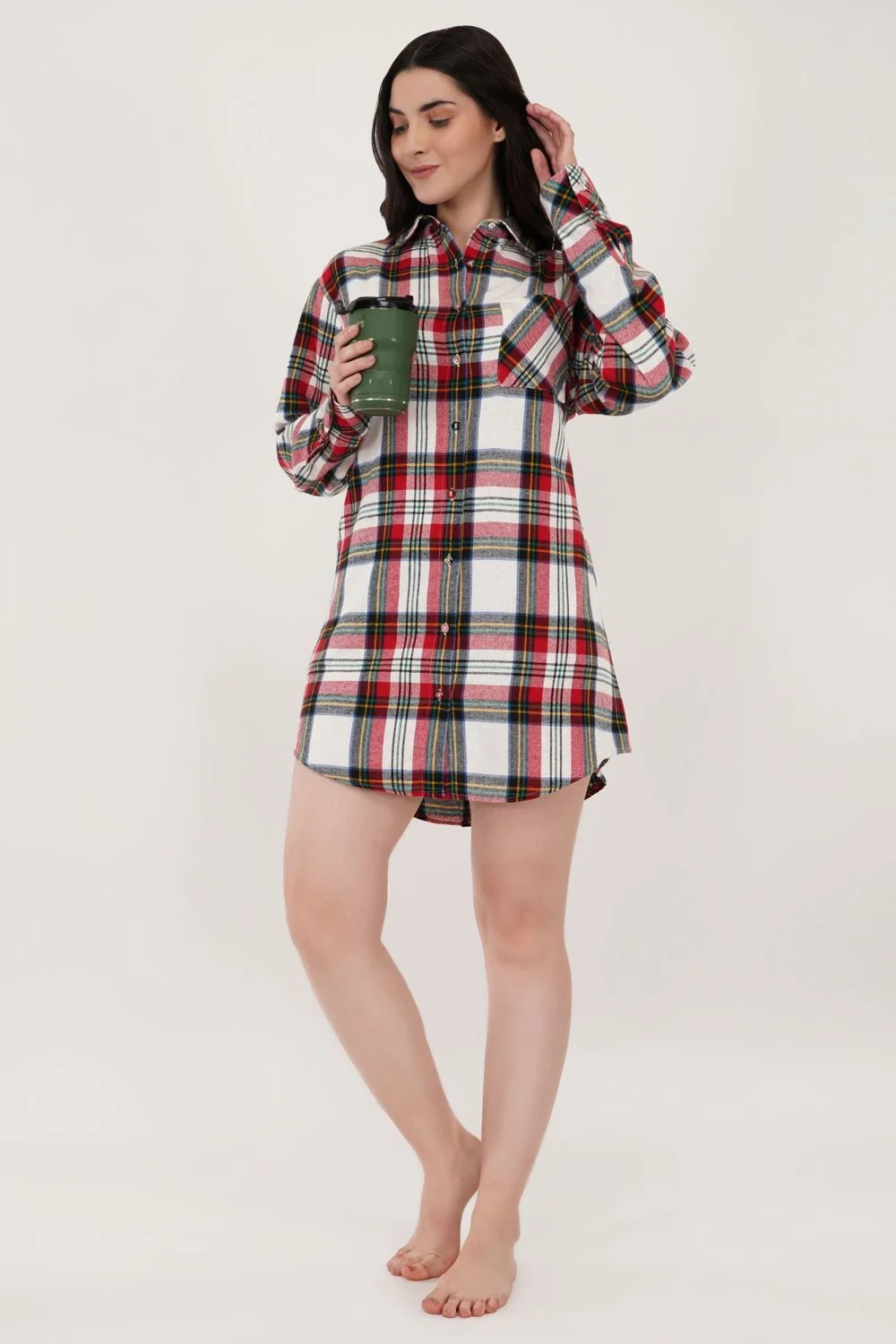
The image causes behind a myntra pmr hold are usually coverage and consistency gaps: a missing back or detail angle, a model pose that hides the garment, colour that does not match the colour field, or a frame that does not suit the category’s portrait layout. Each one is visible to a reviewer comparing your images with your attributes.
Myntra’s fashion catalogue is model-led, and reviewers judge the image set as a whole. A kurta listing with a strong front shot but no back view leaves shoppers unable to check the yoke, the slit or the back neck. A dress shot only in a dramatic walking pose hides the true length. Our guide to the angles Myntra sellers most often skip lists the full set, and those same skipped angles show up again and again on held style lists.
From the studio floor
For Myntra apparel we shoot every style in a fixed order on a light grey seamless: front, back, left side, three-quarter, then two close details such as neckline and fabric. The model stands about 3 m from the backdrop, lit by two octaboxes at roughly 45° on either side and a strip light behind for edge separation. We shoot at f/8 on a 50 mm or 85 mm lens with a colour-check card in the first frame of every style, so the colour field and the image match before a single file is exported.
When a held style needs new images, the fastest route is usually a focused reshoot of only the missing frames, matched to the original lighting and backdrop. A Myntra model shoot planned around the listing’s image order fixes coverage gaps at the source instead of patching them in editing. The short reel below shows how a marketplace apparel shoot captures a garment from every side in one session.
Sometimes. Colour drift, a poor crop from a full-frame master or an inconsistent background can often be corrected in post-production if the original high-resolution file contains the detail. A missing back view, a pose that hides the neckline or a wrong SKU in the frame cannot be edited into existence. Be honest about which bucket each held style falls into, because resubmitting an edited image that still lacks the required information usually leads to the same hold again.
The most common non-image causes are attributes that contradict the photo, blank or generic fields from bulk uploads, size charts that do not match the garment, and manufacturer or packer addresses that are vague or do not match your documents. Reviewers check these against the images, so a small mismatch is enough to stop a style.
Seller consultancies report a recurring pattern: the photo shows a V-neck but the neck attribute says round neck, or the image shows full sleeves while the sleeve field says three-quarter. Each mismatch is small, but it means a shopper could receive something different from what the filters promised, which is exactly what a later review is meant to catch. Our Myntra catalogue prep checklist for SKUs, attributes and size charts covers the fields to fill before the first upload.
Example scenario
Imagine a brand uploads a 40-style kurta drop. Catalogue QC approves all 40, but after a week only 31 are visible. The listing report shows 9 rows not in their live state: 5 carry an image remark and 4 a details remark. Opening them side by side reveals that the 5 image rows lack back views, and the 4 detail rows are tagged “Round Neck” while the photos clearly show a mandarin collar. The fix is a half-day reshoot for 5 back views plus a re-tag of 4 rows, resubmitted together. These numbers are illustrative, not from a real client.
Notice how the example splits the problem into a shoot task and a data task. When apparel needs new frames to match the attributes, apparel photography done to a consistent shot list prevents the mismatch from recurring on the next drop, because the photographer and the cataloguer work from the same style sheet.
Once you correct the flagged images or fields and resubmit, the style goes back for a manual check rather than starting the whole catalogue process again. Integration documentation states that styles re-submitted after rectification move directly to the Re-Manual QC stage, while styles rejected for an article type change must go through a new lot.
That distinction saves real time. If your fix is an image swap, a re-tag or a corrected size chart, resubmit the existing style so it enters Re-Manual QC. If the reviewer flagged the article type, for example a kurta set uploaded as a single kurta, create a new lot because the category template itself changes. Mixing the two wastes a cycle.
From the studio floor
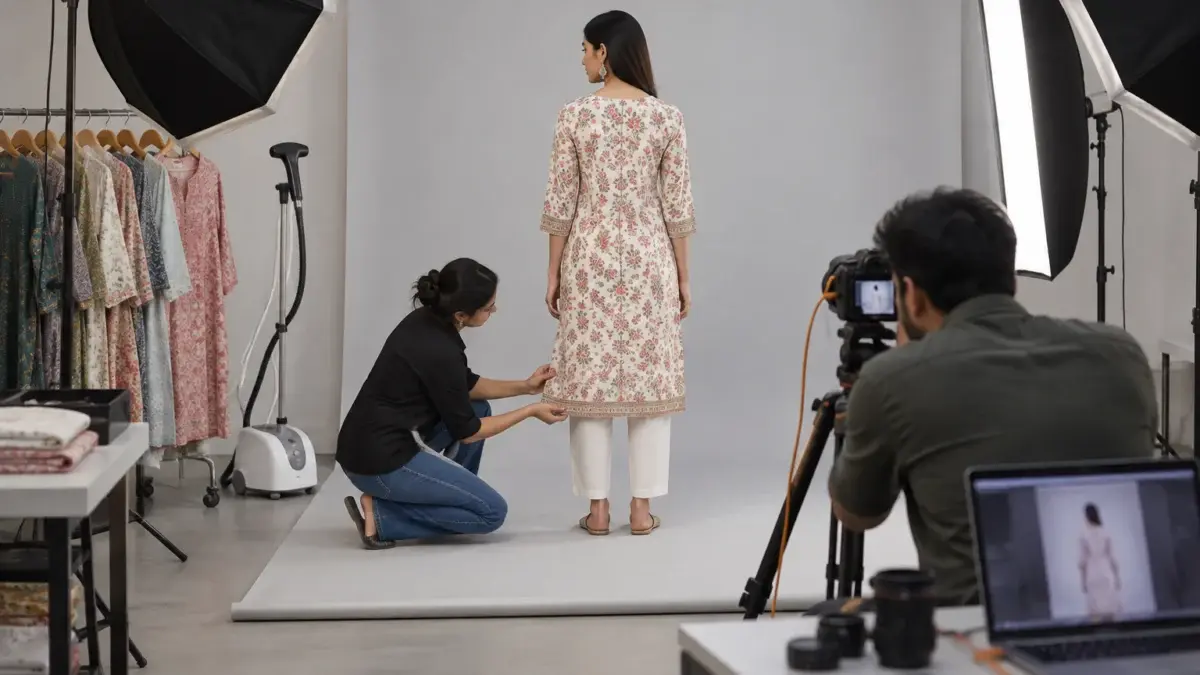
When Ckstudio reshoots held styles, we pull the original style sheet and match the earlier setup: same light grey backdrop, the same two-octabox key at 45°, same camera height at roughly chest level for full-length frames, and the same 3:4 portrait crop. Each garment is steamed for 3 to 5 minutes and pinned only at the back. Before export, a second person checks every frame at 100% for focus, lint and colour against the reference card, then files are delivered SKU-wise in sRGB JPEG so they drop straight into the resubmission.
Seeing a real marketplace production helps explain why matched reshoots pass review more reliably than patched files. The behind-the-scenes clip below shows a controlled product set built for marketplace listings, with lighting and angles planned before the first frame.
Escalate a myntra pmr hold when the listing report shows no actionable remark, when a corrected style has been resubmitted and still has not moved after the wait you normally see in your category, or when a whole lot is held without explanation. Escalation works best with evidence, not a general complaint.
Account managers and partner support can see review notes that may not appear in your report. They are far more helpful when you send a tidy, specific request: the style IDs, the lot number, what the report shows, what you already changed and the dates. A message that says “my products are not live” usually gets a generic reply. A message with a five-row table gets a real answer.
| Situation | Fix it yourself? | Escalate? | What to send |
|---|---|---|---|
| Remark names images or a field | Yes | Only if resubmission stalls | Style ID, remark, change made, resubmission date |
| No remark, fields not live | Check stock and serviceability first | Yes | Report extract for the affected rows |
| Whole lot held at once | Check documents and brand approval | Yes | Lot number, upload date, sample style IDs |
| Article type flagged | Yes, via a new lot | No | Not needed |
| Same style held twice after fixes | Review against a live sibling style | Yes | Both resubmission dates and before/after images |

Keep it short. Open with the lot number and how many styles are affected. Paste the relevant report columns for those rows. List the corrections already made with dates. Ask one direct question, such as which field or image is blocking these styles. Attach before and after images only when the hold relates to images. If you work with a catalogue partner, let them prepare the extract so the account manager receives clean, consistent data.
If you want a second pair of eyes before you escalate, you can share the held style list with our team on +91-8700258773 (WhatsApp) or email [email protected]. We will tell you honestly whether the gap is something a reshoot fixes or something only Myntra can clear.
Prevent holds by locking images and attributes together before upload: shoot every style to a fixed angle list, tag attributes from the final photos, measure size charts from the actual sample and fill manufacturer details exactly as documented. Most holds we see would have been caught by a one-page pre-upload check.
The pattern behind most holds is a hand-off gap. The photographer shoots from a sample, the cataloguer fills fields from the factory sheet, and nobody compares the two. Closing that gap is cheaper than any reshoot. Ckstudio builds this cross-check into every Myntra catalogue job, and the same discipline works for in-house teams.
From the studio floor
On set we keep a printed style sheet per SKU with the intended neck, sleeve, length and colour. After each style, the stylist ticks those four fields against the camera preview before the garment leaves the set. It takes under a minute per style, and it means an attribute mismatch is caught while the product and model are still in front of the lens, not two weeks later in a listing report.
Ecommerce teams that run this check usually find their e-commerce launch calendar becomes predictable again, because fewer styles bounce between review stages. If you sell on Ajio or Flipkart too, the same style sheet works across marketplaces, since every e commerce platform rewards images and data that agree with each other.
It is a state where a style has passed catalogue QC but is held in a further review before it becomes visible to shoppers. Seller guides expand PMR as Product Management Review; Myntra does not publish an official public definition.
Third-party guides quote three to seven days, but we could not verify that against an official Myntra source. Track your own resubmission dates to learn the real timing for your categories.
Download the seller listing report. Integration documentation states that a style is live only when style status is P, Is Active is 1 and Listing Status is A. A logged-out search for the style is a useful second check.
Usually not. Reshoot only the missing or unusable frames under the original lighting, and fix attribute or size chart mismatches in the data. Edits can solve colour or crop issues when the master file is sound.
Integration documentation says resubmitted styles go directly to the Re-Manual QC stage. Styles rejected for an article type change must be uploaded through a new lot instead.
Yes. A neck, sleeve, colour or length field that contradicts the photo is one of the most frequently reported causes, along with blank bulk-upload fields and vague manufacturer addresses.
A myntra pmr hold feels opaque, but it follows a logic: something in the images or the data does not agree, and the reviewer wants it corrected before shoppers see it. Read the report, find the mismatch, fix it in one pass and resubmit. If the fix needs new frames, Ckstudio can reshoot just those angles to match your existing set. Call Prince on +91-8700258773 or email [email protected] with your held style list.
Next step: if your styles were rejected outright rather than held, work through our Myntra QC rejection checklist for image errors and reshoots.
Ckstudio shoots matched reshoots and full Myntra catalogues for fashion brands, planned around the listing’s image order. Share your style list on WhatsApp at +91-8700258773 or call directly.
Call Prince: +91-8700258773