


Fashion Photography Services



E-commerce Photography
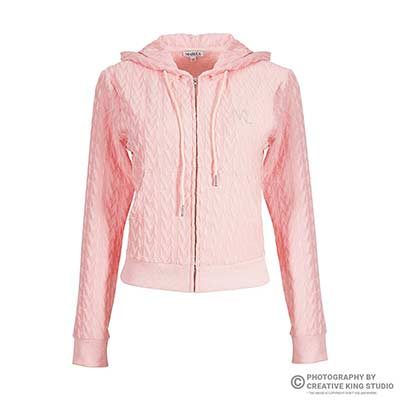
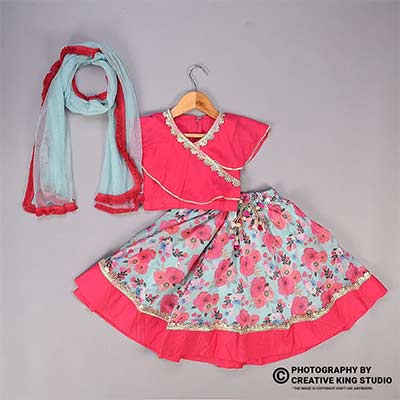
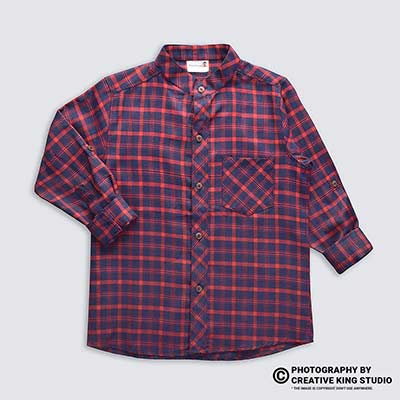
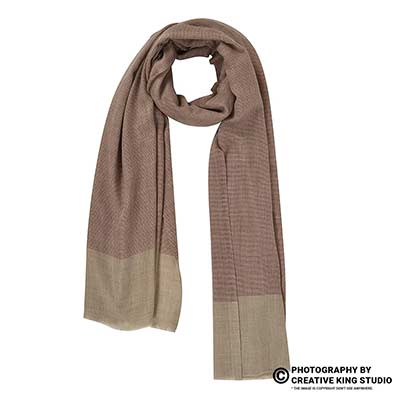
Why hover zoom disappears or turns blurry on your listing, and the exact pixel, focus, export and upload fixes that bring sharp detail back.

If your amazon image zoom not working problem shows up as a missing “Roll over image to zoom in” prompt, or as a zoom window full of soft, blocky pixels, the cause is almost always the file, not Amazon. In this Q&A guide, Prince from Ckstudio explains the nine size, resolution and quality fixes our team runs whenever a seller sends us a listing where zoom has stopped helping the sale.
This guide sits inside our Amazon seller hub, at the problem stage: your images are live, but they are not doing their job. You will learn how to tell which of the three zoom failures you have, what Amazon actually requires, how many pixels your product needs to fill, and how to export and upload so the detail survives. It is written for Amazon sellers, Seller Central users, small brands, resellers and ecommerce executives who manage catalogues day to day.
In this guide
It means one of three things: zoom never activates because the file is too small, zoom activates but shows a blurry or blocky image, or zoom activates but mostly shows white space because the product is tiny in the frame. Each failure has a different cause, so diagnose before you re-upload anything.
Sellers often describe all three as the same complaint, which is why so many fixes fail. Someone uploads a bigger file when the real issue was focus, or sharpens an image when the real issue was a 600-pixel source. Before you touch a single file, open the live listing on a desktop browser, hover over every image in the gallery, and note what happens on each slot. Then repeat on the mobile app, where shoppers pinch or tap to enlarge instead of hovering.
Failure one, no zoom at all: the hover lens never appears and there is no zoom prompt under the image. This is a pixel problem. Failure two, zoom that looks bad: the lens appears, but the enlarged view is soft, noisy or shows square compression blocks. This is an amazon image quality issue created at capture or export. Failure three, zoom that shows nothing useful: the lens works, but the shopper sees white background instead of fabric weave, stitching or a watch dial.
| What the shopper sees | Most likely cause | Where to fix it |
|---|---|---|
| No hover lens, no zoom prompt | Longest side under 1,000 px | Re-export from the original file, or reshoot |
| Zoom works but looks soft | Missed focus, shallow depth of field, upscaled source | Reshoot with correct aperture and focus |
| Square blocks and colour bands | Heavy JPEG compression or repeated re-saving | Export once from the master at high quality |
| Zoom shows mostly white | Product fills too little of the frame | Re-crop so the product fills about 85% |
| Old image still shows after upload | Processing delay or another contribution winning | Check upload status and catalogue contribution |
Once you know which row you are in, the rest of this guide tells you exactly which fix applies. Most listings we audit have two problems at once, typically a small file and a product that sits too far back in the frame, so check every slot rather than stopping at the first one you find.
A useful habit is to write the result for each slot in a simple sheet: slot number, pixel size, whether zoom appears, and what the zoomed view shows. Sellers who do this for a 30-SKU catalogue usually find the problem is concentrated in one batch, often images supplied by a manufacturer or copied from an old Flipkart or Myntra listing that used a different export size. That tells you where to spend your reshoot budget instead of redoing everything.
Amazon enables zoom when an image is at least 1,000 pixels on its longest side, and accepts files up to 10,000 pixels. It prefers JPEG in sRGB or CMYK colour, and the main image must show the product on pure white, filling most of the frame.
The official wording lives on the Amazon Seller Central India product image requirements page, and it is worth reading once in full because category style guides add their own rules on top. The table below summarises the rules that matter for zoom, next to the working standard our studio uses so files have headroom above the minimum.
| Rule | Amazon requirement (Seller Central) | Studio working standard |
|---|---|---|
| Minimum to upload | 500 px on the longest side | Never deliver below 1,600 px |
| Minimum for zoom | 1,000 px on the longest side | 2,000 px square for most products |
| Maximum size | 10,000 px on the longest side | Up to 3,000 px for jewellery and watches |
| File format | JPEG preferred; TIFF, PNG and non-animated GIF accepted | JPEG, single export from a 16-bit master |
| Colour mode | sRGB or CMYK | sRGB with embedded profile |
| Main image background | Pure white (RGB 255, 255, 255) | Checked with a colour picker at all four corners |
| Frame fill on main image | Product fills about 85% of the image | 85 to 90% on the longest product edge |
Two points in that table cause most confusion. First, 1,000 px is the threshold where the zoom feature switches on, not a quality target. A 1,000 px image gives the hover lens very little to enlarge, so the effect is weak. Second, the pixel requirement applies to the longest side of the whole canvas, not to the product. A 2,000 px canvas where the product only covers 900 px still delivers a disappointing zoom.
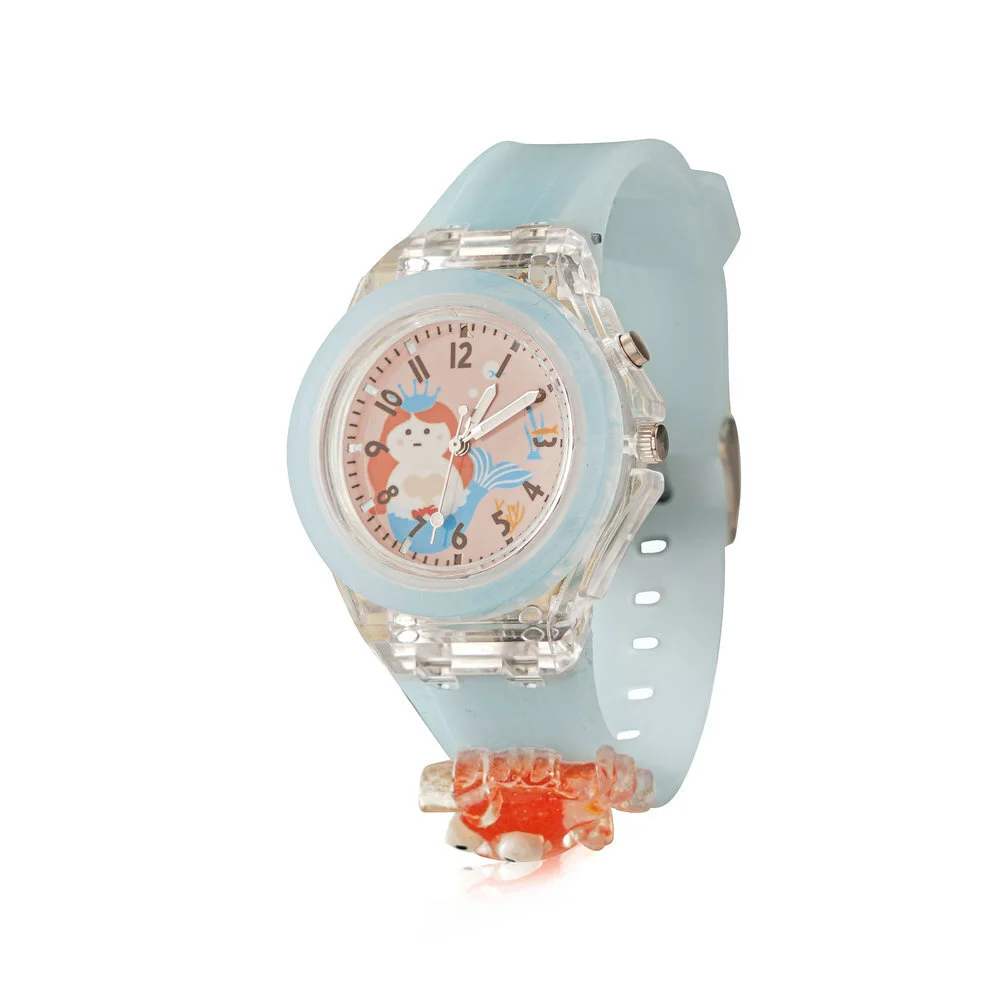
If your problem is the main image specifically, our main image checklist for Amazon covers the white background, frame fill and category exceptions in more depth. The amazon image zoom requirements above apply to every slot in the gallery, though, including lifestyle and infographic images, and those secondary slots are where low-resolution files hide most often.
Also remember that the amazon image pixel requirement is a floor. Amazon renders images at several sizes for search, the detail page and the zoom lens, and every resize throws away some detail. A file that starts at 2,000 px survives those resizes with far more texture than one that starts at exactly 1,000 px.
An Amazon product photo turns blurry on zoom when the original capture was soft, when a small file was upscaled to pass the 1,000 px rule, or when compression destroyed fine texture. Zoom only magnifies what is already in the file; it cannot add detail that was never captured.
This is the failure that frustrates sellers most, because the file passes every size check and the zoom lens appears, yet shoppers still see mush. In our experience the cause is nearly always one of four things: focus placed on the wrong part of the product, an aperture so wide that only a sliver is sharp, camera shake from a slow shutter, or an image that was enlarged in software from a phone photo or a supplier thumbnail.
Resizing a 700 px image to 2,000 px makes Amazon show the zoom lens, which is why sellers try it. But software can only guess the missing pixels, so edges look smeared and text on packaging turns soft. AI upscalers produce cleaner edges, yet they often invent fabric texture or stitching that does not exist, which creates a different risk: a “not as described” complaint when the real product arrives. If your amazon image zoom not working issue started after someone “fixed” the size this way, the honest fix is a new capture.
Close-up shots of small products have very shallow depth of field. At f/2.8, a ring or watch may be sharp only on the front edge of the dial. On a normal-size listing image that softness is invisible, but the zoom lens enlarges exactly the area that is out of focus. Product photographers solve this with smaller apertures, focus stacking, or both.

From the studio floor
For zoom-critical SKUs we shoot on a tripod at base ISO 100, f/8 to f/11 on a 100mm macro or a 50mm lens depending on size, with strobes freezing any movement. The camera is tethered to a laptop, and every first frame is checked at 100% on the screen before the batch continues. If the label, stitching or dial edge is not crisp at 100%, the frame is redone on the spot, because no amount of sharpening rescues it later.
Phone cameras deserve a fair word here. Modern phones produce files large enough for zoom, but they apply heavy noise reduction and sharpening that look fine at screen size and fall apart when enlarged. That is why an amazon product photo blurry complaint is so common on listings shot on a phone under room lighting, even when the file is technically 3,000 px wide.
Start from the largest original file, crop to a square canvas, scale so the product fills about 85% of the longest side, and export at 1,600 to 2,000 px. If the original is smaller than that, the fix is a reshoot, not an enlargement.
Size and crop problems are the easiest to fix when you still have the original camera files. Most sellers do not; they have whatever was last uploaded, which may already be a resized copy of a copy. Ask your photographer or agency for the full-resolution masters, and keep them in a separate folder from the marketplace exports so nobody overwrites them.
Think in product pixels, not canvas pixels. On a 2,000 px square canvas with 85% frame fill, the product spans roughly 1,700 px on its longest edge. That gives the zoom lens enough real detail to show weave, grain and hardware. On a 1,000 px canvas with a product filling only half the frame, the product spans 500 px, and the zoom effectively magnifies a thumbnail.
Example scenario
Example: a seller lists a 40-SKU watch catalogue and zoom works on only 12 listings. The working files came from a 24 MP camera (6,000 × 4,000 px). The failing files were exported at 1,200 px with the watch filling about 55% of the frame, so the dial covered roughly 660 px. Re-cropping the masters to a 4,000 px square with 85% fill, then exporting at 2,000 px, puts about 1,700 px across each watch. The numbers are illustrative, but the arithmetic is the same for any category.
When the masters are gone or were shot too small, a professional reshoot is the only fix that holds up. Sellers who keep failing on zoom across a whole catalogue usually benefit from Amazon product photography shot to marketplace rules from the start, because the capture size, frame fill and export standard are all planned before the first frame.
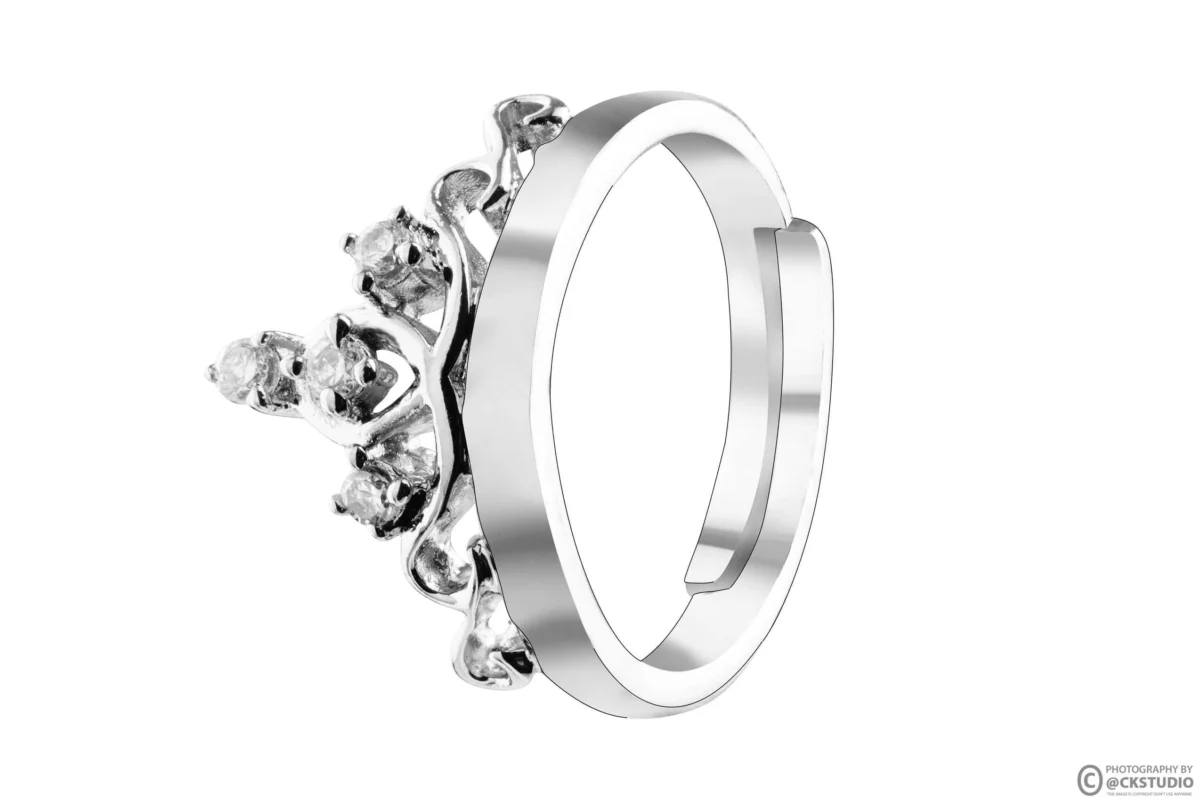
Amazon displays gallery images inside a square frame on most layouts. A tall 1:2 image of a kurta or a bottle leaves wide white bars on either side, and the product ends up smaller than it could be. Square crops, or 1:1 with the product scaled to the longest edge, get the most usable pixels into the zoom view. For apparel on a model, a 5:6 or 1:1 crop works better than a tall portrait frame.
Finally, check every secondary slot, not only the main image. Lifestyle images and infographics are often exported smaller because a designer worked on a 1,000 px canvas. Those slots also qualify for amazon zoom feature product images, and shoppers who zoom on a feature callout expect the same clarity they got on the main image.
Export once from the master file as a high-quality JPEG in sRGB with the profile embedded, at 1,600 to 2,000 px on the longest side. Avoid saving the same JPEG repeatedly, heavy compression, and aggressive sharpening, because each one removes texture the zoom lens needs.
Export is where a good capture quietly turns into an amazon image quality issue. JPEG compression throws away detail in fine patterns first, which is exactly what zoom is meant to show: fabric weave, wood grain, brushed metal, printed text on packaging. Every time someone opens a JPEG, makes a change and saves again, a little more is lost. After four or five rounds of edits, square blocks appear in flat areas and colour bands appear in gradients.
From the studio floor
Our export preset for Amazon is a 16-bit TIFF master, converted to sRGB IEC61966-2.1, resized to 2,000 px on the longest side (3,000 px for jewellery and watches), light output sharpening for screen, and JPEG quality 10 to 11 out of 12 in Photoshop. Files are named in the Amazon convention, for example ASIN.MAIN.jpg and ASIN.PT01.jpg, and checked at 100% in a second viewer before upload.
Colour mode does not switch zoom on or off, but it changes what shoppers see when they zoom. A file saved in Adobe RGB or with no embedded profile can look flat or oversaturated in the browser, and banding becomes obvious once the image is enlarged. sRGB is the web standard described by the International Color Consortium, and it is the safest choice for amazon listing image resolution work because browsers and phones assume it.
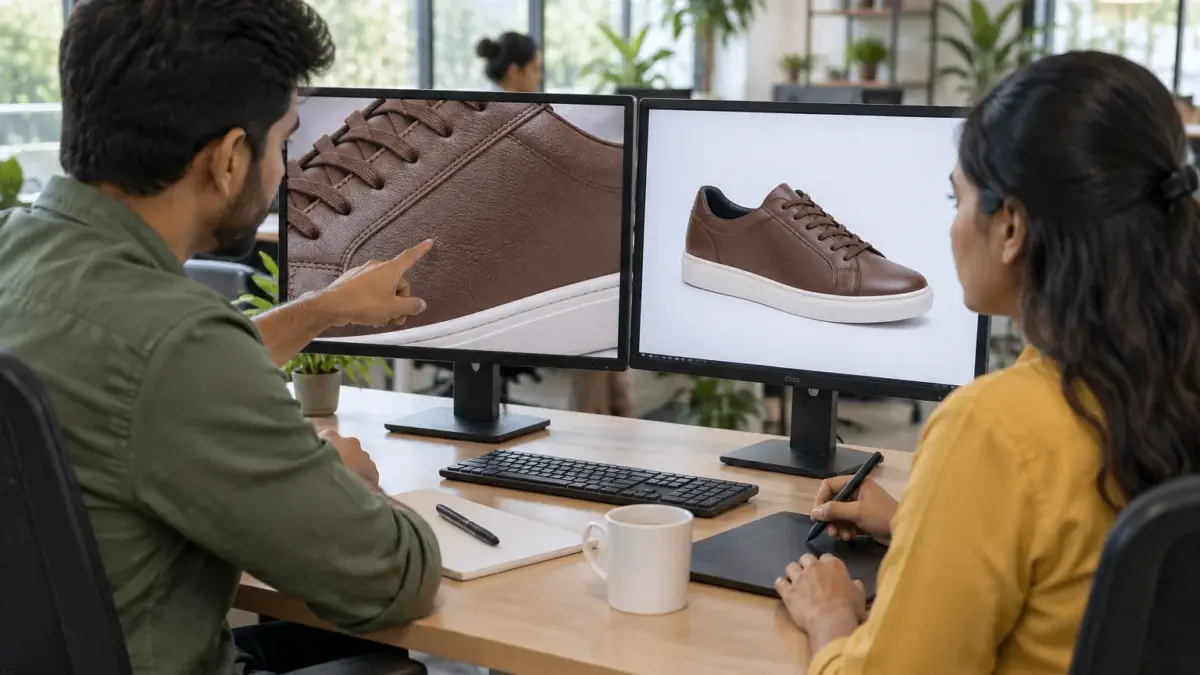
A little output sharpening helps an image hold detail after Amazon resizes it. Too much creates bright halos along edges, which look cheap at normal size and ugly on zoom. A safe rule is to sharpen at 100% view until edges look crisp, then back off slightly. Never sharpen a file that is already blurry from missed focus; sharpening adds contrast to edges, it does not create edges.
If you work with freelancers, give them the export standard in writing: pixel size, colour profile, JPEG quality and naming. At Ckstudio, most e-commerce quality complaints we see across Amazon, Flipkart and Myntra catalogues come from different people exporting the same shoot with different settings, so some listings zoom cleanly and others do not. A single preset, shared with everyone who touches the files, removes that variation.
Upload the corrected files through Manage All Inventory or a bulk image upload, confirm they process successfully, then check the live detail page on desktop and the app after processing completes. If the old image keeps showing, another catalogue contribution may be winning, which needs a Seller Support case.
Even a perfect file can look like amazon image zoom not working if the upload does not reach the live page. Image updates are not instant; they pass through processing and, for shared ASINs, through Amazon’s catalogue contribution logic, which decides whose images appear when several sellers list the same product. Brand owners with Brand Registry generally have stronger control over images on their own ASINs.
Variation families need extra care. Each child ASIN carries its own images, so fixing the parent or one colour does not fix the others. Shoppers who switch swatches on the detail page will see the old, low-resolution images for any child you skipped. Keep a list of every child ASIN in the family and tick them off as each upload processes.
If the image disappeared entirely or the listing went inactive after an upload, the problem is no longer zoom but compliance. Our guide to suppressed ASIN fixes walks through the image-related suppression reasons and how to clear them.
One more check is worth doing before you blame the file: browser caching. If you replaced an image and still see the old one on your own laptop, open the listing in a private window or on a different device. Sellers sometimes spend a day re-uploading a correct image that was already live for every shopper except them.
Small, reflective and textured products struggle most: jewellery, watches, cosmetics with fine print, electronics with ports and buttons, and fabrics where weave matters. They need macro lenses, controlled reflections and higher export sizes to give shoppers real detail on zoom.
Shoppers zoom hardest on products where small details decide the purchase. On a ring, they check stone setting and polish. On a watch, the dial finish and crown. On a lipstick or serum, the printed ingredient panel and the cap fit. On a cotton kurta, the weave and embroidery. If the zoom view cannot answer those questions, the shopper either leaves or orders and returns.
Metal and gemstones reflect everything around them, so a ring shot under room light shows dark smears that zoom makes worse. Sellers whose zoom shows grey patches instead of sparkle usually need specialist jewellery photography, with diffusion tents, black and white cards to shape reflections, and focus stacking so the whole piece is sharp from front prong to back band.

From the studio floor
For rings and earrings we shoot with a 100mm macro at f/11, take 8 to 15 frames at different focus points, and stack them so every stone is sharp. The tent is lit with two strobes through diffusion, and black cards placed at 45 degrees add the dark edges that make polished metal read as metal. Finished files go out at 3,000 px so zoom shows each prong clearly.
The jewellery video below shows the same setup in motion, including how pieces are positioned and lit to hold detail for marketplace listings.
Apparel needs steaming and even, soft light so weave shows without harsh shadows, plus at least one dedicated close-up slot of fabric or embroidery. Cosmetics need lighting that keeps printed text readable without glare on glossy tubes. Electronics need each port, button and texture captured straight on, because shoppers zoom to check compatibility. In each case, a dedicated detail image in slots 2 to 7 does more for zoom than trying to make the main image carry everything.
The common mistakes are upscaling small files, uploading screenshots or supplier thumbnails, cropping too loosely, re-saving JPEGs, and fixing only the main image. Edit when the original capture is sharp and large; reshoot when the capture itself is soft, small or badly lit.
| Situation | Edit the existing file | Reshoot |
|---|---|---|
| Original is 3,000 px+ and sharp, but exported small | Yes, re-export | No |
| Product too small in frame, master is large | Yes, re-crop | No |
| Background grey or uneven, product sharp | Yes, clean background | Only if many SKUs are affected |
| Focus missed or motion blur | No | Yes |
| Only phone or supplier images exist | No | Yes |
| Reflections or glare hiding detail | Rarely | Yes, with controlled lighting |
When the capture is sound but the files need a clean background, colour correction and a consistent export across a catalogue, professional product image retouching and editing is faster than a full reshoot. Ckstudio sorts every audited listing into these two columns first, so sellers only pay for new photography where the file genuinely cannot be saved.
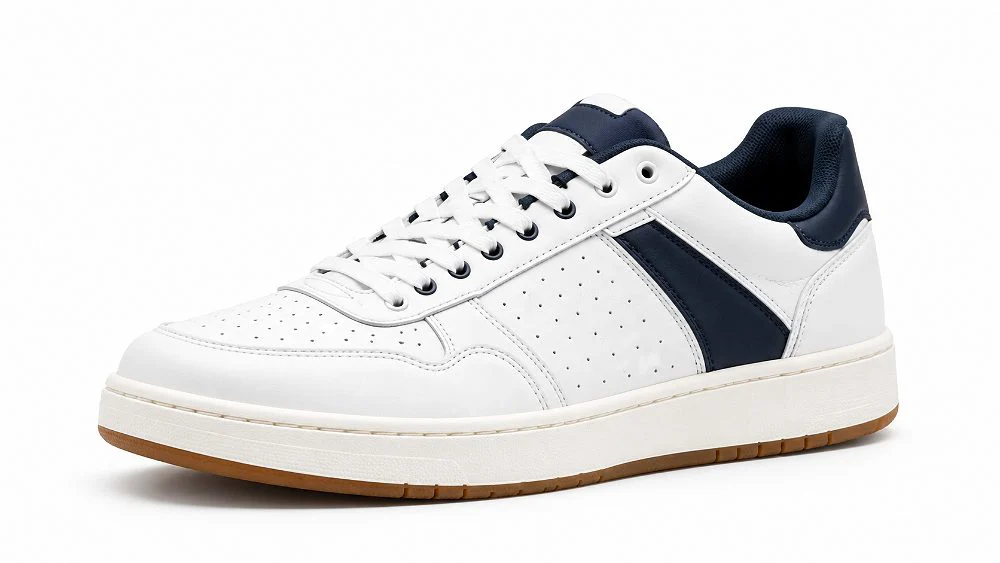
The behind-the-scenes sunglasses shoot below shows a full marketplace production: lighting reflective lenses, positioning the product and checking frames, the same discipline that keeps zoom sharp.
If you are unsure which column your listings fall into, send two or three live ASINs on WhatsApp at +91-8700258773 or by email to [email protected]. The Ckstudio team will tell you which images can be rescued by editing and which need a new capture.
Most likely the file is under 1,000 px on its longest side, so Amazon does not enable zoom. Check the pixel size of the uploaded file, not how it looks on screen, and re-export from a larger original if you have one.
Amazon enables zoom from 1,000 px on the longest side and accepts up to 10,000 px. For clear detail, export at 1,600 to 2,000 px, or around 3,000 px for jewellery and watches, with the product filling about 85% of the frame.
Resizing makes the zoom lens appear, but it does not add detail, so the zoomed view looks soft. If the original is small or blurry, a reshoot is the only lasting fix for amazon image zoom not working on that slot.
The app uses tap and pinch zoom instead of a hover lens, so there is no rollover prompt. If pinch zoom shows a blurry image, the file has the same resolution or quality problem as on desktop and needs the same fix.
Wait for processing to finish, then check in a private browser window. If the old image remains, another seller’s contribution may be winning on a shared ASIN, so open a Seller Support case with the ASIN and slot details.
Colour profile does not turn zoom on or off, but files outside sRGB can look dull or banded when enlarged. Export in sRGB with the profile embedded so colours stay accurate at every zoom level.
Zoom is the closest a shopper gets to holding your product, so a listing where amazon image zoom not working goes unfixed is quietly losing sales on every visit. Diagnose which of the three failures you have, check every slot against the pixel and frame-fill rules, export once from a sharp master, and confirm the live page after processing. Where the capture itself is the problem, plan a reshoot rather than another round of resizing.
Prince and the Ckstudio team audit, retouch and reshoot Amazon catalogues so every slot zooms cleanly. Call +91-8700258773 between 10 am and 7 pm, message on WhatsApp at +91-8700258773, or email [email protected] with your ASINs.
Next step: once every image zooms cleanly, plan a 7-image Amazon gallery sequence so each sharp slot answers a different buyer question.
Ckstudio shoots and exports Amazon catalogues to marketplace rules, with capture size, frame fill and colour checked before delivery. Call Prince to discuss your SKUs, or call +91-8700258773 for a quick image audit.
Call Prince: +91-8700258773