Fashion Photography Services


E-commerce Photography
The exact export presets, slot-by-slot dimensions and upload checks a catalogue team needs so every Flipkart photo uploads first time and still holds detail on zoom.
Getting the flipkart listing image size right is less about one magic number and more about matching three things at once: pixel dimensions, aspect ratio and file weight. Sellers usually discover the problem late, when an upload is rejected, a main image looks soft on the zoom view, or a kurta gets cropped at the hem in the search grid. This checklist fixes all three before the files ever reach Seller Hub.
Prince and the catalogue team at Ckstudio have exported marketplace image sets since 2015, and the same mistakes keep repeating across categories. This guide sits inside our Flipkart seller hub guide, and it narrows down to one job: the numbers behind a clean upload. You will get slot-by-slot presets, a ratio decision table, file-size targets, a zoom test and a numbered upload routine.
In this guide
The right flipkart listing image size is a high-resolution square file large enough for zoom, typically exported around 1500 × 1500 px from a bigger master. Flipkart’s own seller resources ask for high-resolution, clear images on a clean background; the exact minimum and maximum values are shown in your category template and the Seller Hub upload screen.
Search results disagree on the official numbers. Third-party guides quote minimums anywhere from 500 px to 1000 px on the shorter side, and file-size ceilings from 1 MB to 20 MB. None of those blogs is Flipkart. What Flipkart does say publicly, in its product listing optimisation guide on Seller Hub, is that sellers should upload high-resolution images on a white background, show the product from several angles and avoid blurry or low-resolution photos.
So the practical answer has two layers. The hard limit is whatever your category’s catalogue template and upload screen enforce on the day you list. The working target is a file with enough headroom that it never sits near that limit. At Ckstudio we treat the second number as the one to plan around, because a file that only just passes the minimum will still look soft when a shopper pinches to zoom on a phone.
A 1500 × 1500 px file can still fail in practice. If the product fills only 40% of the canvas, the zoom view magnifies empty white space. If the file was upscaled from a 600 px phone photo, it carries the pixel count but none of the detail. If it was saved at heavy compression to get under a size cap, the fabric weave turns into blocks. The flipkart listing image size you upload is only useful when pixels, fill and compression agree.
| Item | What Flipkart publishes | Where to confirm the number | Ckstudio working target |
|---|---|---|---|
| Resolution | High-resolution images, no blurry or low-res photos | Category template and upload screen | 1500 × 1500 px export from a 3000 px+ master |
| Background | White background for product images | Category guidelines (some apparel verticals differ) | Pure white or the category’s specified light grey |
| Angles | Multiple angles to show the product fully | Listing form image slots | Fill every slot the vertical offers |
| File size | Not stated publicly as one universal value | Upload screen error message | Roughly 300 KB to 1.5 MB per JPEG |
| Format | Not stated publicly as one universal value | Upload screen accepted types | JPEG, sRGB, baseline |
Read the table as a rule of evidence. The second column is what Flipkart itself publishes. Every number in the last column is a studio production preset, not a Flipkart rule, and it is chosen to stay comfortably inside the limits sellers commonly meet in the panel.
Use one square size for every slot in a listing so the carousel does not jump between frames. A 1500 × 1500 px export covers the main image, back view and detail crops; a 2000 × 2000 px export is worth it only for jewellery, watches and fine-print packaging where shoppers zoom hardest.
The main image doubles as the search thumbnail, so it is shown tiny in the grid and huge on zoom. The secondary slots are seen mostly in the swipe carousel, where consistency matters more than raw size. The size chart and infographic slots carry text, which needs crisp edges more than pixel count. Planning flipkart image dimensions per slot avoids both bloated uploads and soft details.
| Slot | Export size (px) | Product fill | Why this preset |
|---|---|---|---|
| Main image | 1500 × 1500 | About 85% of the frame | Readable thumbnail and sharp zoom |
| Back and side views | 1500 × 1500 | Same scale as the main image | Carousel stays visually steady |
| Detail and texture crops | 1500 × 1500 from a full-res crop | Detail fills 70–90% | Fabric, stitching and finish read clearly |
| Jewellery and watch macro | 2000 × 2000 | About 80%, centred | Stone and dial detail survive zoom |
| Size chart or infographic | 1500 × 1500 | Text at least 40 px tall | Labels stay legible on a phone |
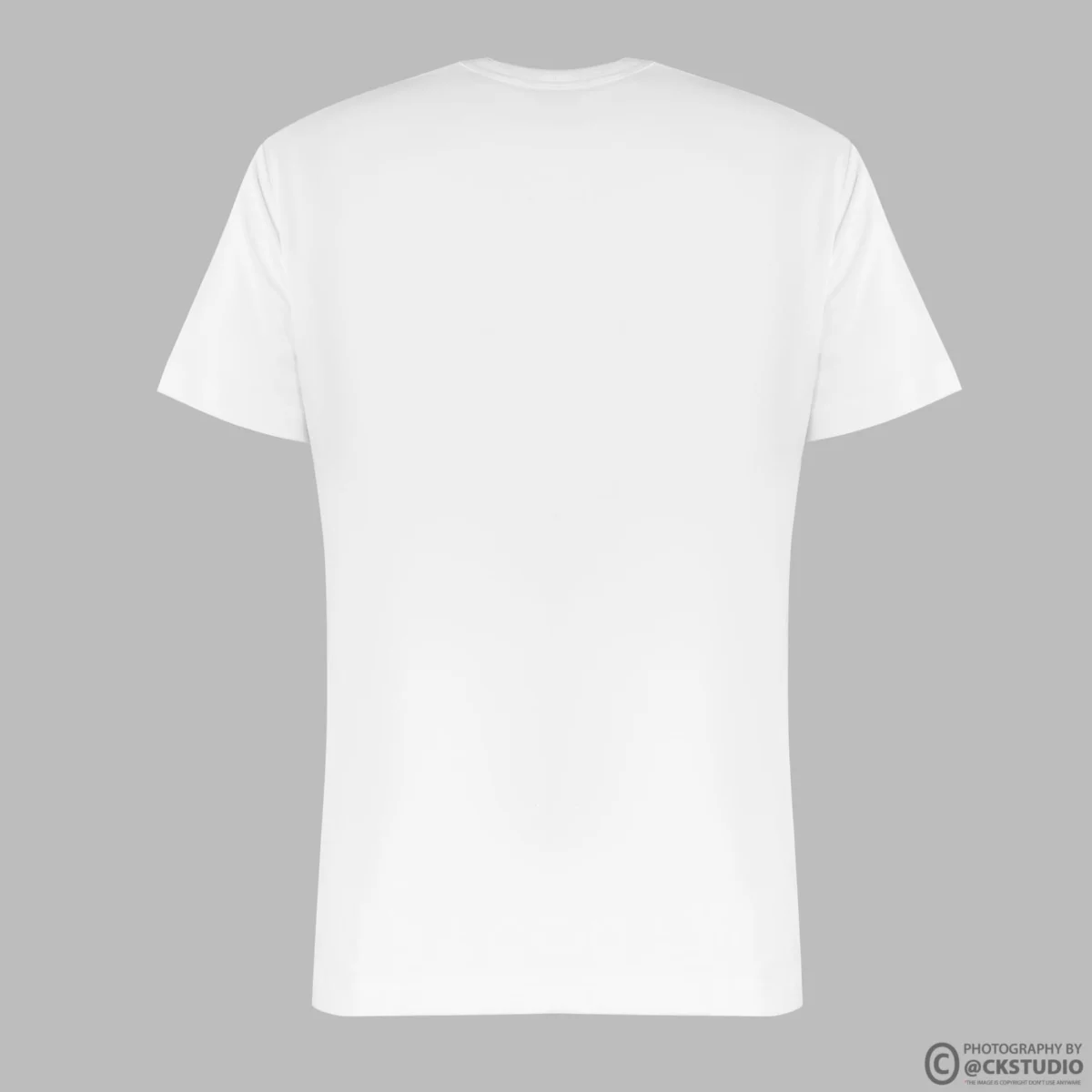
For the main frame, the useful question is not “will it upload?” but “will a shopper see the collar stitch when they zoom?”. A 1500 px square with the product filling about 85% gives roughly 1275 px of actual product, which is enough for most apparel, footwear and home goods. Below about 1000 px of product, the zoom loupe begins to show softness on a modern phone screen.
From the studio floor
Our capture for marketplace sets runs on full-frame mirrorless bodies such as the Sony A7R5, with a 50mm lens for general products and a 100mm macro for jewellery, at f/8 to f/11 so the whole product sits in focus. The raw master is never smaller than about 6000 px on the long side. From that master we export a 3000 px archive file and then the 1500 px marketplace file, so a later re-crop never forces a reshoot.
Keep the same export size across a whole style family. When a listing mixes 1000 px and 2000 px files, the carousel scales them to the same display box, and the smaller ones look visibly softer side by side. That inconsistency reads as low quality even when every single file passes the minimum. If your current photos were shot on a phone and cannot reach these presets cleanly, Flipkart product photography captured for square export solves the size problem at the source.
Export square 1:1 by default, because the search grid and most category templates display square tiles. Switch to a portrait ratio only when your apparel vertical’s template asks for it, and then keep every image in that listing on the same portrait ratio.
Aspect ratio causes more visible damage than pixel count. When a portrait model shot is uploaded into a square display, the app either letterboxes it with white bars or crops the top and bottom. On a full-length kurta that usually means losing the hemline or the model’s feet, which are exactly the details shoppers use to judge length and fall.
| Product type | Recommended ratio | Risk if wrong | Check before export |
|---|---|---|---|
| Hardgoods, beauty, electronics | 1:1 square | Tiny product in a tall frame | Product fills about 85% of the square |
| Footwear | 1:1 square | Toe or heel clipped | Even margin on both ends of the side profile |
| Jewellery | 1:1 square | Chain cut off, scale unclear | Whole piece inside the safe area |
| On-model apparel | As the category template specifies | Head or hem cropped in the grid | Preview the crop in the listing form |
| Flat lay and ghost mannequin | 1:1 square | Sleeves touching the edge | Margins of 5–8% on every side |
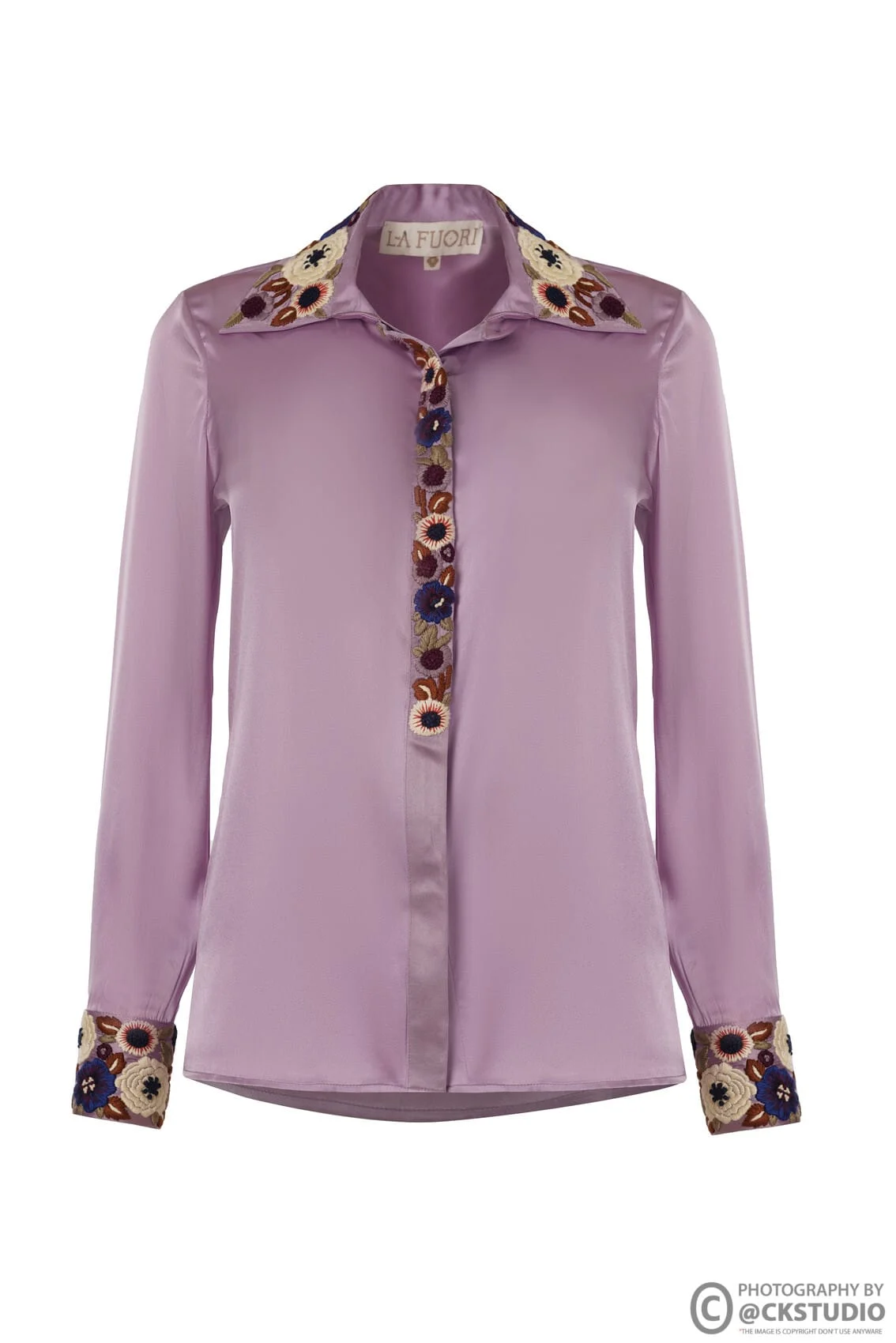
Never let the platform decide the crop. Open the portrait master, extend the canvas left and right with the same background tone until it is square, then scale so the garment fills about 85% of the height. This keeps the full silhouette and gives the square tile even side margins. Cropping the top and bottom instead always costs either the collar or the hem.
If your team shoots for Myntra and Amazon as well, keep the uncropped portrait master in the archive and produce one export per marketplace. One master and three exports is faster than three separate shoots, and it keeps colour identical across platforms. Our broader Flipkart photography guidelines on ratio and background cover the background side of this decision in more depth.
Plan for a high-quality JPEG in the sRGB colour profile, usually between 300 KB and 1.5 MB at 1500 × 1500 px. That range stays well inside the limits sellers meet in the upload screen while keeping fabric texture and edges clean. If the panel rejects a file for size, re-export at slightly lower quality rather than shrinking the pixels.
File size and pixel size are different settings. Pixel size decides how much detail is possible; JPEG quality decides how much of it survives. A 1500 px file saved at quality 95 might weigh 2.5 MB with no visible gain over quality 85 at 900 KB. A 1500 px file saved at quality 50 might be 180 KB with visible blocking on gradients and dark fabric. The flipkart image file size limit should be met by tuning quality, never by downsizing below your target.
From the studio floor
Our marketplace export preset is fixed: sRGB, 1500 × 1500 px, JPEG quality 88, metadata stripped, bicubic sharper resampling, then a light output sharpen at 0.3 px radius. A typical white-background apparel file lands between 450 KB and 900 KB; a dark textured fabric with lots of detail can reach about 1.4 MB. Anything above 2 MB is flagged in QC and re-checked before it goes to the seller.
Retouching is where many sellers lose quality without noticing. Heavy background cut-outs leave hard edges and halos, and those artefacts get exaggerated by compression. If your in-house team is struggling with clean edges, consistent white values and export batching, professional image editing and retouching fixes the file at the export stage instead of reshooting the product.

A zoom-ready image has real optical detail, not just pixels. Shoot at a high resolution, let the product fill about 85% of the square, and inspect the final export at 100% magnification for softness, halos and dust before upload.
The flipkart image zoom size that matters is the product’s pixel footprint, not the canvas. A 2000 px square with a small ring sitting in the middle can show less zoom detail than a 1500 px square where the ring fills the frame. That is why product fill is part of the size check, not a separate styling choice.
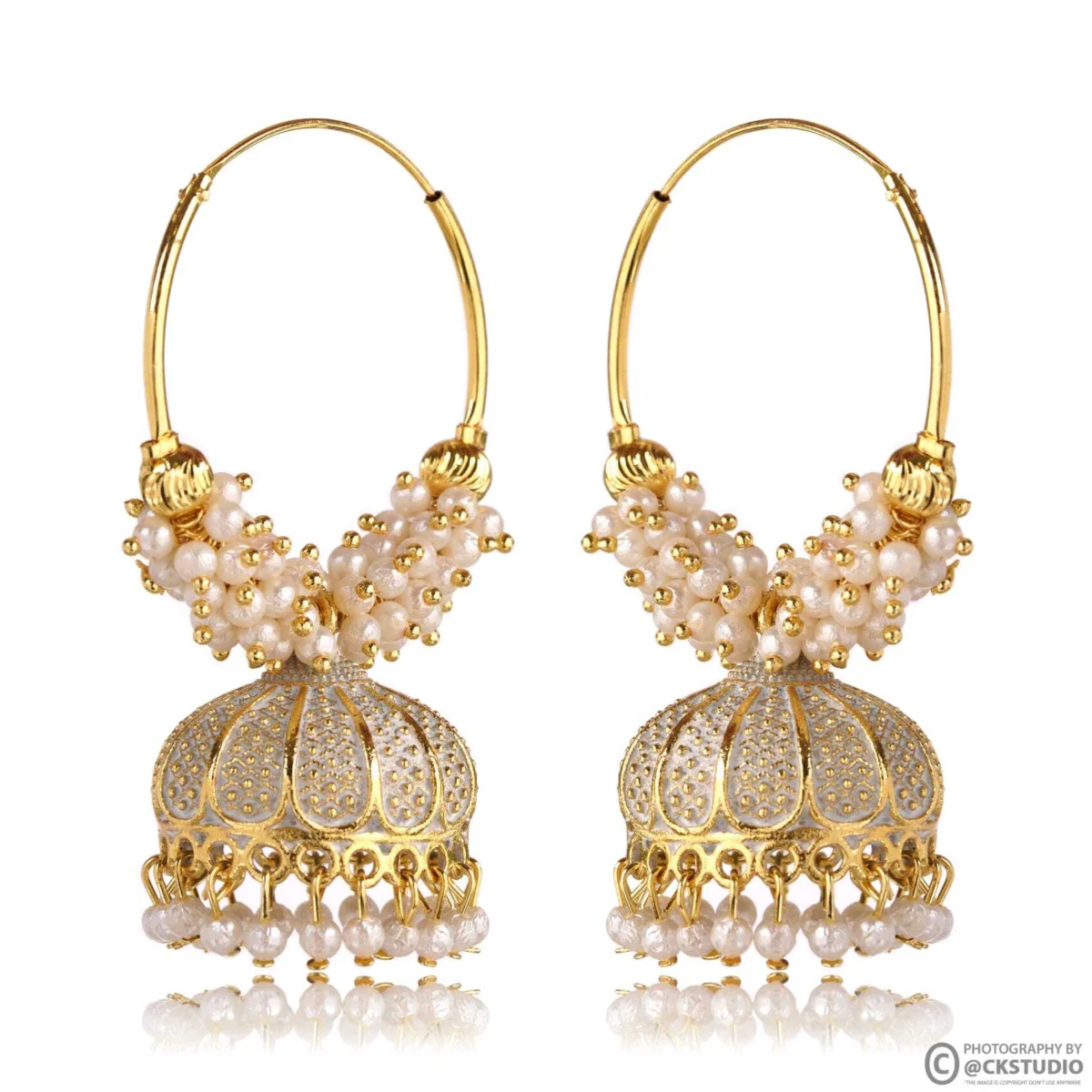
Upscaling is the most common way sellers fake a pass. Resizing a 700 px phone photo to 1500 px satisfies the pixel check but adds no detail, and the zoom view shows it immediately as mushy edges. If the original capture is too small, the honest fix is a reshoot.
Shooting for zoom also changes the lighting. Small, glossy products need controlled highlights so the zoom view does not show blown-out reflections. For gold, stones and pearls, dedicated jewellery photography with macro lighting is usually the difference between a zoom that sells and one that exposes every flaw.
The video below shows how a marketplace set is lit and framed on the studio floor. Notice the tethered review and the even light that keeps reflections controlled before any file is exported.
Prepare a named, checked export folder first, then upload through the listing form or the bulk catalogue template. Most size errors disappear when every file is already square, sRGB, under your size target and named by SKU before you open Seller Hub.
Flipkart explains the general listing flow in its how to list products guide on Seller Hub. The steps below are the image side of that flow, in the order our catalogue team runs them.
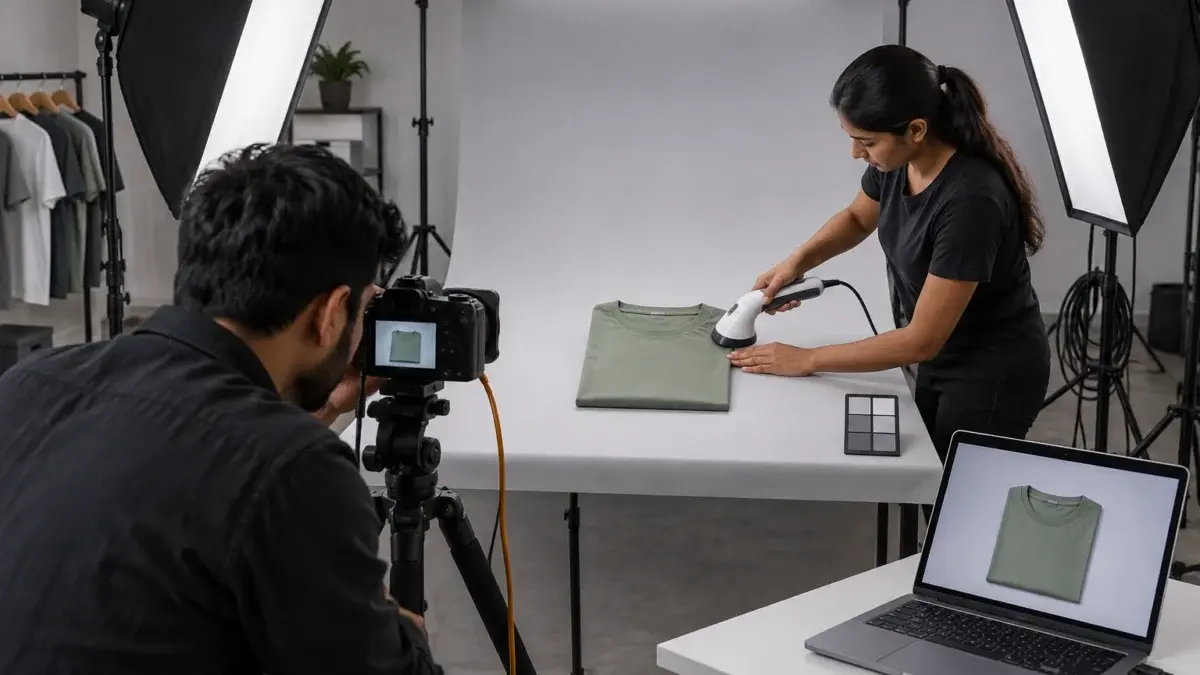
When an upload fails, read the exact error before changing anything. A size or dimension message points to the export preset. A quality or blur flag points to the capture. A background or watermark flag points to retouching. Treating every rejection as a resize problem is how sellers end up with smaller, worse files that still fail. Our guide to Flipkart listing rejection reasons maps the wider set of errors.
For bulk catalogues, test five SKUs through the full flow before uploading the remaining files. If those five pass and look right on a phone, the preset is proven and the batch can go through with confidence. Questions about a specific vertical can go to [email protected] with a sample file attached.
Most problems come from five habits: upscaling small photos, letting the app crop portrait files, over-compressing to hit a size cap, mixing sizes in one listing and uploading wide-gamut colour files. Each has a simple fix at the export stage.
| Mistake | What the shopper sees | Fix |
|---|---|---|
| Upscaled phone photo | Mushy edges on zoom | Reshoot at full resolution; never upscale more than about 10% |
| Portrait file in a square slot | Cropped hem or head, white bars | Extend canvas to square before export |
| Quality 50 to hit a size cap | Blocky shadows, smeared fabric | Keep pixels, use quality 80–88 |
| Mixed sizes in one listing | Some slides sharper than others | One preset for every slot |
| Adobe RGB export | Dull, shifted colour | Convert to sRGB first |
| Product fills under 60% | Tiny product in the search grid | Re-crop to about 85% fill |
| Text or badges on the main image | Possible rejection, cluttered thumbnail | Keep claims for secondary or infographic slots |
The pattern behind these mistakes is the same: a fix applied at the wrong stage. Compression problems are fixed in export, framing problems in capture, and colour problems in the profile conversion. When sellers send us rejected sets, roughly the same question sorts them out each time: which stage produced this defect?
Some defects cannot be rescued in editing. If the original files are underexposed, out of focus or shot with a phone at arm’s length, the efficient route is a proper reshoot built around Flipkart’s slots. Sellers who keep losing time on rejected uploads usually save more with a planned reshoot at Ckstudio, built around the exact export sizes, than by editing weak files again and again. You can send a sample file on WhatsApp at +91-8700258773 for a quick check.
A blurry main image is often blamed on file size when the real cause is camera shake or a wide aperture. A “pixelated” look on dark fabric is frequently noise from a high ISO, not compression. Dull colour is a profile issue. Before re-exporting, open the master at 100% and check whether the defect is already there; if it is, no flipkart listing image size setting will remove it.
Keep one export preset per category rather than one for the whole catalogue. Apparel, jewellery, footwear and beauty fail in different ways, so their size, fill and sharpening settings should differ slightly while the square ratio stays the same.
Category presets are where the Ckstudio workflow pays off. Once a preset is proven on a test batch, every future SKU in that category exports in seconds with identical output. The table below is the starting point we use; adjust only if your category template asks for something specific.
| Category | Export size | Fill | Special check |
|---|---|---|---|
| Apparel flat lay or mannequin | 1500 × 1500 px | 80–85% | Sleeves and hem inside the margin |
| On-model apparel | Template ratio, 1500 px short side | Full figure with headroom | Feet and hem visible in the crop preview |
| Jewellery | 2000 × 2000 px | About 80% | No clipped highlights on metal |
| Footwear | 1500 × 1500 px | 85% across the length | Toe and heel equally spaced |
| Beauty and cosmetics | 1500 × 1500 px | About 85% | Label legible at 100% |
Example scenario
Example: a seller lists 40 kurta SKUs with 6 images each, so 240 files. With one preset of 1500 × 1500 px at quality 88, each file lands near 700 KB, so the full batch is about 168 MB and uploads in one session. The same set exported at 4000 px and quality 100 would weigh several gigabytes and invite size errors. These numbers are illustrative, not a client result.
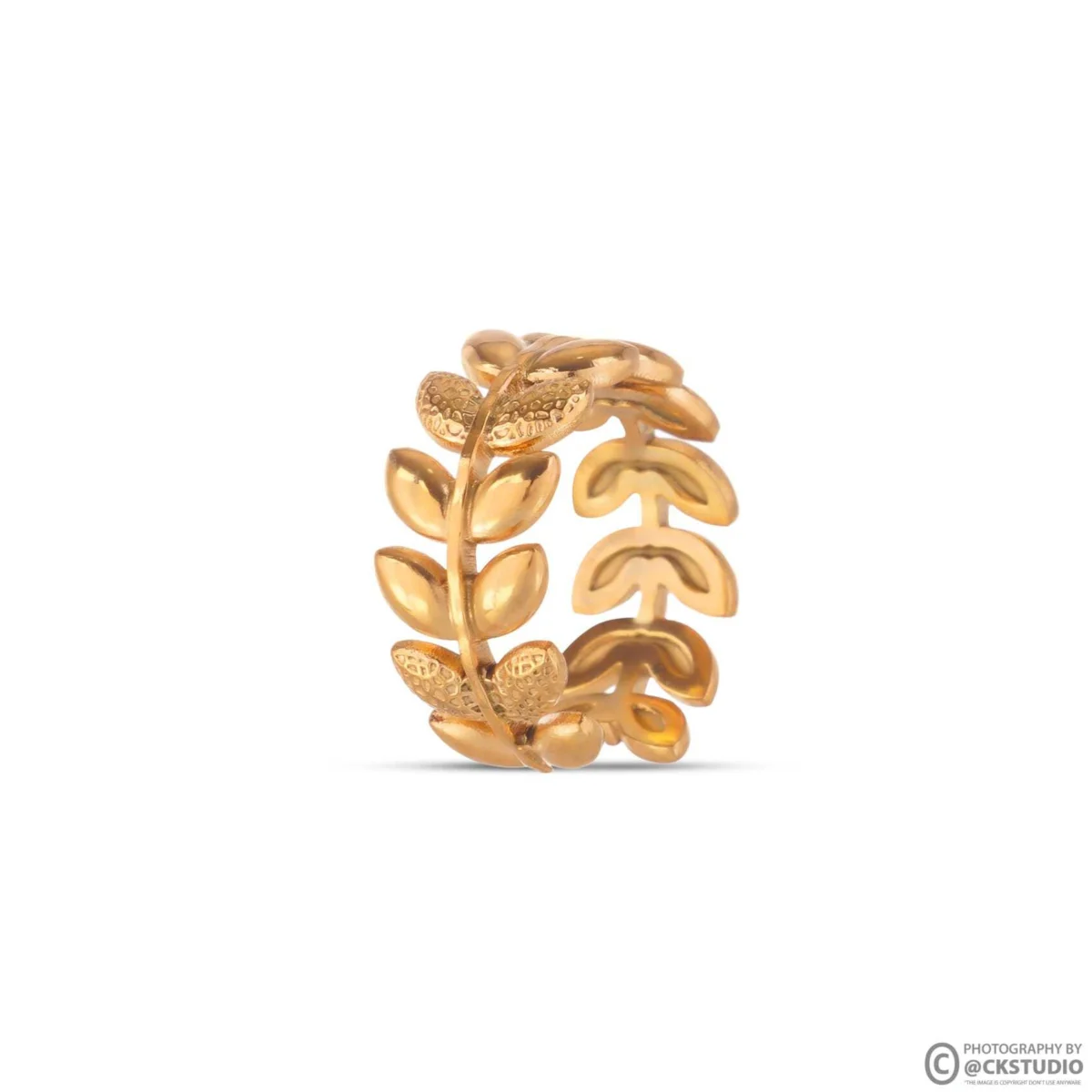
For jewellery, the jump to 2000 px is about fine detail. Pearls, filigree and small stones lose their texture at lower sizes, and shoppers zoom hardest on these categories. The video below shows a jewellery shoot planned for marketplace listings, including the macro framing that makes a larger export worthwhile.
From the studio floor
Before any batch leaves Ckstudio, QC opens 1 in every 10 files at 100%, checks that every slot of a style shares the same pixel size, confirms sRGB in the file info, and sorts the folder by weight to catch anything above 2 MB or below 200 KB. Files are named SKU-slot so a catalogue executive can upload 240 images without opening a single one.
A square 1500 × 1500 px JPEG with the product filling about 85% of the frame is a safe working target. Confirm the minimum and maximum in your category template, since Flipkart applies limits at category level.
Follow the ratio your apparel template shows in the listing form. Keep the short side at 1500 px or more, use the same ratio for every image in the listing, and preview the crop so the hem and feet stay visible.
The upload screen enforces a limit, and it is the number to trust. Third-party guides quote different values, so we export between 300 KB and 1.5 MB, which stays comfortably inside common limits without visible compression.
Export every file with one preset, name it by SKU and slot, run a 100% check on the main images, test five SKUs end to end, then upload the rest through the bulk catalogue flow in Seller Hub.
Usually the file was upscaled, heavily compressed or the product fills too little of the frame. The pixel count can pass while real detail is missing; a reshoot at full resolution is often the only fix.
Use JPEG in sRGB for photographs. PNG files are much heavier for the same image and offer no visible gain; keep PNG for text-heavy graphics and only if the upload screen accepts it.
Getting the flipkart listing image size right is a production habit, not a one-time fix. Build from a large master, export one square preset per category, control weight with JPEG quality, and test every batch on a phone. If you would like a second opinion on your current files, email [email protected] or call +91-8700258773.
Next step: once your sizes are fixed, plan the images that sit below the gallery with our Flipkart A+ content planning guide.
Ckstudio shoots and exports marketplace catalogues with fixed presets for every category, so your files upload cleanly and hold detail on zoom. Call Prince to plan your next batch, or WhatsApp a sample file on +91-8700258773.
Call Prince: +91-8700258773