Fashion Photography Services
E-commerce Photography
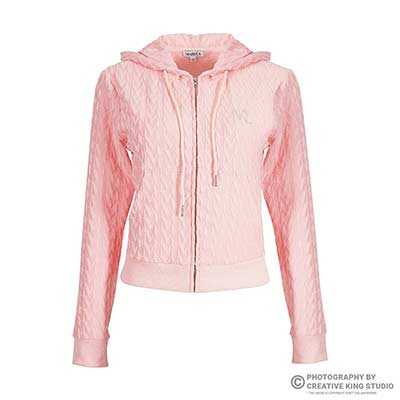
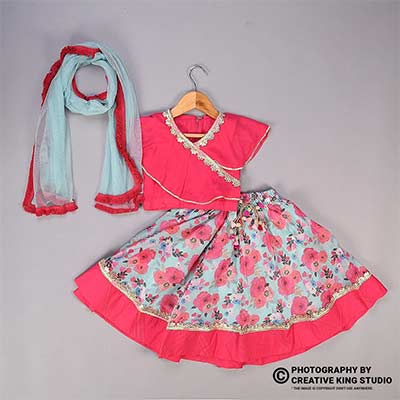
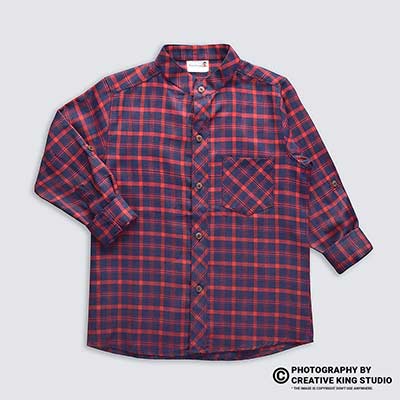
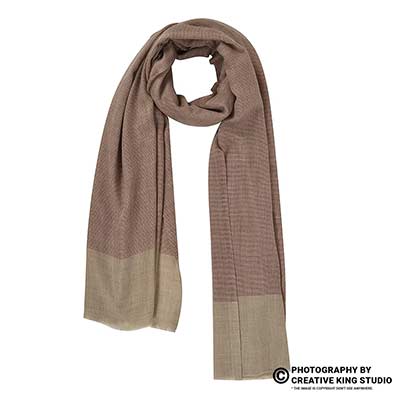
A practical, panel-first checklist for suppliers who are tired of image flags, re-uploads and listings that never go live.
Meesho image requirements decide whether a new catalogue goes live in a day or sits in a loop of quality flags, and most rejections trace back to a handful of avoidable image faults. This checklist sits inside our marketplace seller guide hub, where we compare how Amazon, Flipkart, Myntra and Ajio treat listing photos, and it focuses on one job: checking every image before you press upload in the Meesho Supplier Panel.
At Ckstudio, Prince and the catalogue team shoot apparel and accessories for sellers on several marketplaces, and the same pattern repeats with Meesho suppliers. The photo itself is usually fine; what fails is the frame, the background, a leftover sticker, a colour that drifted in editing, or a missing back view. Below you will find where the official rules live, what to check, how to read a rejection, and when a reshoot beats another round of edits.
In this guide
The only authoritative source for Meesho image requirements is the Supplier Panel itself: the catalogue upload screens, the category templates and the help or learning sections you see after logging in. Specs published on vendor blogs disagree with each other, so treat any number you read outside the panel as a rumour until the panel confirms it.
Meesho does not publish a single public image policy page the way some marketplaces do. The working rules appear in context: the image slot on the single-catalogue upload form, the notes inside the bulk catalogue template for your category, and the quality guidance in the supplier help area. Start every new category by opening the official Meesho Supplier Panel and reading those three places in order.
Search for the meesho catalogue image size and you will find guides quoting several different minimum dimensions and file limits. Some were written for an older version of the panel, some copy Amazon’s numbers, and some are written by tool vendors selling a resize preset. None of them is a Meesho publication, which is why this post deliberately gives you checks rather than borrowed numbers.
The practical habit is simple: before a shoot, screenshot the current guidance from the panel for the exact sub-category you are listing in, save it with the date, and share it with whoever shoots or edits your images. When Meesho changes a rule, your dated screenshot shows which batch was prepared under which version, and you stop arguing with your editor about which blog was right.
Keep this one-page record next to your SKU sheet. It turns vague advice into a concrete brief, and it is the first thing we ask for when a Meesho supplier sends products to Ckstudio, because shooting to the wrong frame wastes a full day of studio time.
Compare every exported file with the Meesho image requirements you recorded from the panel, meaning ratio, minimum size and file limit, and check the product’s position inside the frame. Most frame-related rejections come from images cropped to the wrong shape, upscaled from small originals, or saved with heavy compression that destroys fabric texture.
Ratio problems usually start at the camera. A portrait full-length shot squeezed into a square canvas leaves the garment tiny, while a square crop forced onto a tall kurta cuts off the hem. Decide the delivery ratio before the shoot, set a matching crop overlay in the tethering software, and frame for it. Fixing ratio in editing almost always costs either detail or margin.
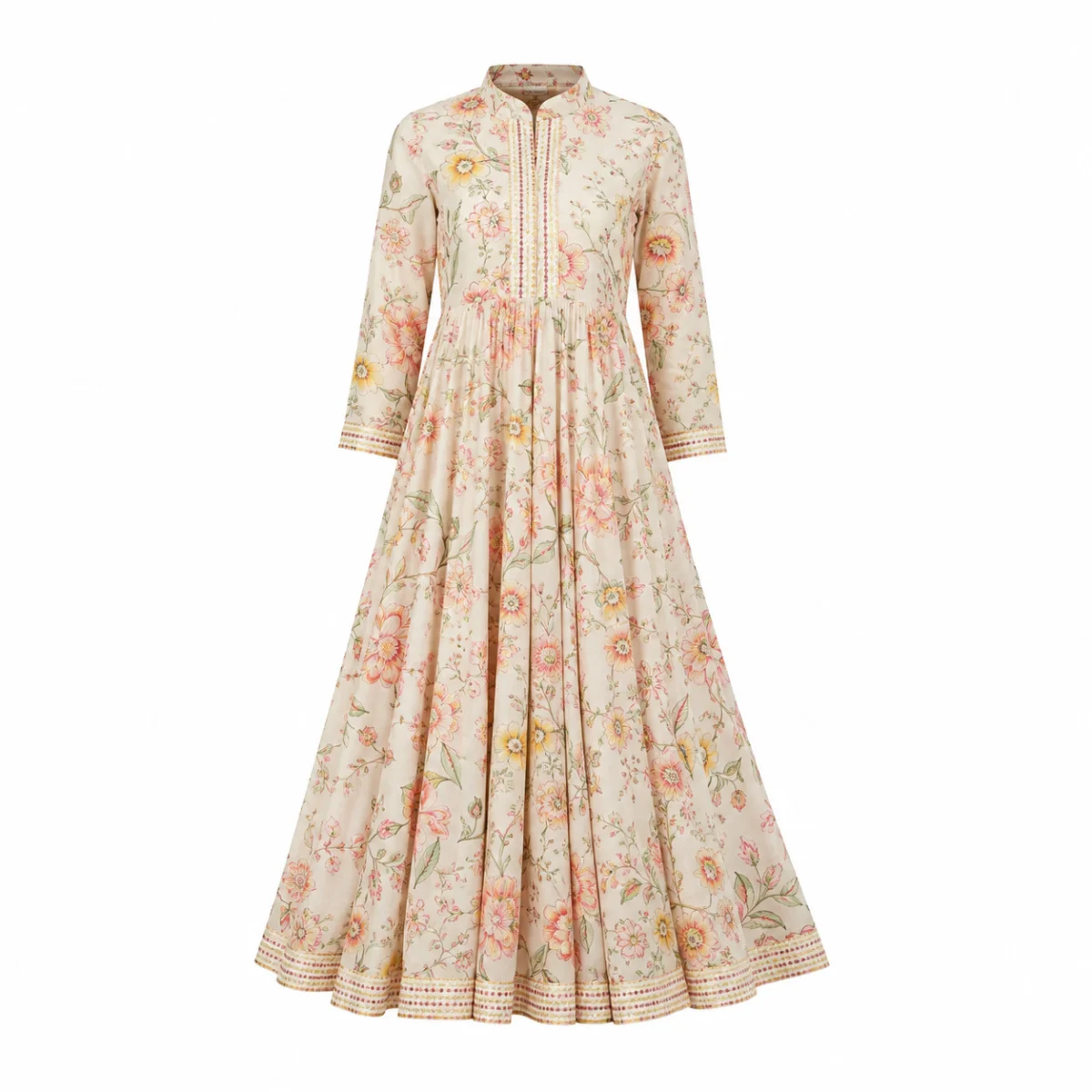
Upscaling a phone photo to meet a minimum size passes the uploader but fails the eye: embroidery turns mushy and prints show halos when a shopper zooms. Check the original capture size, not just the exported size. If the source file is smaller than what the panel asks for, the honest fix is a reshoot, not a resize.
| Check | Where to verify the rule | How to test your file |
|---|---|---|
| Aspect ratio | Image slot on the Supplier Panel upload form | Open file info; width divided by height must match the panel ratio |
| Minimum dimensions | Upload form and category template notes | Check the original capture size, not only the export |
| File type and size limit | Uploader error messages and help section | Export a test file and upload it as a draft first |
| Product coverage | Category quality guidance in the panel | Overlay a grid; garment edges should sit clear of the frame line |
| Image count | Catalogue upload form | Count slots and plan the shot list to fill them |
From the studio floor
For square marketplace frames we shoot apparel on a full-frame body with a 50mm lens at about f/8, ISO 100, from roughly 3 metres, so a kurta fills the height with room to spare. Exports go out as 2000 × 2000 px sRGB JPEGs at quality 10 in Photoshop, which keeps embroidery crisp while staying comfortably small; we then re-check them against whatever limit the seller’s panel screenshot shows.
A last trick: upload one finished image as a draft catalogue before exporting the whole batch. If the uploader complains about size or type, you have lost five minutes instead of an evening of re-exports across forty SKUs.
A cluttered background, a watermark, a supplier logo or overlaid text makes the image look like an advert or a copied photo rather than a clean catalogue frame. These are the fastest flags to trigger and the easiest to prevent, because they are visible at a glance on a phone-sized thumbnail. Treat all four as outside Meesho image requirements unless your panel notes say otherwise.
The single most reported cause of meesho image rejection on seller forums is a first image that still carries someone else’s branding: a factory’s watermark, an MRP sticker, a hangtag with another label’s logo or a corner stamp left by a previous photographer. Many suppliers source stock from wholesalers and reuse the wholesaler’s photos. Those images are often marked, and they can also look identical to hundreds of other listings.
Whatever background colour your panel guidance specifies for the main image, the test is the same: it must be even, free of shadows that read as dirt, and free of props that could be mistaken for part of the product. A meesho product photo background that looks grey in one corner and white in another tells QC the image was cut out badly or shot under uneven light.
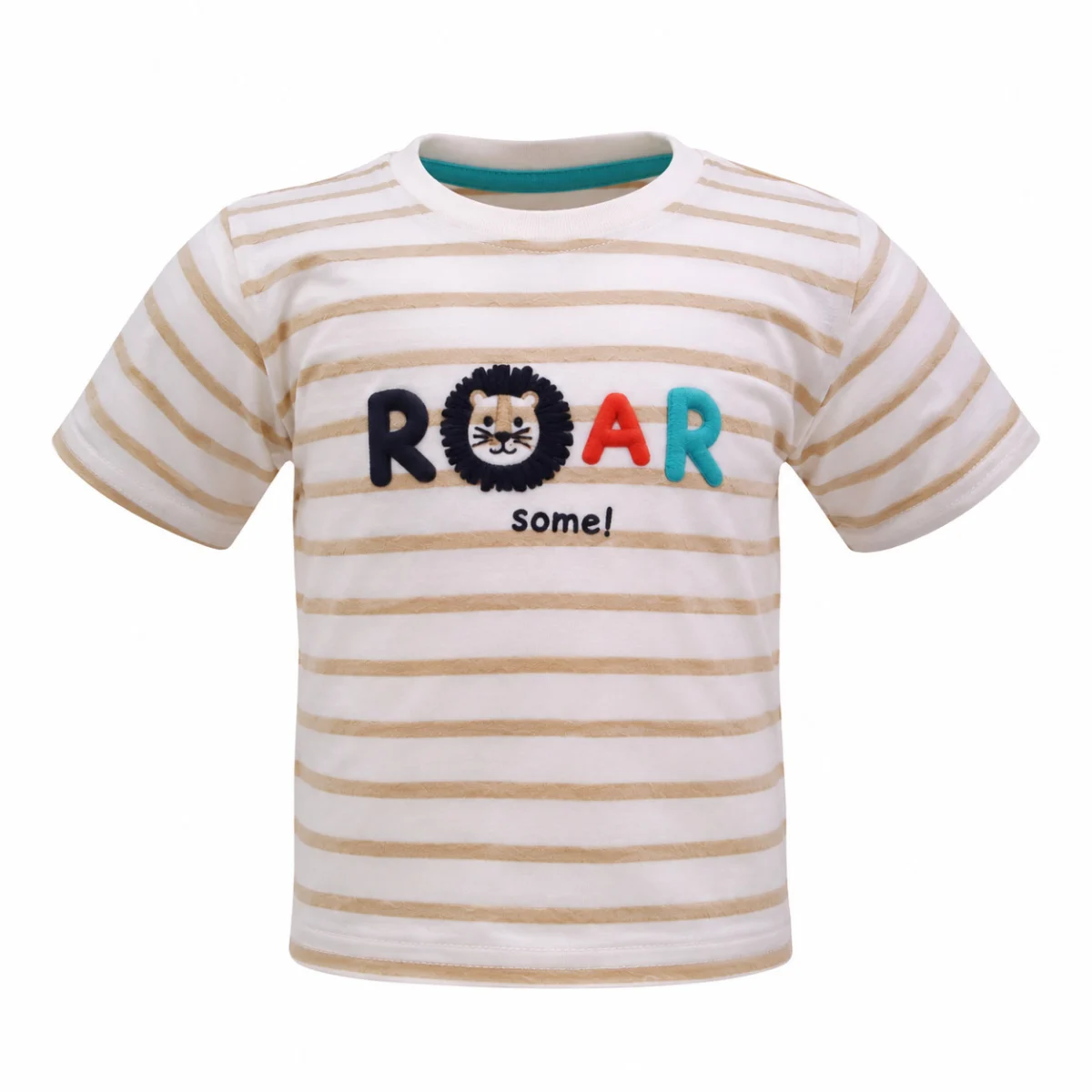
Graphics printed on the product are part of what the buyer receives, so they stay. Text added on top of the photograph is different: price callouts, “best seller” badges, size claims, phone numbers and offer banners. Keep the main image free of all overlays, and confirm in your panel notes whether secondary images allow any text before adding infographic-style frames there.
If your supplier photos are unusable, a fresh shoot with consistent lighting solves the problem across the whole range. Sellers who need the full catalogue redone, including accessories and non-apparel items, can brief our ecommerce photography services team with the panel screenshot and SKU list on WhatsApp at +91-8700258773.
When the colour on screen differs from the garment that arrives, buyers return it as “different from image”, and that return costs more than any rejection. Colour accuracy depends on a calibrated capture, a consistent profile through editing, and a final side-by-side check against the physical product.
Value fashion e-commerce is especially exposed. A mustard kurti that renders as bright yellow, or a maroon saree that turns brick red after a saturation boost, looks attractive in the feed and disappoints at the door. The meesho image quality check may not catch that mismatch, but buyers will, and repeated “colour not as shown” feedback hurts the catalogue far longer than a single flag.

Marketplace apps and most phones display images as sRGB. An image saved in a wide-gamut profile, or with no profile at all, can shift when the app re-encodes it. The International Color Consortium’s sRGB reference explains why web images should be converted to sRGB before export rather than simply tagged.
From the studio floor
Every apparel set at Ckstudio starts with one frame of a grey reference card under the exact light used for the batch, two strip softboxes at 45 degrees plus a large octabox as overhead fill, all at 5500K. White balance is set from that card in Capture One, the profile is converted to sRGB on export, and a retoucher compares five random frames per batch against the physical garment under a daylight lamp before delivery.
Editing should correct, not beautify. Lift shadows in folds, clean lint and stray threads, straighten a collar, but never push saturation to make a fabric look richer than it is. If a dye is genuinely hard to reproduce, such as fluorescent pinks or deep teal, add a close-up detail frame in daylight so buyers see the true tone.
Calibrate the editing monitor at least monthly and review final images on a mid-range phone too, since that is where most Meesho buyers will judge the colour.
A complete apparel set shows the front, back, side, a fabric close-up and the details buyers ask about, such as neckline, sleeve finish or dupatta border. Fill the slots the Meesho image requirements allow with angles that answer fit and finish questions, not with near-duplicates of the front view.
Missing back views and absent fabric close-ups are the commonest gaps we see in supplier catalogues. Buyers in value fashion read images the way they would handle a garment in a market: turn it around, check the stitching, look at the print scale. A set that skips those steps invites returns from buyers who imagined something different.
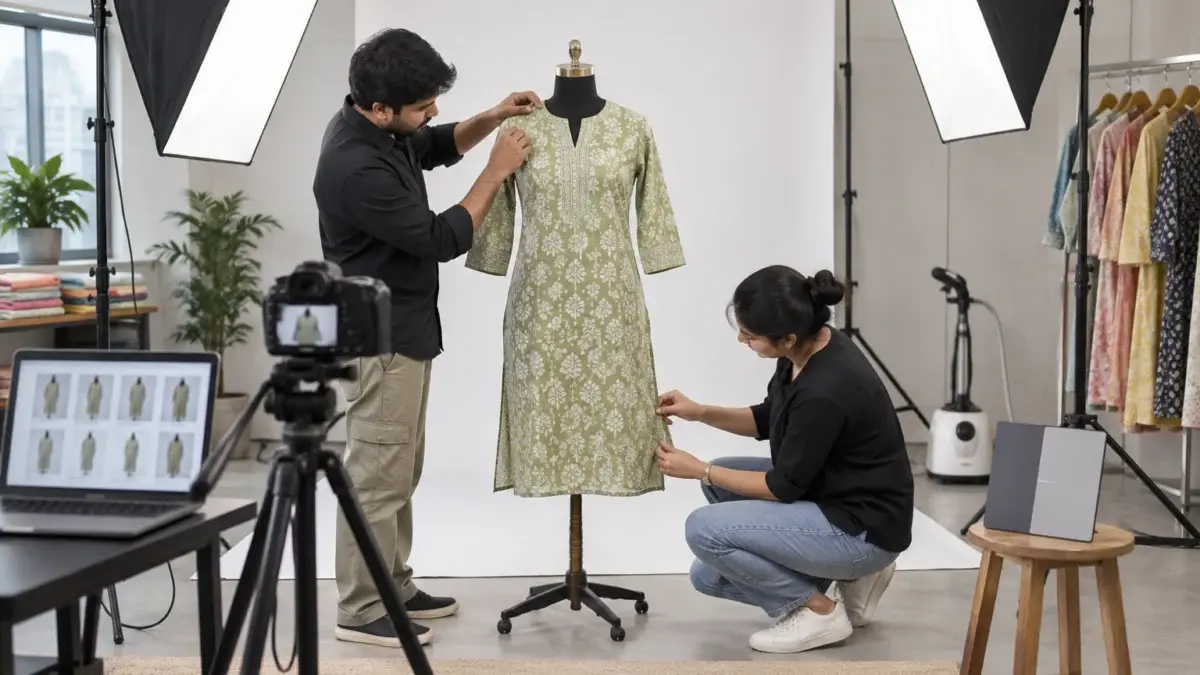
| Frame | What it answers | Studio note |
|---|---|---|
| Front, full garment | Overall look, length, print | Main image; no props, no overlays |
| Back | Back neck, zip or hooks, print continuation | Same light and distance as the front |
| Side or three-quarter | Silhouette, flare, side slits | Pin evenly so the fall looks natural |
| Fabric close-up | Weave, print scale, embroidery | Shot at a raking angle for texture |
| Detail frame | Neckline, sleeve hem, border, buttons | One per notable feature |
| Set components | What is included: dupatta, bottom, belt | Lay each piece visibly; no hidden extras |
Ghost mannequin, flat lay and on-model frames all work on Meesho; the choice depends on category and budget, and we compare them in our post on choosing between flat lay, ghost mannequin and model frames. Whatever style you pick, keep it consistent across a catalogue so the listing reads as one range.
For sellers whose sets keep coming back incomplete, studio garment photography planned around a fixed shot list fixes the gaps at the source rather than patching them one SKU at a time. The short reel below shows how a t-shirt is turned and styled for a marketplace set, angle by angle.
From the studio floor
A standard kurta set at our studio gets 6 frames: front, back, left three-quarter, a fabric close-up with a 100mm macro, a neckline detail and a flat lay of the dupatta. Every garment is steamed for 3 to 4 minutes, clipped at the back with no more than 2 clips per side, and the camera height is marked on the floor with tape so the front and back match pixel for pixel.
Read the rejection reason against your checklist: identify whether it points to frame, background, overlays, duplication or product mismatch, fix that one cause, and re-upload only after checking the rest of the set for the same fault. Re-uploading the same image with a tiny change rarely works.
Rejection notes in the panel are short and sometimes generic. Map them to a cause before you touch the file. A note about image quality often means blur, upscaling or heavy compression; a note about branding or watermark points to marks or stickers; a duplicate or copied-image flag suggests the photo matches another listing; a mismatch note means the image, title and attributes disagree, such as a blue image in a listing whose colour attribute says green.
Keep a simple rejection log: SKU, date, the exact message, the cause you identified and the fix. After two or three batches the log shows which step in your workflow leaks, and you can fix the step instead of the files. When the same message keeps returning on fresh images, email the batch details to [email protected] and the Ckstudio team will tell you honestly whether it looks like an image problem or a listing-data problem.
Meesho image requirements cover the photo, but QC reads it together with the catalogue data. A perfectly lit photo of a three-piece set will still fail if the listing says two pieces, and a correct image can be flagged because the size chart or attribute fields contradict it. Read the rejection note against all of them before you assume the camera was at fault.
Run these ten checks against the Meesho image requirements on every catalogue, in this order, before you open the upload screen. They follow the order in which faults enter the workflow, from planning to export, so a problem caught early does not get copied into forty files.
Example scenario
Example: a supplier prepares a 30-SKU kurti catalogue with 6 frames each, so 180 images. Running checks 1 to 3 before the shoot takes about an hour. Skipping them and discovering a wrong ratio after export would mean re-cropping or reshooting all 180 frames. Catching one leftover sticker in check 2 saves one angle; catching it at check 6 after editing means a reshoot of that SKU. These numbers are illustrative, not a client result.
This Meesho image requirements list works best printed and pinned near the shooting table. Our team at Ckstudio ticks each item on a batch sheet, and the person who exports is never the person who signs off check 7, so a second pair of eyes always sees the colour. The reel below shows a similar batch workflow for small accessories shot for several marketplaces at once.
Treat the checklist as living. If Meesho updates its guidance, change point 1 first, then adjust the later checks that depend on it, and note the date of the change on the sheet.
Edit when the fault is cosmetic and the source file is strong: a crop with margin, a dust spot, a slight colour cast. Reshoot when the fault is in the capture itself: low resolution, missing angles, wrong frame, harsh uneven light or a mark on the product.
Suppliers often spend more on repeated editing rounds than a clean reshoot would cost, because each round fixes one symptom and exposes the next. A quick decision table keeps the call objective.
| Problem | Edit is enough | Reshoot is better |
|---|---|---|
| Frame ratio wrong | Original has wide margins | Garment fills the original edge to edge |
| Resolution low | Never; resizing adds no detail | Always at native size |
| Colour off | Mild cast, grey card frame available | Mixed lighting, no reference |
| Background uneven | Small shadow near an edge | Visible clutter or patchy light |
| Angles missing | Not possible | Shoot the missing frames under the same light |
| Watermark or sticker | Only if it is your own removable mark | Supplier or wholesaler marks |
For meesho catalogue photography at volume, a consistent studio setup, which is how Ckstudio runs every batch, is what keeps the decision on the “edit is enough” side. When every SKU is shot under the same light, at the same distance, with the same reference card, a fault becomes rare and easy to isolate, and the Meesho image requirements become easier to meet batch after batch.
If you are weighing whether to keep fixing images in-house or send the range for a reshoot, call Prince on +91-8700258773 with your SKU count and a couple of rejected examples. He will tell you which of the two routes is cheaper for your batch, even if the answer is to keep editing.
The current Meesho image requirements are shown in the Supplier Panel upload form, category templates and help section. Record the ratio, minimum size, file type and category notes from there for each sub-category, because published third-party numbers often disagree.
Use the size and ratio your panel shows for the exact sub-category. Shoot at a native resolution comfortably above that minimum and export without upscaling, so zoom detail stays sharp.
The usual causes are reused wholesaler photos, watermarks or stickers, text overlays, blurry or upscaled files, a cluttered background, or an image that contradicts the listing’s colour and piece attributes. Match the rejection note to one cause and fix the whole set.
Keep the main image free of added text, badges, prices and logos. Check your category notes in the panel before adding any text to secondary images. Prints that are physically on the product are fine.
Fill the slots the panel allows with useful frames: front, back, side or three-quarter, a fabric close-up and key details such as neckline or border. Avoid near-duplicate front views.
Edit cosmetic faults when the source file is strong. Reshoot when resolution, framing, lighting, missing angles or product marks are the problem, because editing cannot add detail that was never captured.
Clean images will not fix pricing or data errors, but they remove the most common reason a Meesho catalogue stalls. Use the checklist, verify the Meesho image requirements in your own panel, and keep a rejection log so each batch is easier than the last. For a quote on a reshoot, email [email protected] or message +91-8700258773 on WhatsApp.
Next step: once your pre-upload checks pass, read our Meesho product photography requirements guide to plan the shoot style for your whole range.
Ckstudio shoots apparel and accessories for ecommerce brands selling on Meesho, Flipkart and Myntra, to the frame and colour you specify. Share your SKU list and panel screenshot and we will plan the angle set with you.
Call Prince: +91-8700258773