Fashion Photography Services

E-commerce Photography
Read the Remark column, find the real cause and re-upload only the rows that failed, without reshooting styles that already passed.
An AJIO catalogue QC rejection rarely means your product is the problem; it usually means one image, one dropdown value or one size row did not match what AJIO’s checks expect. This guide sits under our AJIO seller hub, which covers registration, image rules and business models, and it focuses on one job: turning a rejected file back into a live listing.
At Ckstudio we shoot and prepare fashion catalogues for brands selling on AJIO, Myntra and Flipkart, and the same handful of errors keeps returning in rejected sheets. Prince, founder and lead photographer, has organised them below in the order a seller meets them: the Remark column first, then images, then attributes, size charts and variation structure. Each section tells you what the remark usually means, what to change, and whether you need a reshoot or only a sheet edit.
In this guide
Download the rejected file from your upload history and read the Remark column row by row; each remark names the field or file that failed. Fix only those rows, keep the style codes unchanged, and re-upload the corrected rows instead of the full sheet.
The process is documented in the Fynd Konnect AJIO listings FAQ, which tells sellers to download the rejected file and check the Remark column when a listing fails QC. Fynd is an integration partner within the Reliance ecosystem, so treat its wording as close to official, but always confirm the current template inside AJIO Seller Central before you edit.
Copy the rejected rows into a new tab and add one column called Fix type. Every remark falls into one of three buckets: sheet-only (a dropdown value, a duplicate size or EAN, a blank mandatory column), file-only (a broken image link, wrong ratio, file too heavy) or reshoot (a missing angle, a creased garment, a detail frame that does not show the fabric). This one column decides your cost: sheet-only fixes take minutes, file-only fixes take an editor, and reshoots need the sample back in a studio.
Fynd’s AJIO error-resolution guide, a third-party document, lists auto-QC remarks such as a repeated Standard Size within one style, a repeated EAN, a brand value typed instead of picked from the dropdown, and image URLs that are corrupt, password-protected or pointing to a folder. It names Amazon S3, Google Drive and Dropbox as accepted link hosts. If your remark mentions an image URL, test each link in a private browser window first; a Drive link shared as “restricted” is the commonest cause we see.
Repeat rejections almost always come from editing the master sheet and re-uploading everything, which resubmits rows that had already passed and occasionally creates duplicates. Work from the rejected file itself, keep style codes and EANs untouched unless the remark names them, and log each fix with the date. That log becomes your checklist for the next season’s upload.
Timing matters too. The hub notes roughly five days of Auto QC followed by about five business days of Manual QC, so a careless re-upload can cost close to two weeks of selling time. Spending one extra hour on the Remark column is far cheaper than another full QC cycle on an AJIO catalogue QC rejection you could have closed the first time.
Images fail when they break the portrait 1:1.25 frame, sit outside the file-size band, crop the garment too loosely or carry text, watermarks or price tags. One failed frame can hold back the whole style, so every file is checked before export.
The table below summarises the image rules published on our AJIO hub, compiled from AJIO’s image guidelines and Fynd seller documentation. Rules change between seasons, so confirm each value against the category template you download from Seller Central; if a value differs, the template wins.
| Rule | What AJIO asks for | Typical rejection cause | Fix |
|---|---|---|---|
| Aspect ratio | 1:1.25 portrait, over 1000 px on both sides | Square 1:1 files reused from Amazon | Re-crop from the original to 1600 × 2000 px |
| File size | 200 KB to 1 MB | Uncompressed exports above 1 MB | Compress per file, recheck sharpness at zoom |
| Format | 72 dpi JPEG or PNG | WEBP or HEIC uploads | Export sRGB JPEG |
| Fill | 80–85% on main angles, 100% on detail | Too much empty background | Tighter crop, keep head cropped at nose base if needed |
| Background | Any light colour, white included | Mixed tones within one style | One light tone across the batch |
| Overlays | No URLs, promo text, price tags, watermarks | Studio watermark left on finals | Export clean finals separately from proofs |
A frame that looks balanced at full size can still fail fill rules because AJIO’s grid shows a narrow portrait tile. The usual culprits are full-length shots with large white space above the head, feet cropped awkwardly, and garments shot from too far back so the print turns into noise. For topwear, crop to the garment; for kurta sets and dresses, keep the hemline inside the frame with a small margin.
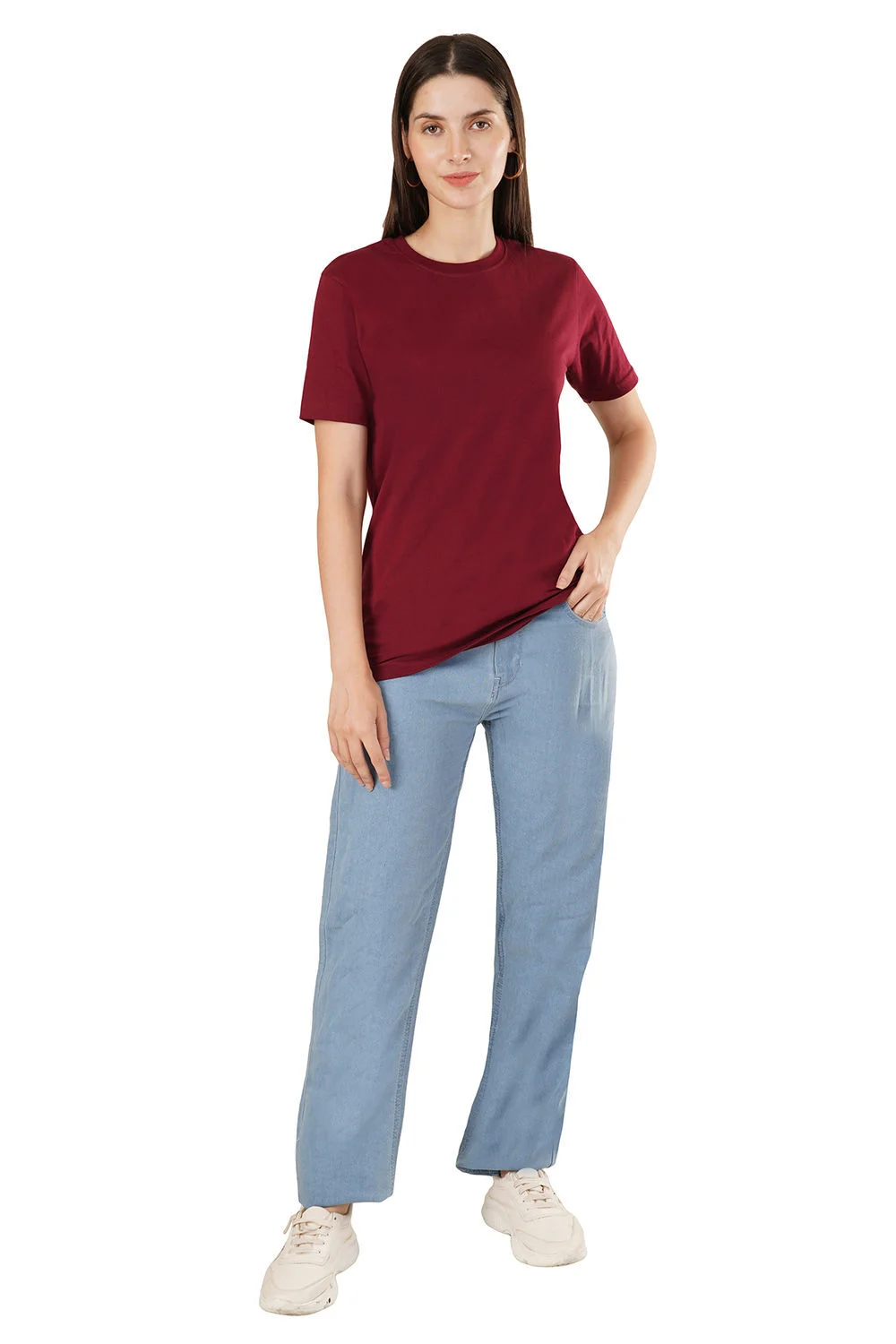
Mannequin and ghost shots cause a separate rejection: they cannot lead the gallery for apparel. Ghost mannequin photography is still useful for structure and fit, but when a seller’s only first image is a hollow-man shot, the fix is to add an on-model front and move the ghost frame further down the gallery.
From the studio floor
For AJIO batches we shoot at a fixed camera height on a 24–70mm lens around 50–70mm, with two strip softboxes at 45 degrees and a large octabox front fill on a light grey seamless. Finals are exported at 1600 × 2000 px in sRGB, and each file is checked for weight against the 1 MB ceiling before it leaves the editing desk. Proofs carry a watermark; finals never do.
For apparel, front, side, back and a detail frame are expected for every style, and a missing angle is a common reason for rejection. The detail frame must fill the image with fabric, print or embroidery, not a zoomed crop of the front shot.
Sellers often upload three frames and assume the gallery is complete; at Ckstudio this is the gap we find most often when a brand shares a rejected e-commerce sheet. The remark then points to images, but the real cause is the shot list. Third-party guides such as Streamoid’s AJIO seller guide also list missing model shots and missing detail shots among frequent image rejections, so the pattern is consistent across sources, even though the exact wording in your Remark column will vary.
Cropping a front image to the neckline produces a soft, pixel-stretched file that fails sharpness checks and answers none of a buyer’s quality questions. A proper detail frame is shot separately with the camera close to the garment, the light raking across the weave, and focus on stitching, embroidery or print edges. That is the image that reduces “fabric looks different” returns later.
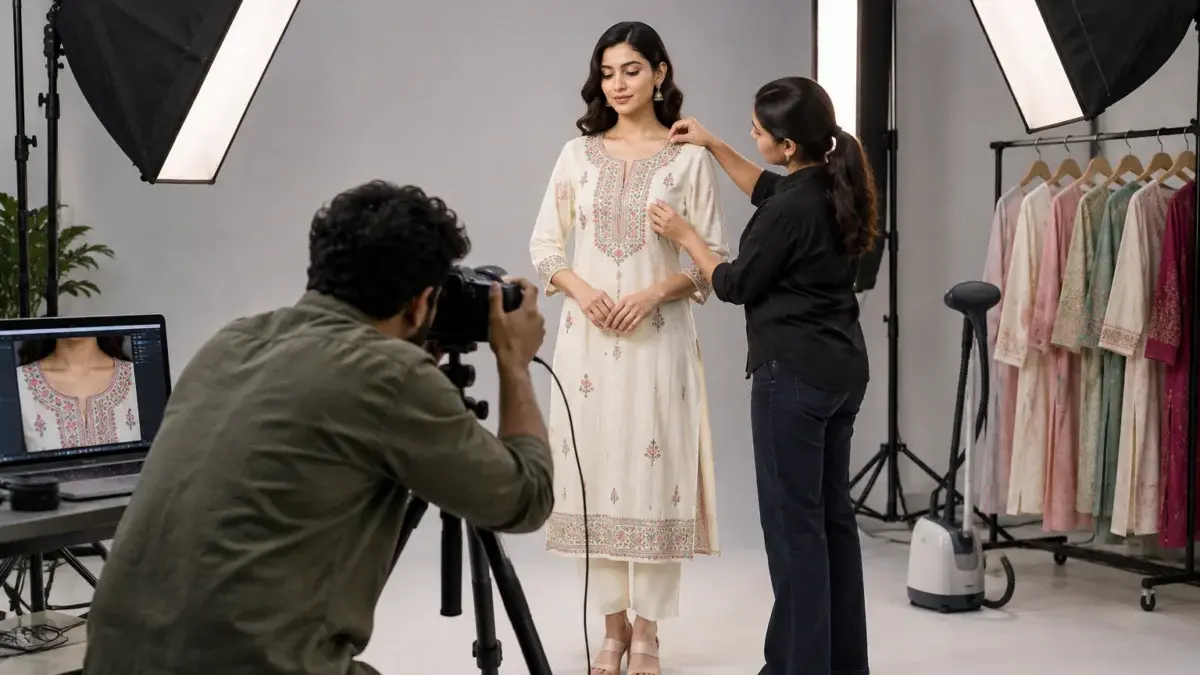
If your gallery fails for missing angles, the fix is a complete angle set shot in one sitting so lighting and colour match. A garment photography session planned around AJIO’s angle list solves it at the source, while styles that need fit and drape shown on a body benefit from on-model fashion photography with consistent poses across sizes and colours.
Watch how a marketplace shoot is organised angle by angle in this behind-the-scenes video; the same discipline of fixed positions and repeatable light is what keeps a gallery complete for every style code.
From the studio floor
Our AJIO apparel shot list per style is five frames: on-model front, side at 90 degrees, back, a three-quarter walk or styling frame, and one macro detail on a 100mm lens at f/8 with a strip light raking from one side. Garments are steamed twice, once on arrival and again on the stand, because creases flagged at QC usually come from folds set in transit.
Attribute columns must use the template’s dropdown values, and they must match what the images show. A typed value, a blank starred column or a colour that contradicts the photo is enough to send the row back.
AJIO’s category templates mark mandatory columns with a star, and most take dropdown values for fabric, fit, pattern, sleeve, neckline and occasion. Rows fail when sellers paste values from another marketplace’s sheet, for example “Regular Fit” where the AJIO list says “Regular”, or “Poly Cotton” where the dropdown expects a specific blend term. The fix is mechanical: open the template’s validation list and pick the exact value.
Colour errors are the attribute rejection that photography directly causes. A navy kurta shot under warm light looks purple on screen, the cataloguer types “Purple”, and either QC or the buyer catches the mismatch. Shooting with a colour checker card in the first frame of every set and correcting to it keeps the image and the colour attribute aligned.
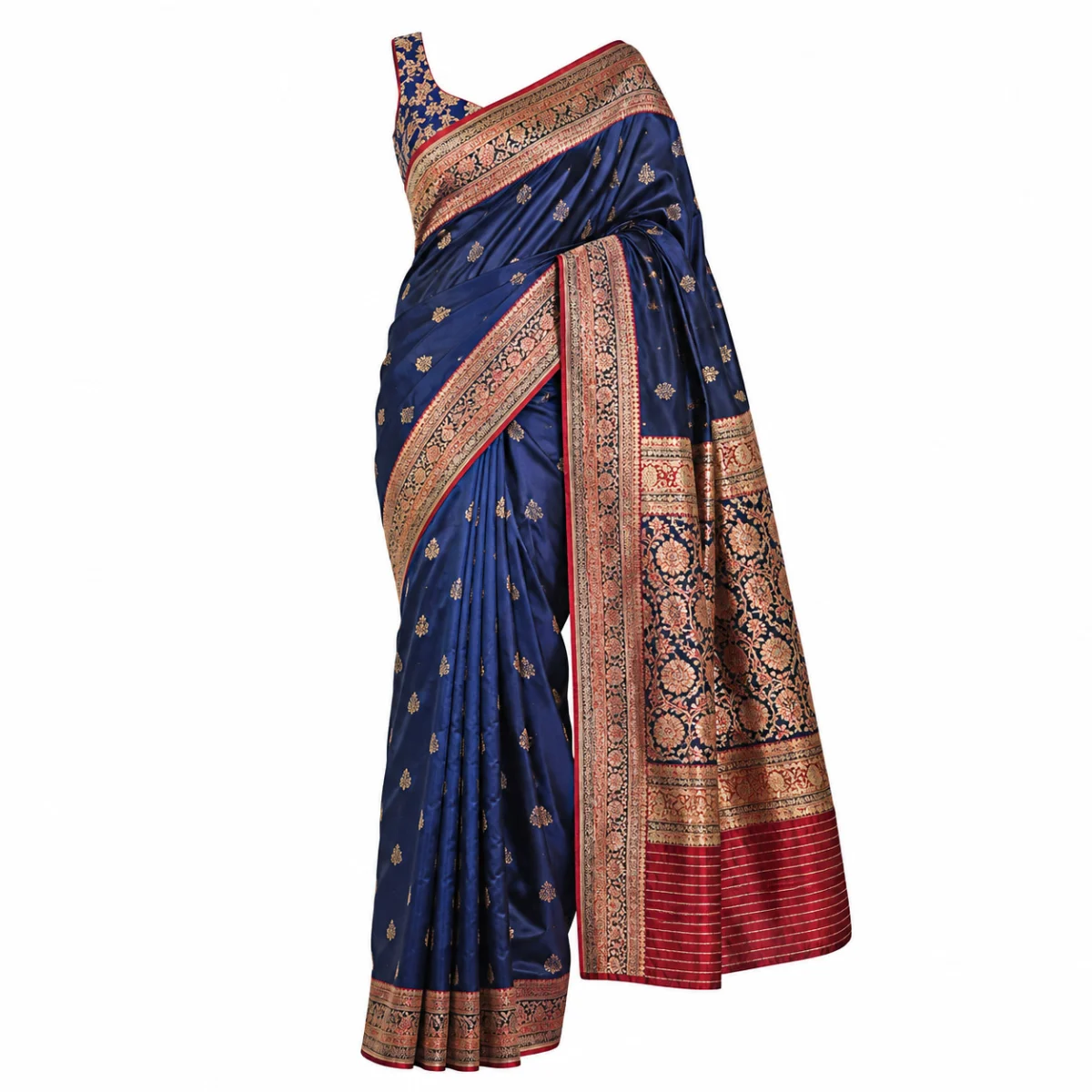
Multi-colour garments need a rule your team follows every time. Decide the primary colour from the largest visible area of the front image, and record print or border colours in the secondary colour or description fields where the template offers them. When Ckstudio prepares ajio fashion attributes for an ecommerce batch, the stylist and the cataloguer agree on that primary colour while the garment is still on set.
A “Slim” fit attribute next to a size chart with generous chest measurements is a contradiction that manual QC can flag. Fabric claims need the same care; write “Cotton” only when the care label says so, and never upgrade a blend for marketing. Accurate attributes also feed AJIO’s filters, so a correct value earns visibility as well as approval.
If many rows fail on colour because the images themselves show the wrong tone, an editing pass is not always enough. Reshooting with controlled light is usually faster than retouching each frame by hand, especially for dark fabrics where shadow detail is already lost.
Size charts are rejected when they are missing, incomplete for the sizes listed, or inconsistent with the garment and the fit attribute. Measuring real production samples, not the tech pack, is the safest fix.
Size charts sit in the template as measured values per size, and they power the size buttons and the chart buyers open on the product page. The most frequent ajio size chart error we see is a chart built from intended specifications that do not match the stitched garment; seller-side blogs make the same point. A second common error is a chart covering S to XL while the sheet lists XXL as well.

Example scenario
Illustrative only: a brand uploads 36 kurta styles in five sizes, 180 rows in total. 22 rows come back, 14 for a size chart missing XXL values and 8 for a colour attribute typed as “Off White” instead of the dropdown option. The team measures one XXL sample per style, picks the correct colour value and re-uploads only the 22 rows; no reshoot is needed, and the 158 approved rows are never touched.
Size chart fixes are almost always sheet-only, which is good news for any e commerce team working against a sale deadline. The exception is when the photos contradict the chart, for instance a “relaxed” kurta photographed pinned tightly at the back. Pinning is normal on set, but it must not change the silhouette buyers see, otherwise the chart and the image tell different stories and returns follow.
From the studio floor
On model shoots we note the model’s height and the size worn on the shot sheet for every style, for example a 5 ft 8 in model wearing size M. That note goes to the cataloguer with the images so the description and the size chart agree with what the photo shows, and pins or clips are limited to the back with no more than 1–2 cm of gathered fabric.
Duplicates appear when sizes and colours are not grouped correctly under style codes, so the same size repeats inside one style or one EAN is reused. Each size needs its own EAN, and each colour usually needs its own style code.
Fynd’s error-resolution guide lists a repeated Standard Size within one style and a repeated EAN among auto-QC failures. Both come from the same habit: copying a row to create a new variant and forgetting to change one field. The structure that avoids it is simple: one style code per colourway, one row per size, one unique EAN per row.
| Symptom in the remark | Likely cause | Fix type |
|---|---|---|
| Duplicate standard size | Two rows with size M under one style code | Sheet-only |
| Duplicate EAN | Copied row, EAN not updated | Sheet-only |
| Images repeated across colours | Navy images linked to the black style | File-only or reshoot |
| Brand value not accepted | Brand typed, not picked from dropdown | Sheet-only |
The image side of this problem is subtle. When two colourways share one set of photos, the listing either fails duplicate-image checks or goes live showing the wrong colour. Every colourway needs its own angle set, and file names should carry the style code so links in the sheet cannot point to the wrong folder.
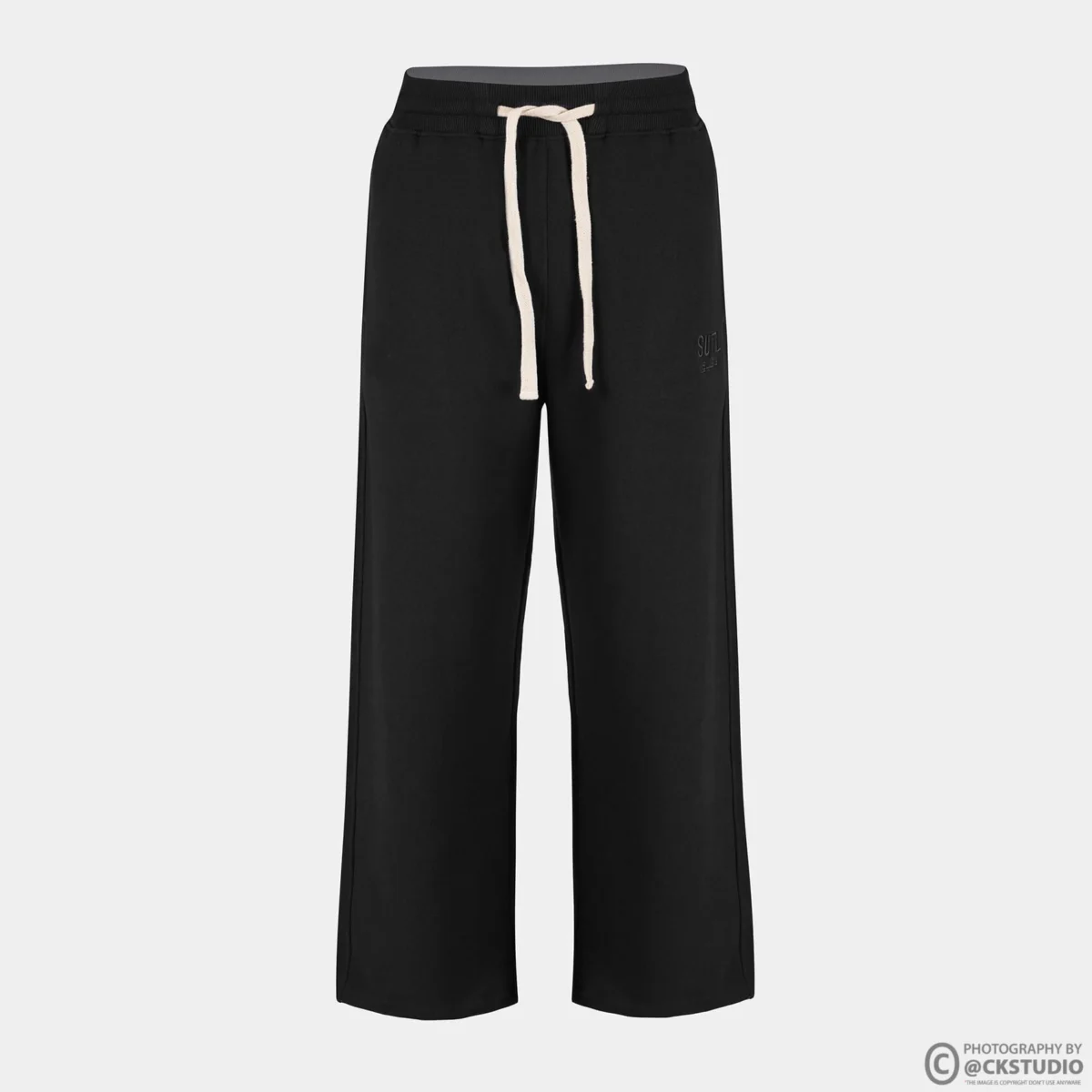
For background on how the catalogue is first set up, including where templates live and how style codes are created, our AJIO seller portal catalogue setup guide walks through the panel step by step. Getting the hierarchy right on the first upload removes most duplicate remarks before they appear.
File naming is the cheapest protection. At Ckstudio we name finals as style code, colour code and angle number, for example a style code followed by “NVY-01” for the navy front, so a cataloguer can see at a glance whether a link in row 40 belongs to the navy or black variant.
Work from the rejected file, fix each row by type, re-upload only those rows and track them under upload history. Then turn every remark into a pre-upload check so the next batch does not fail the same way.
Before you re-upload, the free bulk image resizer handles quick ratio corrections, but it cannot add missing angles or fix colour. For the full image rule set by category, read our AJIO seller image guidelines alongside this checklist.
This short marketplace apparel film shows how a t-shirt is covered from every required angle in one controlled session, which is exactly what prevents missing-angle remarks on the next upload.
If your rejected rows are mostly reshoot rows, send the list to Ckstudio on WhatsApp at +91-8700258773 or email [email protected], and we will tell you which styles truly need new frames and which only need editing. You can also call +91-8700258773 between 10 am and 7 pm.
Download the rejected file from upload history in Seller Central and read the Remark column. Each remark names the field or file that failed, so you can fix and re-upload only those rows.
Photos that look fine can still fail on ratio, file weight, fill or a missing angle. Check each frame against the 1:1.25 portrait rule, the 200 KB to 1 MB band and the front, side, back and detail set.
For apparel, no. Mannequin, ghost mannequin and pack shots should appear later in the gallery, with an on-model or product front image leading the listing.
Measure one stitched sample per size, enter garment measurements for every size listed in the sheet, and make sure the fit attribute matches the ease you measured. Then re-upload only the affected rows.
Only when the remark points to a missing angle, creases, wrong colour or an unusable detail frame. Attribute, size chart, EAN and link errors are fixed in the sheet without a reshoot.
Plan for about five days of Auto QC and around five business days of Manual QC, as summarised on our AJIO hub. Confirm current timelines in Seller Central, since they can change during sale seasons.
Close the loop: log every remark, add it to your pre-upload checklist and brief your studio with the exact angle list before the next batch. Prince and the Ckstudio team are happy to review a rejected sheet with you; reach us on +91-8700258773, WhatsApp +91-8700258773 or [email protected].
Next step: if your rejected rows need new frames, book an apparel catalogue shoot planned around AJIO’s angle set.
Ckstudio has photographed fashion and product catalogues since 2015 for brands selling on AJIO, Myntra, Flipkart and Amazon. Share your rejected file and we will plan only the frames you actually need.
Call Prince: +91-8700258773